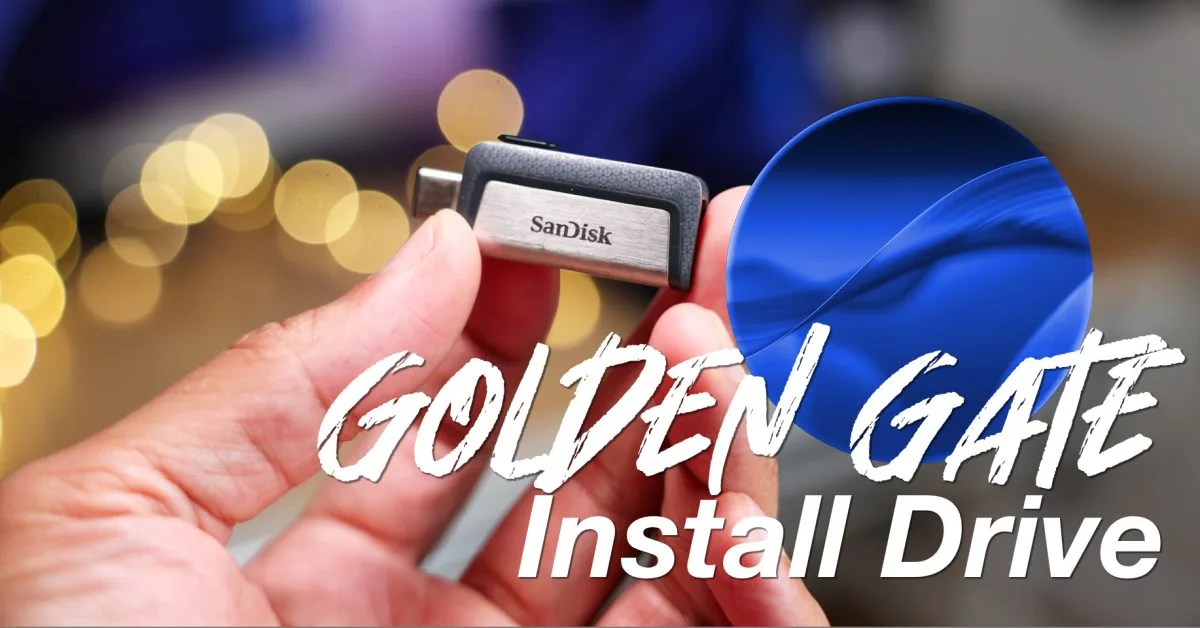
Creating a bootable macOS Golden Gate USB installer is the most efficient way to upgrade multiple Macs without relying on a slow internet connection. While the standard Software Update method works seamlessly for single devices, a dedicated physical drive drastically speeds up mass deployments and provides a reliable offline fallback for clean installations.
This method utilizes native Terminal commands to fetch the official installation package and write it directly to external media. Whether you are deploying the final release or testing the macOS Golden Gate beta on a separate volume, a physical installer ensures you only have to download the massive operating system file once.
Prerequisites
- A blank USB flash drive or portable SSD with at least 16GB of storage capacity.
- Administrator privileges on your current Mac to execute system-level commands.
- A stable internet connection to download the initial macOS installer package.
How to Create the macOS Golden Gate USB Installer
- Run the list command in Terminal to find available macOS versions.
This ensures you identify the exact version number needed for the download, especially if you are targeting a specific beta release.
softwareupdate --list-full-installers- Fetch the full installer by executing the download command with your desired version number.
This downloads the complete installation package directly to your Applications folder rather than just running an over-the-air update.
softwareupdate --fetch-full-installer --full-installer-version 27.0- Navigate to the Applications folder, right-click the downloaded installer, and select Show Package Contents, then open Contents followed by Resources.
This grants access to the hidden internal files, specifically the installation creation tool. - Type the superuser command in a new Terminal window followed by a single space.
This prepares the Terminal to execute the upcoming command with the necessary administrator privileges.
sudo- Drag the createinstallmedia file from the Resources folder into the Terminal, then type the volume flag followed by a space.
This automatically inputs the complex file path into the command line, preventing manual typing errors.
--volume- Format your connected USB drive using Disk Utility to Mac OS Extended (Journaled).
This is a strict requirement, as the creation tool cannot write the bootable installer to drives formatted with APFS. - Open the Go To Folder menu in Finder, type /Volumes, and press Return.
This reveals all currently mounted drives on your system, making it easy to locate your newly formatted USB drive. - Drag your USB drive icon from the Volumes folder directly into the Terminal window.
This appends the final target destination path to your command, completing the required syntax. - Press the Return key, enter your administrator password, type 'y', and press Return again.
This authorizes the system to completely erase the USB drive and begin writing the bootable macOS installation files. Grant Terminal access to the removable volume if prompted. - Wait for the installation process to purge the drive and copy the required files.
This process takes a few minutes to complete, after which you can safely eject the disk for future use.
The Strategic Advantage of Physical Installers for Beta Testing
While Apple’s over-the-air Software Update mechanism is seamless for standard users, relying solely on it for major beta releases like macOS Golden Gate introduces unnecessary risk. If a beta update fails mid-installation or corrupts the local recovery partition, a cloud-based network recovery can be agonizingly slow or fail entirely due to Wi-Fi authentication protocols on enterprise networks.
Having a physical macOS Golden Gate USB installer bypasses these network dependencies, providing an immediate, offline fail-safe. Furthermore, as the source suggests, installing beta software on a separate APFS volume is the safest approach. A dedicated USB drive streamlines this process across multiple machines, ensuring you can rapidly deploy or roll back test environments without saturating your local bandwidth with repeated 12GB+ downloads.