macOS Mojave introduced dynamic wallpapers that shift from day to night, but Apple only includes one out of the box. If you are tired of the default desert sand dunes, you can create custom dynamic wallpapers on macOS Mojave using your own photos or illustrations. While the operating system handles the transitions automatically, building the actual wallpaper file requires specific image preparation and the right third-party tools.
The most difficult part of the process is gathering the right images. You do not have to use traditional landscapes; original graphics or illustrations work perfectly as long as they represent different times of day. To ensure your custom dynamic wallpaper transitions smoothly without jarring visual glitches, your image set must meet strict criteria before you begin compiling.
Checklist for Preparing Your Images
Before uploading anything, verify that your image sequence is properly formatted. Mixed sizes or slight camera movements will ruin the illusion of a passing day.
- Resolution and aspect ratio: Every image in the set must share the exact same resolution and aspect ratio to prevent cropping issues during transitions.
- Consistent framing: If using photos of a skyline or window view, the camera position must remain identical. Shoot a time-lapse from a tripod to guarantee perfect alignment.
- Minimum image counts: Use exactly 2 images for a Light/Dark Appearance wallpaper. For a full-day transition, use at least 2 images, though 4 to 8 images will provide noticeably smoother shifts.
- Order images chronologically: Name your files numerically (e.g., 1, 2, 3) starting with early morning and ending with night to make time-assignment easier.
- Practical ways to build a set: Capture the same scene across a single day, or edit one well-exposed base image into progressively lighter and darker variants using a photo editor.
- Shooting for Solar/Sun mode: If you want transitions tied to real sun positions, ensure your camera logs GPS and timestamp data in the EXIF metadata, or be prepared to enter it manually.
Choosing the Right Wallpaper Mode
Selecting the wrong transition mode is the most common reason custom wallpapers fail to behave as expected. You must choose your mode before picking a creation tool, as not all apps support every option.
- Time mode: Images switch at exact clock times that you set manually (e.g., 6:00 AM, 6:00 PM). This is purely clock-driven and works predictably anywhere in the world.
- Solar/Sun mode: Images change based on the real position of the sun for your specific location, accounting for sunrise, sunset, and seasonal changes. This produces the most natural-feeling transitions.
- Appearance mode: The simplest option uses exactly two images. It switches automatically when macOS toggles between Light Mode and Dark Mode, ignoring time and location data entirely.
How to Build with Dynamic Wallpaper Club
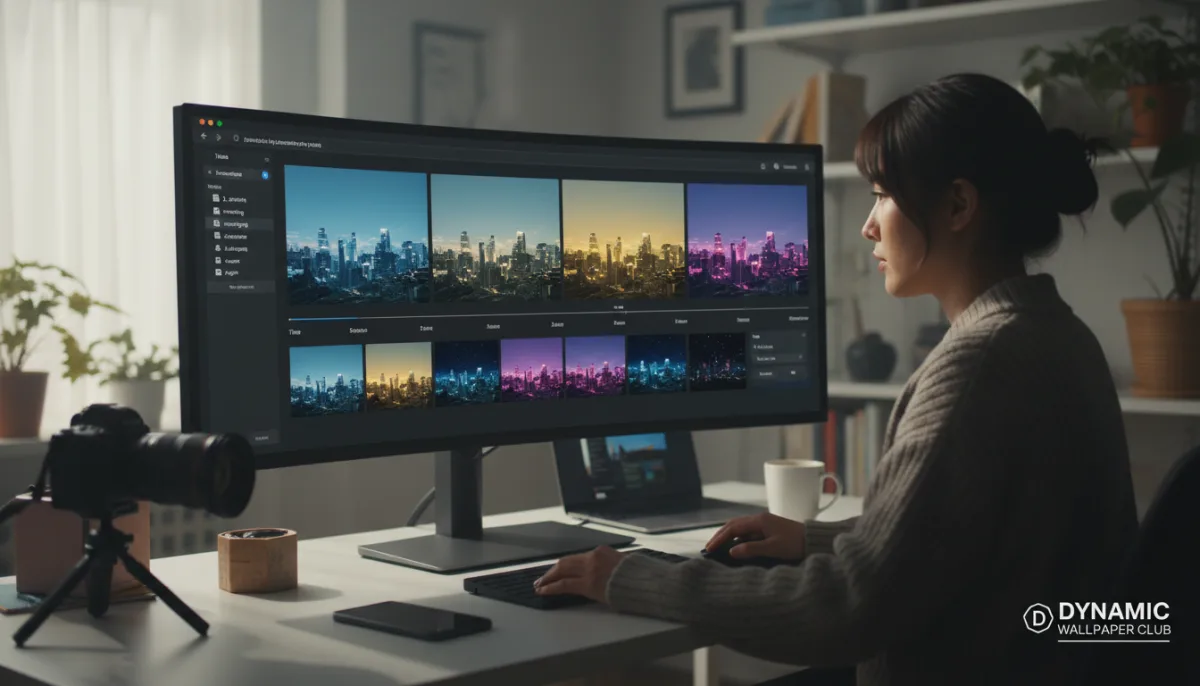
If you want a free, watermark-free web tool, Dynamic Wallpaper Club is the easiest starting point. Note that you must create an account, and you will need to use Safari to successfully download the final file. Ensure all your images are placed in one folder and are under 15MB each.
Visit the Dynamic Wallpaper Club website and click the Create button. Drag and drop your prepared files, give the wallpaper a name, and select your preferred mode from the left panel. If you choose Time mode, you must manually assign a specific timestamp to each image. If you choose Sun mode, the tool will use location data to map the transitions naturally.
Once uploaded and authorized, click Create. The processing time depends on your image count. When finished, download the file. It will save as an HEIC file, which is Apple’s preferred image container that bundles multiple frames and timing metadata into a single package.
Setting and Troubleshooting Your Wallpaper
To apply your new creation, open System Preferences and navigate to the Desktop & Screensaver pane. Select your downloaded HEIC file. Because dynamic wallpapers do not show a standard preview, it is highly recommended to organize them into clearly labeled folders.
Once set, macOS Mojave handles the transitions entirely on its own. To test if it works, temporarily set your system clock forward a few hours and watch for the frame to change. If the wallpaper appears stuck on a single frame, follow these troubleshooting steps:
- Remove the HEIC file from the wallpaper pane, then add it again.
- Close the Desktop & Screensaver preference pane completely and reopen it.
- Restart your Mac and check the wallpaper again.
- If macOS still treats the file as static, move the.heic file directly into /Library/Desktop Pictures. Files stored in this root directory are more reliably recognized with their dynamic metadata intact.
Offline Alternatives: Equinox and Dynaper
If you prefer not to upload personal photos to a third-party website, there are excellent local alternatives. Equinox is a free, open-source Mac app that processes everything directly on your device. It supports Solar, Time, and Appearance modes, making it the most versatile offline option available.
Dynaper is another native Mac app that offers a straightforward interface for assembling and exporting HEIC wallpapers without requiring an account. Both tools are ideal for users working with sensitive images or those who want to avoid waiting for server-side processing.
The Hidden Power of HEIC Metadata
Apple’s decision to use the HEIC format for dynamic wallpapers is a masterclass in efficient file architecture. Instead of relying on a bloated folder of separate JPEGs and a messy XML configuration file, HEIC neatly packages high-efficiency image payloads alongside complex chronological and GPS metadata. However, this elegance is exactly why troubleshooting can be frustrating; if a third-party tool slightly corrupts the metadata during export, macOS silently defaults to treating it as a static image.
The reliance on web-based tools like Dynamic Wallpaper Club highlights a gap in Apple's native ecosystem. While macOS Mojave introduced the feature, Apple never provided a first-party utility to create these files, leaving it to the open-source community. For privacy-conscious users, local apps like Equinox are not just alternatives - they are essential. Uploading high-resolution, GPS-tagged photos of your home or office window to a remote server poses a subtle but real privacy risk, making offline generation the smartest route for custom desktop aesthetics.
This article was written by AI from reporting by addictivetips.com.