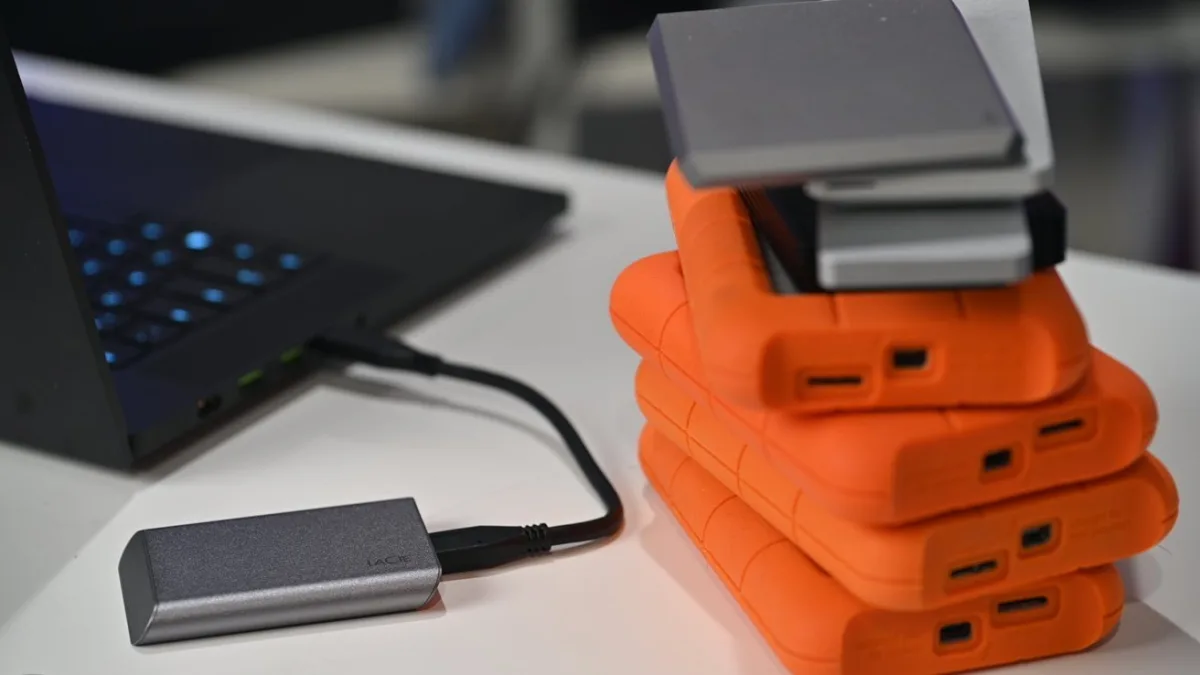
Apple is officially pulling the plug on encrypted Mac OS Extended drives starting with macOS 28, forcing users to modernize their storage or risk losing access to their data. While standard, unencrypted HFS+ volumes will continue to function for now, the deprecation of its encrypted counterpart signals the final phase-out of a file system that debuted in 1998. This update is critical for Mac users relying on older external hard drives or legacy Time Machine backups, as taking action now is the only way to ensure seamless data access in future macOS releases.
According to an updated support page, Apple has been warning users about this transition since macOS 26. The shift pushes users toward the Apple File System (APFS), which was introduced in 2016 and became the default drive format in 2017. If you are using an older drive, you must verify its format and either decrypt it or reformat it entirely before upgrading to macOS 28.
How to Check if Your Drive is Affected
Not all older drives are losing support immediately. The issue exclusively affects disks that are both formatted as Mac OS Extended and actively encrypted. You can verify your drive's status using the built-in system tools.
- Open Disk Utility on your Mac.
- Under View in the Menu Bar, select Show Only Volumes.
- Select the name of the volume in the sidebar.
- Check the details under the name of the volume on the right. If both "Mac OS Extended" and "Encrypted" are visible, your drive is affected and requires action.
Solution 1: Reformatting to APFS
If you do not need to preserve the existing data on the drive, or if you have safely backed it up elsewhere, reformatting is the cleanest solution. Apple recommends formatting the drive to either APFS or APFS (Encrypted).
- Open Disk Utility and select the name of the volume in the sidebar.
- Click the drive icon with an X on it (Erase).
- On the Scheme pop-up, choose a GUID Partition Map.
- Click Format, then select a file system (APFS or APFS Encrypted).
- Enter a new name, then click Erase and Done.
Solution 2: Decryption and Conversion
If you want to retain your data without wiping the drive, you can remove the legacy encryption first, which converts it to a standard Mac OS Extended volume. From there, you can safely convert it to APFS. Note that Apple warns this method will not work for encrypted Time Machine backup disks.
- Connect the drive and enter your encryption password to unlock the volume.
- Control-click the drive's icon on the desktop, then select Decrypt.
- Enter the encryption password again to confirm.
Once the drive is decrypted, your data remains intact, and you can proceed to modernize the file system using Disk Utility.
- Open Disk Utility and select Show Only Volumes under the View menu.
- Select the name of the volume in the sidebar.
- Select the Edit menu in the Menu Bar, then click Convert to APFS. Click Convert to confirm.
- After the conversion ends, exit Disk Utility.
- If you want to re-encrypt the new APFS volume, control-click the drive icon on the desktop, choose Encrypt, and follow the onscreen instructions.
The Security Liability of Legacy Storage
Apple’s decision to kill off encrypted Mac OS Extended drives isn't just about cleaning up old code; it is a calculated security maneuver. HFS+ was engineered in an era of spinning mechanical hard drives, long before the ubiquity of flash storage and modern cryptographic standards. By forcing users onto APFS, Apple is eliminating a legacy encryption protocol that likely requires disproportionate engineering resources to secure against modern vulnerabilities.
Furthermore, this move serves as a clear warning shot for anyone still using unencrypted HFS+ drives: your time is running out. While unencrypted volumes survived this specific culling, maintaining two entirely different file system architectures is inefficient for macOS development. Transitioning to APFS now isn't just about compliance with macOS 28; it is about future-proofing your data against inevitable hardware and software obsolescence.
This article was written by AI from reporting by appleinsider.com.