Managing your laptop's hardware lifespan and power delivery just became significantly easier with the new macOS 26.4 battery features. If you are tired of degrading battery health or wondering why your laptop is charging at a snail's pace, this latest software update introduces built-in tools to solve both problems. Apple has officially brought the popular iPhone-style battery management system directly to the Mac desktop.
This update is essential for MacBook users who keep their devices plugged in for extended periods or frequently rely on third-party power adapters. By giving users granular control over maximum charge levels and transparent warnings about inadequate power delivery, macOS 26.4 aims to prolong hardware longevity. It also prevents frustratingly slow top-ups by explicitly warning you when a charger is underperforming.
How to Set a MacBook Charge Limit
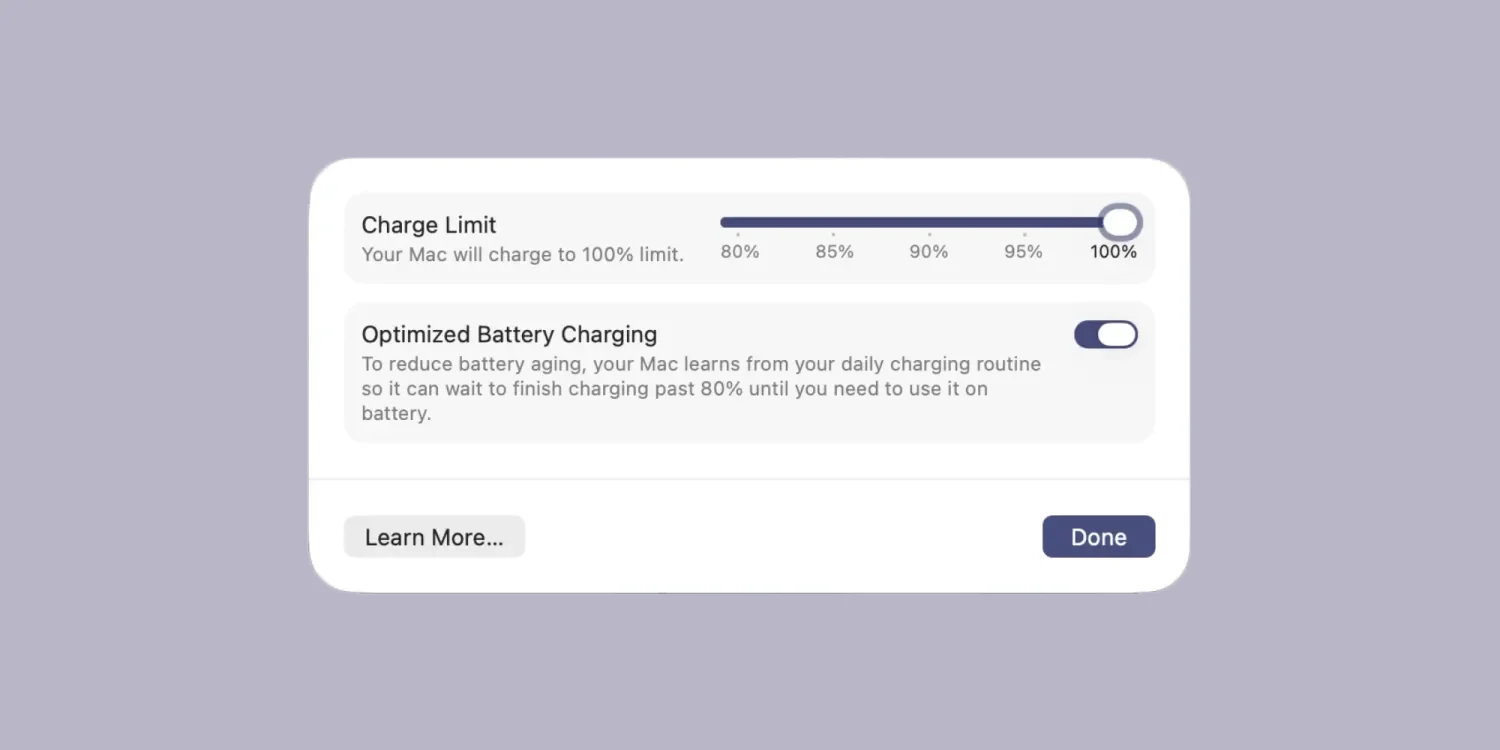
Batteries naturally degrade over time, especially when kept at maximum capacity. To combat this, Apple has introduced a 'Charge Limit' feature that allows you to cap your battery's maximum charge between 80% and 100%.
- Open your System Settings application. This is where all core macOS configurations are located.
- Navigate to the Battery menu. This section houses all power management tools.
- Click the 'i' symbol located next to the 'Charging' status. This opens the advanced charging parameters.
- Select your preferred maximum charge percentage. This ensures your Mac stops charging once it hits the target, preserving long-term battery health.
Per Apple's support document, your Mac will charge to within a few percentage points of your chosen limit and then stop. If the battery level drops more than 5% while still connected to power, the charging process will automatically resume to maintain that limit.
How to Identify a Slow Charger
Another highly practical addition in macOS 26.4 is the 'Slow Charger' indicator. If your MacBook is connected to a power adapter that delivers subpar charging speeds, the operating system will now explicitly alert you.
This warning message appears directly in the battery status menu in your menu bar, as well as within the System Settings. If you encounter this alert, you will need to upgrade your power adapter to achieve optimal charging speeds. According to an official support document, Apple recommends the following minimum wattages for recent models:
- MacBook Neo: Requires a 20W USB-C Power Adapter and USB-C Charge Cable.
- MacBook Air: Requires an Apple 30W USB-C Power Adapter (13-inch only), 35W Dual USB-C Port Power Adapter, 67W USB-C Power Adapter, or 70W USB-C Power Adapter.
- 14-inch MacBook Pro: Requires an Apple 67W, 70W, or 96W USB-C Power Adapter.
- 16-inch MacBook Pro: Requires an Apple 140W USB-C Power Adapter.
Automating Battery Health with Shortcuts
For power users, macOS 26.4 integrates these new battery controls directly into the Shortcuts app. There is a brand-new 'Set Battery Charge Limit' action available for custom scripting.
You can build single-action shortcuts to toggle your charge limit using a custom keyboard shortcut, or integrate it into complex, multi-step routines. This becomes especially powerful when combined with the Automation tab, which was recently added to the Mac version of the app.
Using the Automation tab, you can configure your Mac to adjust its Charge Limit dynamically based on specific triggers. For example, you can set the limit to change automatically based on the time of day, ensuring your battery is fully charged right before you leave for work, but capped at 80% while docked at your desk.
My Take: A Win for Hardware Longevity
The introduction of these battery features in macOS 26.4 represents a significant shift in how Apple handles Mac hardware longevity. By porting the Charge Limit feature from the iPhone to the Mac, Apple is acknowledging that desktop usage patterns - where laptops often sit plugged into monitors for days - require dedicated battery preservation tools. This level of granular control empowers users to actively protect their expensive hardware investments.
Furthermore, the 'Slow Charger' indicator is a brilliant move for consumer transparency. With the proliferation of third-party USB-C hubs, monitors with power delivery, and aftermarket adapters, it is incredibly easy to unknowingly use a charger that underpowers a 14-inch or 16-inch MacBook Pro. By explicitly flagging subpar wattages, macOS 26.4 removes the guesswork from troubleshooting slow charging times.
Finally, integrating these features into the Shortcuts app highlights Apple's commitment to power users. The ability to automate charge limits based on the time of day transforms a static setting into a dynamic, intelligent power management system. This update proves that Apple is still finding meaningful ways to refine the core macOS experience.
This article was written by AI from reporting by 9to5mac.com.