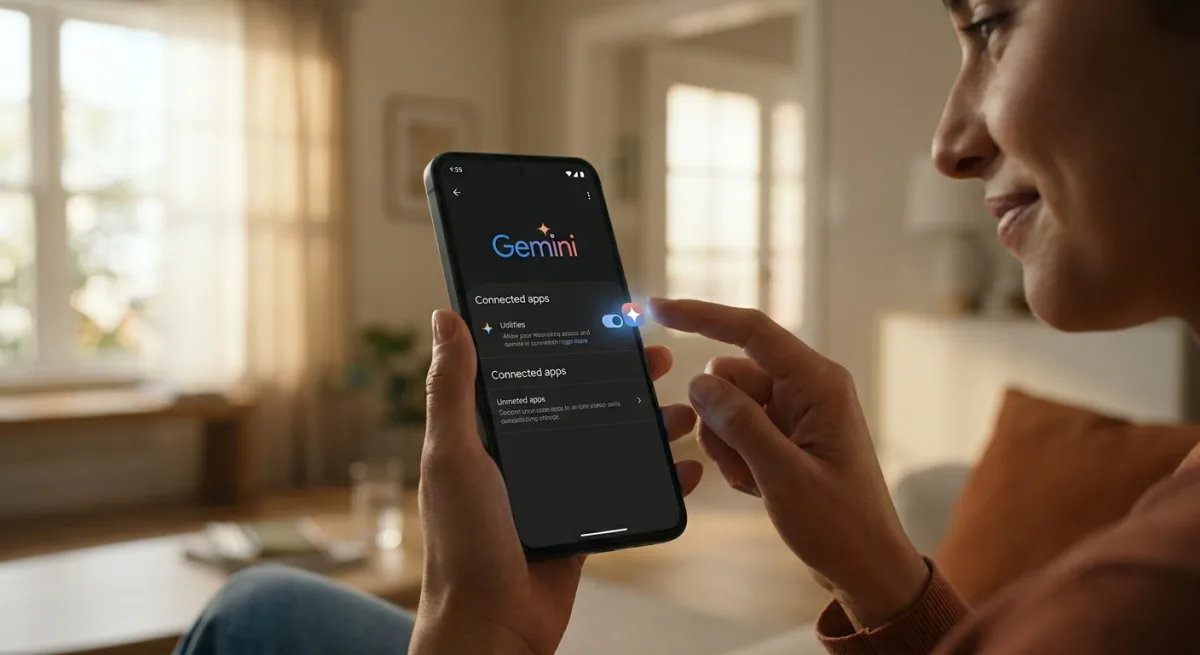
For many Android users, replacing Google Assistant with Gemini has felt like a frustrating downgrade, especially when the AI fumbles basic tasks like setting a timer or turning on the flashlight. The problem is not the AI itself, but rather a critical device control feature that sits disabled by default. By activating the hidden Gemini Utilities extension, you can instantly restore and upgrade your phone's voice command capabilities.
When Google initially pushed its large language model as a daily driver, it excelled at conversational queries but struggled with system-level hardware controls. This disconnect happens because the specific module designed to interface with your phone's settings requires manual permission to operate. Once enabled, the assistant stops acting like an isolated chatbot and integrates deeply into the operating system.
Prerequisites for System Control
- Verify your operating system.
This ensures you are using an Android device, as Apple's strict sandboxing prevents third-party apps from accessing system hardware on iOS. - Update your application.
This ensures you have the latest version of the Gemini app installed from the Google Play Store to access all current extensions.
How to Enable the Gemini Utilities Extension
- Launch the Gemini app on your smartphone.
This ensures you are accessing the local application rather than the web interface, which lacks hardware integration. - Tap the two-line menu icon located in the top-left corner of the screen.
This opens the primary navigation drawer for your account settings. - Select your Profile icon at the bottom and navigate to Settings.
This grants access to the core configuration menu for the AI assistant. - Open the Connected apps menu.
This reveals all the external services and internal modules the AI is allowed to interact with. - Toggle the Utilities switch to the on position.
This enables the AI to control device hardware, manage alarms, and adjust system preferences.
Optimizing the Hands-Free Experience
To make the assistant truly frictionless, you should configure it to work without requiring manual screen interaction. While still in the Settings menu, you can enable Gemini on the lock screen and turn on the "Use Gemini without unlocking" feature. This allows you to fire off voice commands while your hands are occupied, effectively mirroring the old Google Assistant experience.
Furthermore, you can map the assistant to your hardware buttons by shifting from a tap-to-launch setup to long-pressing the power button. Once configured, you can bundle multiple tasks into a single voice command. For example, you can instruct the AI to turn off the Wi-Fi and set an alarm for 7 AM simultaneously, and it will execute both actions without requiring follow-up prompts.
The AI Transition Is Still Clunky
Google's decision to leave the Utilities extension disabled by default highlights a broader issue with the transition from traditional voice assistants to generative AI. By forcing users to dig through settings menus just to regain basic functionality like turning on a flashlight, the company created unnecessary friction that alienated early adopters. The rollout prioritized conversational intelligence over practical, everyday utility.
However, the long-term strategy is becoming clearer with the recently introduced Gemini Intelligence framework. As the AI gains the ability to automate multistep tasks across different apps and build custom widgets, the initial growing pains will likely be forgotten. For now, manually bridging the gap between a smart chatbot and a functional phone controller is a mandatory step for Android users.
This article was written by AI from reporting by makeuseof.com.