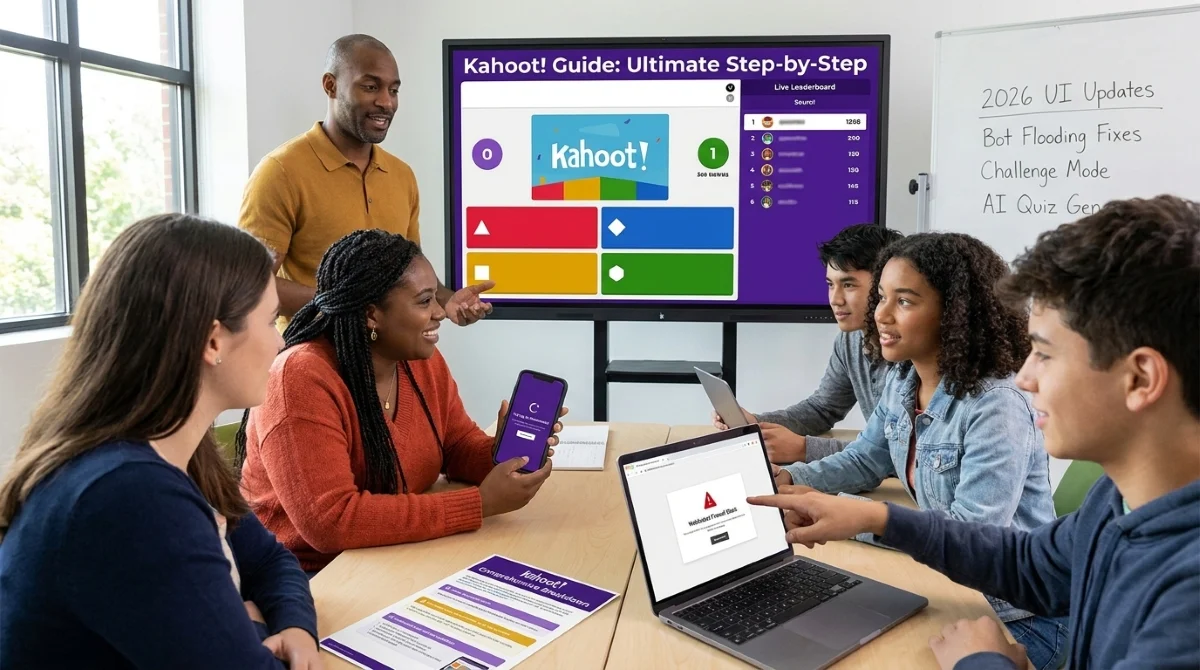
This complete Kahoot! guide solves the most frustrating connection drops and bot spam issues while helping you build highly engaging interactive quizzes. Whether you are a teacher trying to captivate a classroom or a corporate trainer running remote onboarding, mastering this platform transforms passive listeners into active participants. By understanding the latest features and technical workarounds, you can ensure your live sessions run flawlessly without technical interruptions.
With over 1 billion annual players across 200 countries, the platform remains the dominant force in game-based learning. However, the early 2026 UI updates and persistent WebSocket firewall blocks require hosts to adapt their strategies to maintain seamless gameplay. This comprehensive breakdown covers everything from basic setup to advanced troubleshooting, ensuring you are fully prepared for any live event.
How to Play: The Ultimate Kahoot! Guide Step-by-Step
- Open kahoot.it in any web browser or launch the official mobile app. This ensures you are on the correct platform to join a live session without needing a registered account.
- Enter the unique game PIN provided by your host. This connects your device directly to the specific live quiz room.
- Choose a display nickname that complies with the host's filter settings. This identifies you on the live leaderboard while maintaining anonymity if desired.
- Tap the correct answer shape or color as fast as possible once the question appears. This maximizes your score, as points are awarded based on both accuracy and speed.
- Wait for the reconnection screen if you lose your network connection. This prevents you from losing your current score and streak, which happens if you manually refresh the page.
How to Create a Kahoot! for Free
- Sign up for a free account at kahoot.com without entering a credit card. This grants you access to the basic quiz creation dashboard.
- Click the "Create" button and select your preferred question type. This initiates the drafting process for your custom interactive presentation.
- Add your specific questions, answers, and multimedia elements like images or videos. This enriches the learning experience and makes questions significantly harder for AI bots to auto-answer.
- Set a strict time limit per question, ranging from 5 to 120 seconds. This controls the pacing of the game and adds competitive pressure for trivia sessions.
- Save the quiz and click "Play" to generate your live game PIN. This finalizes the setup and allows participants to join your session immediately or via a self-paced Challenge link.
Game Modes and Question Types Explained
To accommodate different learning environments, the platform offers multiple play modes beyond the standard speed-based format. Choosing the right mode is critical for achieving your specific educational or training goals.
- Classic Mode: Speed and accuracy determine the winner in this default competitive format.
- Accuracy Mode: Only correct answers count, eliminating the "fast-clicker" advantage for fair assessments.
- Team Mode: Groups compete together, which is perfect for large classrooms to encourage discussion.
- Confidence Mode: Players wager points based on how confident they feel before answering.
- Challenge Mode: Self-paced gameplay with no live host needed, making it ideal for homework or asynchronous study.
Hosts can also utilize various question formats, including standard multiple-choice Quizzes, True/False binaries, Type Answer for precise recall, Sliders for estimation, Pin Answer for geography, and Puzzle for sequence arrangement.
Pricing Tiers and 2026 Features
The platform operates on a freemium model, with advanced features locked behind subscription tiers. In early 2026, several major updates were introduced to streamline the hosting experience and integrate artificial intelligence.
| Plan | Price | Player Limit | Key Features |
|---|---|---|---|
| Free | $0 | 50 | Basic quiz, classic mode, limited question types |
| Kahoot!+ | ~$3/month | 100 | AI quiz generation, 55+ languages, advanced types |
| Pro | Higher tier | 200+ | Branded sessions, detailed reports, immersive themes |
| EDU / Business | Custom | Unlimited | LMS integration, admin dashboard, team management |
- AI-Generated Kahoots: Automatically create full quiz sets from a topic or uploaded document.
- Controllerless Classic Mode: A streamlined host experience that eliminates the need for additional hardware.
- Immersive Branding Fonts: Deeper customization options for professional and corporate sessions.
- Faster Mobile-First UI: A redesigned interface optimized for smartphones, though it has sparked controversy among desktop users.
Troubleshooting Common Kahoot! Problems
Even the most prepared hosts encounter technical difficulties. Based on reports from official support channels and community forums, here are the verified fixes for the most frequent issues.
1. Players Stuck on "Trying to Reconnect"
This is the most reported issue, especially in school and enterprise networks. The platform uses WebSocket connections for real-time synchronization, which many security firewalls block by default.
- Run the official diagnostic tool at test.kahoot.it. This identifies specific network blocks and latency issues.
- Ask your IT administrator to whitelist the following WebSocket connections. This allows real-time syncing through strict corporate or school firewalls.
wss://play.kahoot.it/cometd
wss://kahoot.it/cometd- Switch to Challenge Mode if firewalls cannot be modified. This mode does not rely on WebSockets and is completely firewall-safe.
- Try using a mobile hotspot instead of the office Wi-Fi. This bypasses the local network restrictions entirely for a quick workaround.
2. App Crashing or Not Loading
- Clear the app cache via your device settings (Android: Storage → Clear Cache; iOS: Offload App). This removes corrupted temporary data causing the crash.
- Restart your device and check for pending updates in the App Store or Google Play. This ensures compatibility with the latest server protocols.
3. "Oops!" Error When Saving a Quiz
- Open your browser DevTools (press F12) and navigate to the Network tab. This prepares the browser to capture the exact network failure.
- Reproduce the error and download the HAR file. This file contains the specific error codes required by the support team.
- Disable any active browser extensions, especially ad blockers. These frequently interfere with the background saving process.
4. Degraded UI Experience (2026 Update)
In early 2026, the r/kahoot community saw a flood of complaints regarding a major UI overhaul. Users reported anxiety-inducing timer bars, compressed images, and a lack of question preview time.
- Switch to Challenge Mode for a less pressured format that mitigates the new UI's aggressive pacing.
- Use Accuracy Mode to eliminate the speed-pressure element entirely.
- Host via the desktop browser instead of the app for a more stable layout experience.
5. Login or Password Recovery Not Working
- Check your spam and filtered email folders thoroughly. This locates misrouted automated recovery emails.
- Try signing in with Google or Microsoft SSO if your account was originally linked. This bypasses the manual password entry entirely.
- Contact [email protected] directly with your registered email if both steps above fail.
6. Kahoot Server Outage
- Check isitdownrightnow.com/kahoot.com to confirm the server status. This verifies if the issue is a global outage or a local network problem.
- Force-refresh your browser using Ctrl + F5 (Windows) or Cmd + Shift + R (Mac). This clears the local page cache and forces a fresh connection.
7. Bot Flooding Your Game
- Enable the friendly nickname filter in the host settings. This automatically blocks bot-generated offensive names.
- Set the quiz to private and share the PIN only verbally. This prevents open-source scripts from scraping public game codes.
- Randomize the question order and use image-based questions. This breaks most pre-loaded answer scripts and significantly lowers AI auto-answer accuracy.
Kahoot! vs. Top Alternatives
While Kahoot! dominates live competitive quizzes, several alternatives offer specialized features that might better suit specific use cases.
| Platform | Best For | Free Limit | Key Difference |
|---|---|---|---|
| Kahoot! | Live competitive quizzes | 50 players | Speed-based scoring, widest adoption |
| Quizizz | Self-paced homework | 100 players | Meme feedback, async-friendly |
| Mentimeter | Corporate presentations | 50 responses | Stronger slide integration, word clouds |
| Blooket | Gamified solo/group study | Unlimited | RPG-style mini-games, card collecting |
Frequently Asked Questions
Is Kahoot! free to use?
Yes. The free plan supports up to 50 players with core quiz features. Paid plans start at approximately $3/month and unlock AI generation, more player slots, and advanced question types.
Why is Kahoot! not working?
The most common cause is a firewall blocking WebSocket connections. Run the diagnostic at test.kahoot.it and ask your IT admin to whitelist wss://play.kahoot.it/cometd and wss://kahoot.it/cometd.
How do I stop bots in my Kahoot! game?
Enable the friendly nickname filter, set your quiz to private, randomize question order, and use image-based questions. These steps block most open-source flooding scripts and reduce AI auto-answer accuracy.
Can players join Kahoot! without an account?
Yes. Players only need the game PIN and a browser. No account, registration, or app download is required to join a live session.
What is the best Kahoot! alternative?
Quizizz is best for async homework, Mentimeter for corporate slide presentations, and Blooket for gamified solo or group study with RPG-style mechanics.
The Future of Interactive Learning
The early 2026 updates reveal a clear strategic pivot for the company. By heavily integrating AI-generated quizzes and pushing a mobile-first UI, the platform is aggressively targeting corporate trainers and casual mobile users, sometimes at the expense of its core educational base. The intense backlash documented on Reddit regarding the new UI highlights a growing friction between modernizing the interface and maintaining the predictable, low-stress environment that teachers rely on.
Furthermore, the ongoing battle against bot flooding and AI auto-answer extensions proves that gamified learning is facing the same cybersecurity challenges as major tech platforms. Hosts can no longer just launch a game and expect it to run smoothly; they must actively manage network settings, utilize image-based questions to thwart AI, and understand firewall configurations. Moving forward, the platforms that succeed will be those that balance advanced AI features with robust, user-friendly moderation tools.