Mastering Google Chat hacks is essential for anyone drowning in endless browser tabs and scattered workplace communications. Whether you rely on Google Workspace for enterprise collaboration or simply use it to stay connected, optimizing your messaging setup can drastically reduce digital fatigue. By implementing a few hidden features and smart integrations, you can transform this standard messaging tool into a highly customized productivity engine.
- Integrate Google Chat directly into your Gmail taskbar to keep everything in one tab.
This eliminates the need to juggle multiple browser windows by allowing you to toggle between your inbox and chat interface seamlessly. Go to Settings > See all settings > Chat and Meet, and select Google Chat. - Install the standalone Google Chat desktop app via Google Chrome.
This enables you to launch Chat directly from your desktop without keeping a dedicated browser tab active, though Chrome must remain running in the background. Navigate to chat.google.com and click the Install icon. - Schedule your Chat messages to be sent at a later, more appropriate time.
This ensures your messages are seen when recipients are actually online, which is perfect for cross-time-zone collaboration or respecting colleagues' out-of-office hours. Click the down arrow next to the Send button to set a custom time. - Configure custom Do Not Disturb periods to mute notifications after work hours.
This protects your personal time and prevents digital burnout by silencing alerts during specific time frames. Access Settings > Notifications > Do not disturb schedules to create a custom routine. - Enable email notifications for unread direct messages and @mentions.
This acts as a reliable safety net, ensuring you never miss critical updates even if you have the Chat app closed or push notifications disabled. Toggle this feature on under Settings > Notifications. - Open multiple conversations in side-by-side pop-out windows.
This allows you to monitor and participate in several active discussions simultaneously without constantly clicking back and forth. Click the Options menu (three dots) and select Open in a pop-up. - Convert actionable individual messages directly into Google Tasks.
This streamlines your workflow by instantly turning chat requests into trackable to-do items within the Google ecosystem. Hover over a message, click the three-dot menu, and select Add to Tasks. - Apply advanced search filters to locate specific messages instantly.
This saves you from endlessly scrolling through chat histories by narrowing down results based on sender, date, attached files, or links. Type your query into the top search bar and select the relevant filter chips. - Disable chat history to automatically delete sensitive messages after 24 hours.
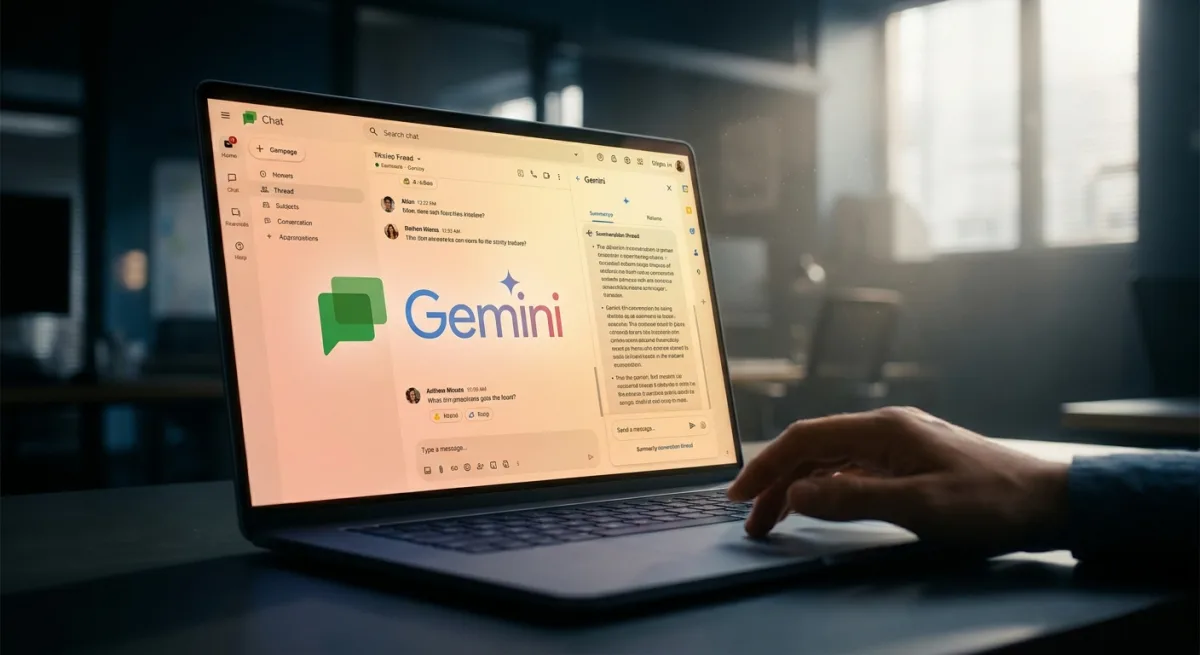
This provides an extra layer of privacy for confidential conversations, functioning similarly to disappearing messages on other platforms. Click the down arrow next to the chat title and select Turn off history. - Generate instant conversation summaries using Google Workspace's Gemini AI.
This drastically reduces the time spent catching up on lengthy threads by providing a concise overview of both read and unread messages. Hover over a conversation in the Home tab and click Summarize.
Beyond Google Chat Hacks: The AI-Driven Future of Workspace Communication
The integration of Gemini AI for conversation summaries highlights a broader industry shift toward automated triage in enterprise communication. As digital workspaces become increasingly saturated with constant pings and sprawling threads, the ability to instantly distill hours of chatter into actionable bullet points is no longer just a luxury - it is a necessity for maintaining productivity.
Furthermore, Google's strategy of deeply intertwining Chat with Gmail and Tasks demonstrates a clear push to build an inescapable, unified ecosystem that rivals Microsoft Teams and Slack. By forcing users to rely on interconnected tools rather than standalone apps, Google is effectively locking enterprise clients into its Workspace environment, ensuring that every task, email, and quick message feeds back into its central data architecture.