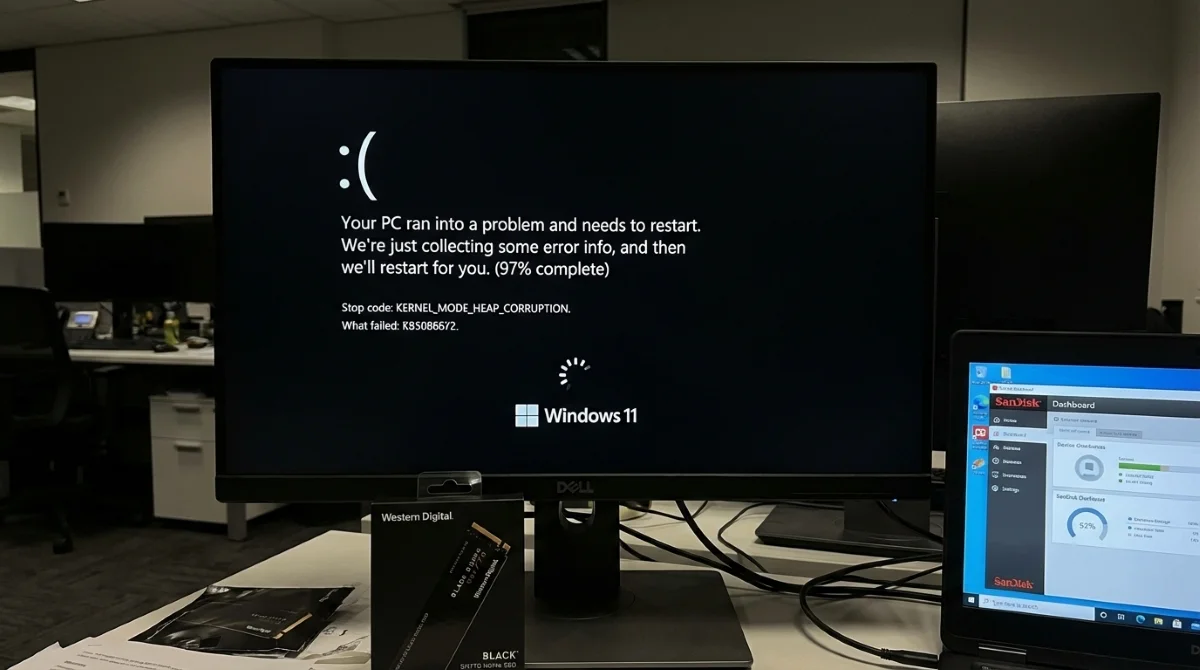
Microsoft's attempt to fix a faulty March 2026 Windows 11 update has triggered a massive new wave of system failures. The replacement patch, KB5086672, is forcing thousands of PCs into infinite boot loops and black screens, completely locking users out of their systems. This critical failure primarily targets machines running Windows 11 24H2 paired with Western Digital Black SN770 NVMe SSDs.
This guide is for Windows 11 users and enterprise IT administrators whose systems are crashing, hanging at 97% during deployment, or failing to boot after the April 1 update. By following these verified recovery methods, you can bypass the black screen, resolve the underlying firmware conflict, and restore full functionality to your PC without losing personal data.
Identifying the KB5086672 Symptoms
According to reports from the r/Windows11 and r/sysadmin communities, affected machines exhibit specific failure patterns. You likely have this problem if you experience any of the following issues:
- Black Screen Hangs: The PC reboots two to three times during installation and hangs on a black screen with a white cursor in the top-left corner.
- Infinite Update Loops: The update appears installed in the overview but keeps re-downloading without the build number incrementing.
- Application Crashes: Apps like Chrome, GIMP, and the NVIDIA overlay crash repeatedly with unhandled system exception or out of memory errors.
- Unresponsive UI: The Settings app becomes completely unresponsive, and enterprise deployments via Intune or Kaseya hang at 97% for hours.
Fix 1: Wait Out the Installation Process
- Leave the computer completely alone for 20 to 30 minutes without touching the mouse or keyboard. This ensures the background installation processes have adequate time to resolve internal conflicts.
- Monitor the system for network connectivity restoration. This indicates that the update has finally bypassed the error state and is loading the operating system.
Fix 2: Update Your SSD Firmware
This is the confirmed root-cause fix for the most severe boot loop cases involving Western Digital SN770 drives.
- Download the SanDisk Dashboard application from the official Western Digital website using a secondary PC if your main system cannot boot. This provides the official utility required to interface directly with the drive hardware.
- Navigate to the Tools menu and select Firmware Update. This allows the software to fetch the latest compatibility patches for your specific NVMe model.
- Install the firmware update for your SN770 drive and restart your PC. This resolves the known hardware compatibility conflict between the SSD and the Windows 11 24H2 architecture.
Fix 3: Run SFC and DISM from Recovery
- Boot into Windows Recovery Options by holding the Shift key while clicking Restart. This grants access to the Command Prompt outside the active OS environment.
- Execute the Deployment Image Servicing and Management tool to repair the component store. This fixes the foundation that the system file checker relies on.
DISM /Online /Cleanup-Image /RestoreHealth- Run the System File Checker utility. This scans and replaces corrupted core OS files damaged by the failed update.
sfc /scannow- Restart your computer normally. This applies the repairs and attempts a clean boot sequence.
Fix 4: Uninstall the Problematic Update
- Press the Win + I keyboard shortcut to open Settings, then navigate to Windows Update and select Update History. This opens the interface where recent system modifications are logged.
- Click on Uninstall Updates and locate KB5086672. This targets the specific patch responsible for the system instability.
- Remove the update and reboot the machine. This rolls the operating system back to its previous stable state. If Settings will not open, perform this action via Recovery Mode under Advanced Options.
Fix 5: Clear the SoftwareDistribution Folder
- Open the Command Prompt with Administrator Privileges. This ensures you have the necessary system rights to modify core update services.
- Stop the update services and delete the cached files using the following commands. This clears the stale or corrupted downloaded files causing silent installation failures.
net stop wuauserv
net stop bits
rd /s /q C:\Windows\SoftwareDistribution
net start wuauserv
net start bits- Navigate back to the Windows Update menu and retry the download. This forces the system to fetch a fresh, uncorrupted copy of the patch.
Other Notable Recovery Methods
- Check Free Disk Space: Ensure your system drive has more than 10 GB of free space, as updates require a significant staging area to prevent silent installation failures.
- Run the Windows Update Troubleshooter: Navigate to Settings, select System, and run the troubleshooter to auto-repair issues. Enterprise users must also verify their WSUS server has synced the April 2026 updates.
- Perform a Clean Install: If Startup Repair and System Restore fail, use the Media Creation Tool from the official Microsoft website to reinstall the operating system as a last resort.
How to Prevent Future Update Failures
- Delay Optional Updates: Configure your Windows Update settings to delay feature updates by at least seven days to avoid day-one bugs.
- Maintain Hardware Firmware: Periodically use manufacturer tools like SanDisk Dashboard or Samsung Magician to keep your SSD firmware current.
- Pause Enterprise Deployments: IT administrators should temporarily pull problematic knowledge base patches from auto-deploy queues in management tools until stability is confirmed.
The Cost of Rushed Deployments
The disastrous rollout of update KB5086672 highlights a systemic flaw in how optional updates are pushed to production environments. The fact that the firmware incompatibility between Windows 11 24H2 and Western Digital Black SN770 SSDs was a known issue for eight months before this patch makes the resulting boot loops entirely unacceptable. Microsoft's failure to implement a hardware block for outdated SSD firmware before pushing the update demonstrates a severe gap in their quality assurance process.
For enterprise administrators using management tools like Intune or Kaseya, the silent hangs at 97% serve as a harsh reminder to never trust optional patches on day one. IT departments must enforce strict deferral policies, delaying non-security feature updates by at least seven days to allow the broader community to beta-test these releases. Moving forward, hardware maintenance - specifically updating NVMe SSD firmware via tools like SanDisk Dashboard - must become a mandatory part of routine enterprise patching schedules, rather than a reactive measure taken only after a system bricks.