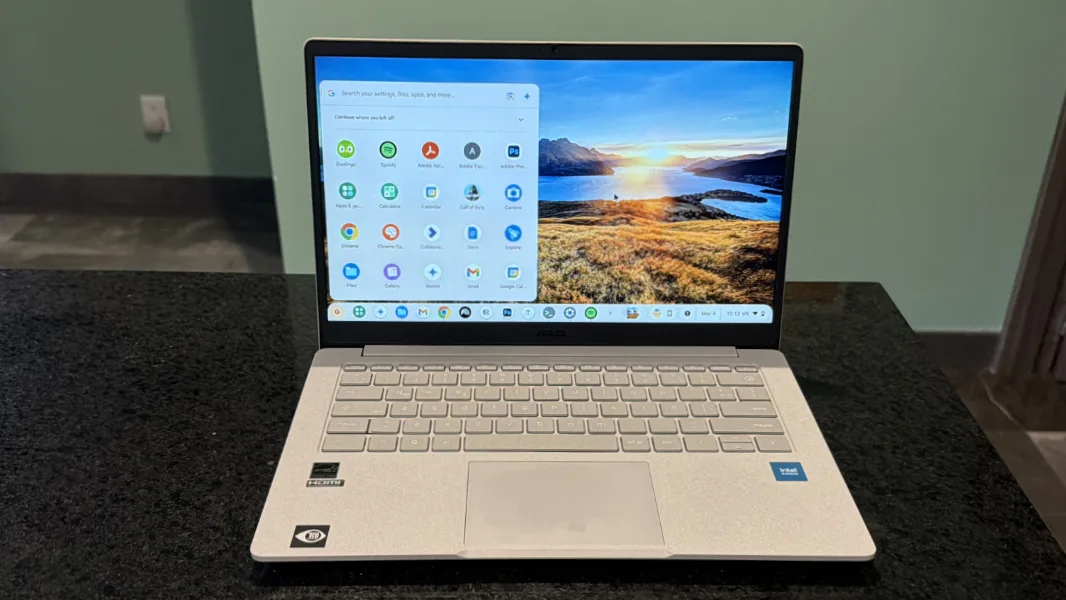
Evaluating ChromeOS in 2026 reveals a surprisingly capable operating system that serves as a legitimate alternative to Windows and macOS. While recent experiences with ChromeOS Flex on older hardware may leave some users wanting more, the native ChromeOS experience on dedicated hardware is a strong contender. This is particularly interesting given the current industry uncertainty surrounding the future of Chromebooks and the potential rise of Android-based laptops.
For users considering a switch from traditional desktop platforms, ChromeOS offers a compelling mix of simplicity, security, and versatility. It is no longer just a basic web browser in a box; it has evolved into a multi-layered platform capable of running web, Android, and Linux applications. This guide breaks down how the operating system performs today, who it is best suited for, and how to navigate its technical quirks.
The Evolution from Netbooks to Chromebook Plus
It may be difficult to believe, but Google announced the Chrome OS open source project over 15 years ago, in November 2009. At the time, Google CEO Sundar Pichai headlined the launch event, riding the massive wave of success generated by the Chrome web browser. Google created the operating system because it could not trust competitors like Internet Explorer and Firefox to meet its needs as the web transitioned into a full-featured application platform.
During the netbook era, developers were already beginning to abandon native apps in favor of web applications like Facebook, YouTube, and Google Docs. ChromeOS was designed to be super-fast, lightweight, and highly responsive on low-end hardware. It offered a dramatically simpler and more secure environment than Windows or Mac OS X, making it highly appealing to education and business sectors.
Under the hood, ChromeOS is based on a lightweight Linux variant, though it is not a traditional Linux distribution. Over the years, Google expanded its capabilities significantly. Today, the platform supports Android apps via the Google Play Store and allows users to install a Linux virtual machine for desktop and command-line applications. Google also introduced the Chromebook Plus specification to ensure higher performance standards, and acquired CloudReady to create ChromeOS Flex for repurposing old PCs.
Hardware Compatibility and Ecosystem Integration
To truly test the platform's modern capabilities, one must experience it on native hardware rather than relying solely on ChromeOS Flex. Testing an inexpensive Chromebook reveals that hardware compatibility is currently in an excellent state. Whether using USB docks, external displays, or Bluetooth speakers, peripheral integration works seamlessly even on low-end, budget-friendly devices.
ChromeOS also shines when integrated into the broader Google ecosystem. The Phone Hub feature provides deep smartphone integration for Android users. It enables automatic tethering, device unlocking, and instant access to recent Chrome tabs and notifications. Users can even stream individual Android apps directly from their phone to the Chromebook display.
For cloud storage, the operating system offers compelling Google Drive integration that allows users to sync and back up individual folders for offline access. Microsoft users are not left behind, as a dedicated OneDrive connector allows seamless access to cloud files. Furthermore, local network shares from a NAS can be accessed directly through the native file manager.
The Software Landscape: Web, Android, and Linux
The software experience on ChromeOS heavily depends on user expectations and daily workflows. The platform is undeniably best for those who already do the majority of their work inside a web browser. Web-based productivity tools like Notion, Microsoft Office online, and creative apps like Photopea or Clipchamp run flawlessly.
For the "last mile" of app compatibility, Android and Linux support step in. While some users may not rely heavily on Android apps, Google's push to optimize them for larger screens makes them highly valuable for casual gaming and media consumption. Meanwhile, Linux compatibility transforms the Chromebook into a lightweight developer machine, easily running robust applications like Visual Studio Code.
However, potential switchers must take stock of their required applications. There are still classic desktop programs that will never run natively on ChromeOS. If your workflow relies on heavy, proprietary Windows or macOS software without viable web or Linux alternatives, the transition may prove difficult.
How to Install Linux Apps on ChromeOS
Installing Linux applications on ChromeOS can sometimes present unexpected hurdles due to missing underlying dependencies. For example, installing the Markdown editor Typora via a.deb package or the command line often fails on ChromeOS, despite working perfectly on standard Linux distributions.
To resolve these dependency issues and successfully install Linux applications like Typora, you must manually update your package list and install the required libraries before installing the app itself. Follow these exact steps in your ChromeOS Linux terminal:
First, update your system and install the necessary dependencies by running the following command:
sudo apt update && sudo apt install -y libnss3 libgtk-3-0 libxss1Once the dependencies are successfully installed, you can proceed to install the application directly from the command line:
sudo apt install typoraAfter executing these commands, the application will launch and function correctly within the ChromeOS environment. This method can be adapted for other Linux applications that fail to launch due to missing GTK or NSS libraries.
File System Quirks and Limitations
Despite its overall simplicity, ChromeOS suffers from frustrating complexities regarding its file system, specifically concerning Linux integration. Because the Linux virtual machine operates within a secure sandbox, the ChromeOS and Linux file systems are kept strictly separate.
Google provides a single "Linux files" entry point within the native Files app, which maps to the user's home folder in Linux. While this allows for basic file copying back and forth, it is tedious. Users lack full, seamless access to the Linux root file system, making tasks like installing custom themes or fonts unnecessarily complex and reliant on command-line knowledge.
Worse still, ChromeOS does not allow users to set a Linux application as the default program for specific file types. You cannot simply right-click a document in the Files app and select "Open with" to launch a Linux app like Typora. Instead, the system forces you to choose from compatible web or Android applications, breaking the fluidity of the desktop experience.
A Familiar Desktop Interface
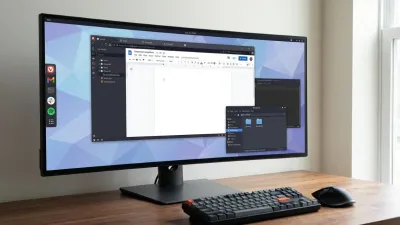
When Google first previewed ChromeOS in 2009, the interface was little more than a browser window with tabs. Today, it has evolved into a highly familiar desktop environment that any Windows user will understand immediately. It features a Start button equivalent, a Taskbar, and standard window management controls for resizing and snapping applications.
System settings are easily accessible via a Quick Settings panel, a design concept that Microsoft actually borrowed and integrated into Windows 11. Tapping the "G" key on the keyboard opens the app launcher, while a dedicated search key replaces the traditional Caps Lock button.
This bidirectional exchange of design ideas ensures that the learning curve for ChromeOS is incredibly shallow. In many ways, transitioning to ChromeOS is less daunting for a Windows user than moving to macOS.
The Shift Toward Android-Based Laptops
The most significant shadow hanging over ChromeOS today is the uncertain future of the platform itself. Recent industry developments suggest that Google may eventually augment or replace Chromebooks with a new generation of Android-based laptops. If this transition occurs, it remains unclear whether these new devices will offer the same full-featured, desktop-class Chrome browser experience that makes current Chromebooks so powerful.
Despite this uncertainty, the current iteration of ChromeOS remains a triumph of focused design. It successfully bridges the gap between mobile simplicity and desktop productivity. The automatic security updates, reliable performance, and lack of system bloat make it an ideal companion device, or even a primary machine for users willing to adapt their workflows.
As Apple famously noted in its early marketing, simplicity is the ultimate sophistication. ChromeOS embodies this philosophy perfectly. While the Linux file system quirks require patience, the overall package delivers a highly capable, distraction-free computing environment that proves you do not always need a heavy, legacy operating system to get real work done.