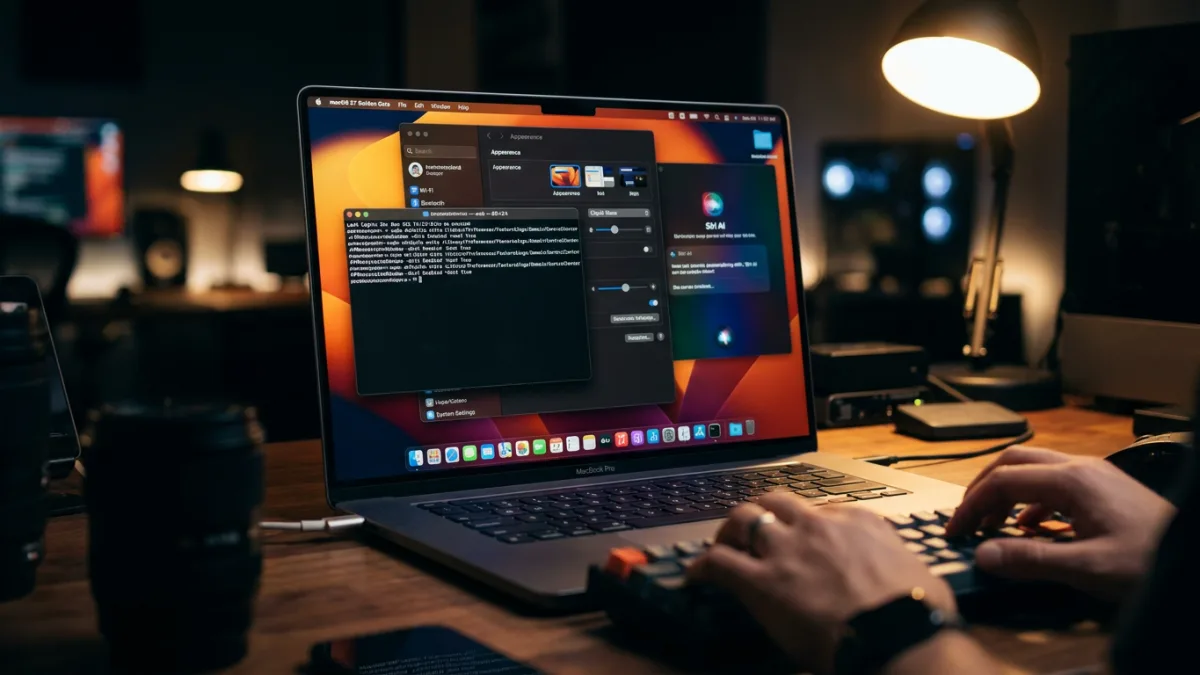
Apple Silicon Mac owners running macOS 27 Golden Gate can unlock hidden system controls and fix macOS 26 design missteps using a mix of new UI toggles and Terminal commands. The update, which completely drops support for Intel processors, focuses heavily on stability and AI integration across the hardware lineup, including the MacBook Air at $1,299.00, the MacBook Neo at $699.00, and the MacBook Pro at $1,999.00.
While Apple has introduced powerful tools like Visual Intelligence, it has also aggressively placed Siri AI throughout the operating system. For power users who want to regain control over their workspace, these 10 hacks provide essential customization.
- Prerequisites: A Mac with an Apple Silicon chip running macOS 27 Golden Gate.
- Materials: Administrator privileges for executing Terminal commands.
- Adjust the Liquid Glass slider by navigating to System Settings > Appearance.
This improves readability by reducing the controversial Liquid Glass animations introduced in macOS 26 Tahoe, which Apple has now made customizable. - Swipe with two fingers (up or down depending on your natural scrolling preference) on your trackpad.
This enables the iconic iOS pull-to-refresh gesture in Safari, Mail, Calendar, News, and Podcasts. - Click the pen icon in the top toolbar of Apple Notes or Freeform.
This allows you to draw and create art directly on the board using a trackpad or mouse. - Type or speak into the new dedicated Siri app.
This handles timers, reminders, and queries without needing voice activation, automatically showing a "Type to Siri" popover if "Hey Siri" is disabled. - Press Command-Shift-6 after enabling Siri AI in System Settings > Siri.
This triggers Visual Intelligence to analyze on-screen images, allowing you to search the internet for image copies or extract contact information. - Execute a Terminal command to force AirPlay into a window.
This prevents AirPlay from taking over your entire screen when casting from another Apple device.
sudo mkdir -p /Library/Preferences/FeatureFlags/Domain && \
sudo defaults write /Library/Preferences/FeatureFlags/Domain/ControlCenter APReceiverInWindow -dict Enabled -bool true
To restore the default full-screen AirPlay settings, use this command and restart your Mac:
sudo defaults delete /Library/Preferences/FeatureFlags/Domain/ControlCenter APReceiverInWindow- Select "Show Related Tabs" by navigating to Safari > Settings > Tabs and clicking the drop-down menu next to "Organize tabs."
This stops Safari from automatically grouping tabs, letting you receive suggestions and control the organization manually to prevent missing tabs. - Select Describe Extension from the three-line button in Safari's address bar.
This uses Siri AI to generate custom Safari extensions based on text prompts, such as closing duplicate tabs or altering website stylesheets. - Run a Terminal script to remove the 'Ask Siri' button from the context menu.
This cleans up your right-click menu if you find the omnipresent Siri AI button intrusive.
As discovered on Reddit, use the following Terminal command, and then restart your Mac:
codes=(soft apwn exit loca lock logo rlgo rcnt rrst rest rsdn shut slep spro syss)
args=(-int 0)
for code in $codes; do
  hex=$(printf %s "$code" | xxd -p -u)
  args+=(-int "$((16#$hex))")
done
defaults write -g NSAppleMenuAllowedItems -array "${args[@]}"
To restore the default context menu settings, use this command:
defaults delete -g NSAppleMenuAllowedItems- Enable keyboard navigation for menu bar apps using a hidden Terminal feature.
This allows you to use arrow keys to seamlessly jump from the last app menu item (like "Help") directly to the first menu bar app icon.
As noted on Reddit, use this Terminal command to enable the feature (restart required):
defaults write -g NSMenuEnableMenuBarAgent -bool true
defaults write -g NSMenuBarUseAgentNavigation -bool true
To disable the keyboard navigation feature, use this command:
defaults delete -g NSMenuEnableMenuBarAgent
defaults delete -g NSMenuBarUseAgentNavigation
The Friction of Forced AI Integration
The necessity of these Terminal hacks reveals a growing friction between Apple's vision for macOS and the reality of how power users operate. By embedding Siri AI directly into the right-click context menu, Apple is prioritizing feature discovery over interface cleanliness. The fact that users are actively sharing complex hexadecimal Terminal scripts on Reddit just to hide a single AI button indicates that Apple's aggressive push into generative tools is clashing with traditional desktop workflows.
Furthermore, the AirPlay window hack highlights a persistent gap in Apple's ecosystem design. While macOS 27 Golden Gate introduces advanced capabilities like Visual Intelligence and AI-generated Safari extensions, it still requires command-line intervention for basic window management tasks that users have requested for years. As Apple continues to lock down the OS to Apple Silicon, the reliance on hidden Terminal commands proves that the platform still needs robust, user-facing toggles for its most intrusive features.
This article was written by AI from reporting by lifehacker.com.