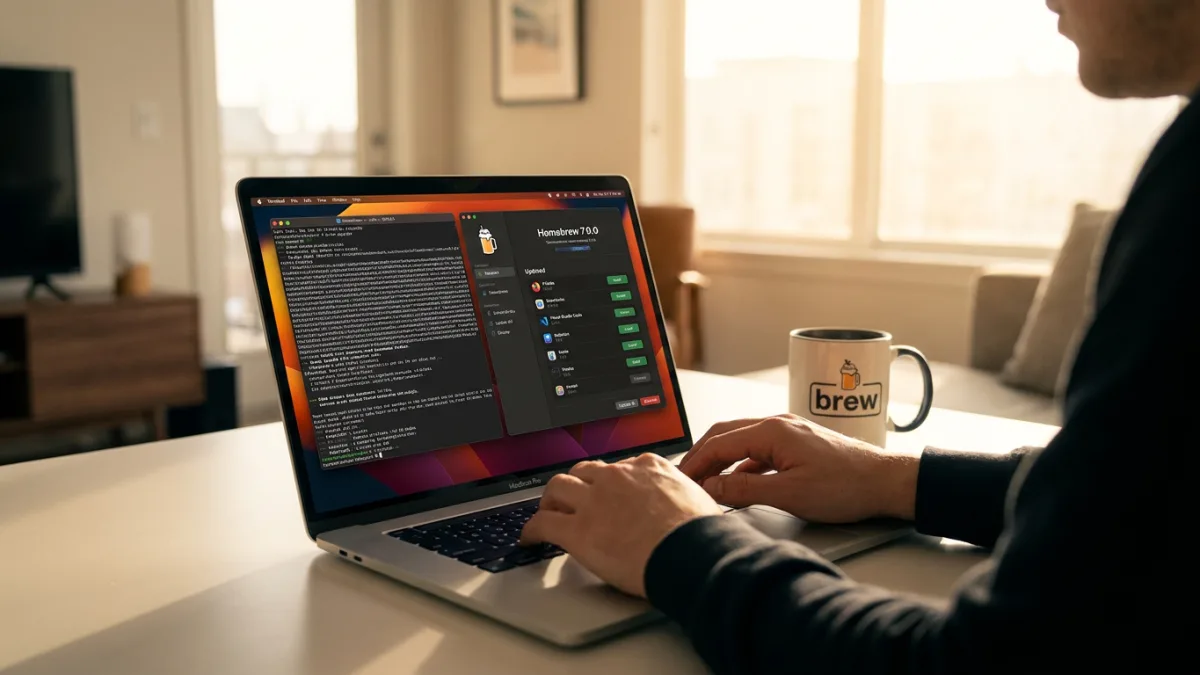
Managing dozens of Mac applications manually leads to outdated software and cluttered storage. Homebrew hacks for Mac transform the standard package manager into an automated powerhouse, allowing users to install, update, and clean up apps with single commands or a new graphical interface.
- Install Homebrew on your Mac. This enables the core package management system.
- Update to Homebrew version 7.0.0 or newer. This ensures access to the newly introduced graphical user interface (GUI).
- Launch the new Homebrew GUI from your Applications folder. This provides a visual interface to discover, install, update, and remove apps without touching the Terminal, making package management accessible to legacy and new users alike.
- Run the built-in diagnostic tool to fix configuration issues. This identifies unsupported or deprecated apps and recommends fixes for your setup.
brew dr - Add the
-qsuffix to keep your Terminal free of text clutter. This minimizes the wall of text during installations, running the process quietly (use-vinstead if you want more details).brew install firefox -q - Execute the list command to view all managed software. This helps you remember exactly which applications were installed via the package manager versus manual downloads.
brew list - Adopt manually installed applications into the Homebrew ecosystem. This allows you to update apps downloaded directly from developer websites alongside your managed packages.
brew install cask adopt APPNAME - Trigger the cleanup command to free up storage space. This removes old versions of apps and cached downloads that are no longer needed, reclaiming disk space without deleting active apps.
brew cleanup - Upgrade all your applications in one go. This is especially useful after a major macOS release when a flurry of updates arrives simultaneously. (Use
brew outdatedto just see what needs updating).brew upgrade - Append the dry-run flag to preview changes before they happen. This reveals a list of planned installations or updates without actually commencing the process, ensuring accuracy.
brew install APPNAME --dry-run - Create aliases to avoid typing long commands repeatedly. This minimizes keystrokes for frequent actions. You can list them with
brew aliasand remove them withbrew unalias i.brew alias i='install' - Pin specific applications to stop them from updating automatically. This protects your workflow if a trusted app is acquired by new owners or adds unwanted features (use
brew unpin APPNAMEto reverse this).brew pin APPNAME
The GUI Shift Changes Mac Package Management
The introduction of a native GUI in Homebrew version 7.0.0 marks a fundamental shift in how Mac power users interact with system utilities. Historically, package managers gatekept their utility behind command-line interfaces, alienating users who prefer visual navigation. By bridging this gap, Homebrew is positioning itself as a universal replacement for the Mac App Store rather than just a developer tool.
However, the true power remains in the Terminal. Commands like cask adopt and dry-run demonstrate that while the GUI is excellent for discovery, advanced system administration still relies on syntax. Users who master these specific aliases and cleanup routines will maintain significantly leaner macOS environments compared to those relying solely on graphical updates.