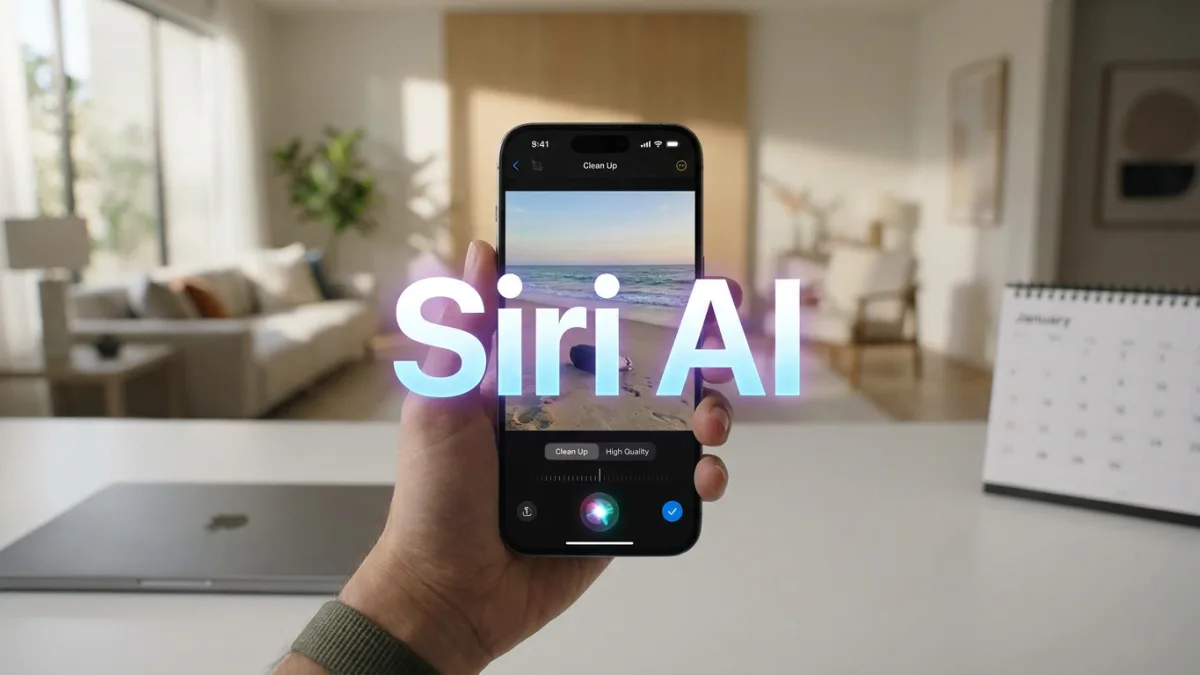
Apple's Siri AI brings deeper system integration across iOS and macOS, moving well beyond timers, calls, and texts. Fifteen years after Siri debuted on the iPhone 4S and four years after ChatGPT launched, Apple built private Apple Foundation Models - with a little help from Google - that run both on-device and on Apple's servers.
Writing for Lifehacker, Khamosh Pathak notes that Siri AI gives short, direct answers compared with Gemini or Claude and embeds new tools throughout iOS 27 and macOS 27. Below are the 10 Siri AI tips and settings Pathak highlights for getting more out of Apple's assistant.
1. Enable Silent Response
Even though Siri AI keeps its replies brief, speaking a query still triggers a spoken response by default. Users who prefer to read Siri's answers can turn on a setting that keeps Siri silent whether they type or speak to it.
- Open Settings, tap Siri, and select Responses.
- Switch to the Silent Response option.
2. Tune Siri's Voice with Expressive Voice
Users who prefer listening to Siri can adjust how the assistant sounds with the Expressive Voice feature. It is available on iPhones under two years old - specifically the iPhone 17 Pro and higher and the iPhone Air - as well as Macs equipped with an M3 processor or higher and at least 12GB of RAM.
- Go to Settings, tap Siri, and open Voice.
- Choose from the color-coded voice options at the top of the screen.
- Adjust the Pace setting to make Siri speak faster or slower.
- Move the Expressivity slider to make the voice sound brighter and more enthusiastic instead of flat.
3. Act on On-Screen Content with Visual Intelligence
Visual Intelligence is built into iOS 27 and macOS 27, turning anything shown on the display into content Siri AI can search or act on. On an iPhone, users can highlight text, tap and hold, and select Ask Siri; on a Mac, Ask Siri appears as the first option in the right-click menu after selecting a file or text.
Users can also bring up Siri AI directly on an iPhone or Mac and ask about what is currently on screen. For example, while viewing a photo of a cafe on Instagram, a user can ask where it is located or tell Siri to open it in Maps, or ask Siri to identify a movie or TV show from a scene playing on screen.
4. Remove Objects from Photos Using High Quality Clean Up
Apple introduced Clean Up with Apple Intelligence in iOS 18 using on-device models, which Pathak notes produced lacking results. Because Apple now runs its Apple Foundation Models on Private Cloud Compute servers, Clean Up processes images in the cloud, removes objects more reliably, and accounts for shadows when switched from the default Auto mode to High Quality.
- Tap the Edit button on a photo, then go to Tools and select Clean Up.
- Switch from Auto mode to the High Quality option at the top of the screen.
- Brush over or tap the object to remove, then tap Clean Up and wait for Apple's servers to finish processing.
- Tap Done to save the edited photo.
5. Add Multiple Calendar Events at Once from a Schedule
Instead of typing in a full season of soccer practices or a weekly college lecture schedule by hand, iOS 27 users can capture the entire list with Visual Intelligence. Point the iPhone camera at a schedule or take a screenshot of it, then tap the Add to Calendar button.
Siri recognizes all the listed events and offers the option to add them to the Calendar app one by one or all at once.
6. Triage and Manage Emails Through the Mail App Integration
Once an iPhone or Mac finishes indexing local Mail data, Siri AI can search, triage, and manage emails without the user opening the Mail app. In Pathak's testing, the integration worked well because Siri AI understands email context without needing exact sender names or subject lines.
Users can give prompts such as “Find all emails about my flights from last week and send them to my accountant,” or “Archive all the emails from Walmart from last month,” which brings up a one-button confirmation to complete the action.
7. Skip Confirmation Steps by Automatically Sending Messages
Pathak notes that frequent Siri AI users will notice the assistant asks for confirmation often. While that extra step is useful before deleting emails, users who want to skip it when sending messages can change a setting.
- Open Settings, tap Siri, and select Responses.
- Enable Automatically Send Messages.
8. Launch Siri's Camera Mode with the Camera Control Button
Following the Siri AI upgrade in iOS 27, users can press and hold the Camera Control button to open the camera's Siri mode. Point the camera at an object and tap the large Siri icon to get a response at the top of the screen within a second or two, along with suggested actions for what is in view.
On iPhones without Camera Control - or for users who prefer not to use the button - the Siri AI shortcut can be placed on the lock screen, in Control Center, or on the Action button.
9. Build Custom Automations Using Natural Language in Shortcuts
Creating automations in Apple's Shortcuts app traditionally requires configuring steps, variables, and order of operations. With Siri AI, users can build everyday shortcuts by describing what they want in plain language.
- Open the Shortcuts app and create a new shortcut.
- Select the Describe a shortcut feature and state what the automation should do in natural language.
For instance, users can ask Siri to build a morning shortcut that displays the day's weather, upcoming calendar events, and a daily to-do list, or one that batch-converts images and creates new notes from a pre-made template.
10. Switch to ChatGPT Inside the Siri AI App
Although Siri AI now relies on Apple Foundation Models, ChatGPT remains accessible directly inside the Siri AI app without opening the standalone ChatGPT app. For complex questions or when Siri AI's answer falls short, users can switch services manually.
- Tap the text field inside the Siri app.
- Choose the Ask option and switch to the ChatGPT service. If ChatGPT cannot answer the query, Siri AI automatically routes the request back to Apple's own models.
This article was written by AI from reporting by lifehacker.com.