Drivers often waste valuable minutes fiddling with infotainment screens before even shifting into gear. While finding a faster route is the traditional way to save time on the road, the most significant efficiency gains in Android Auto come from eliminating repetitive tasks before the drive begins. By configuring a few specific settings, you can automate navigation, media playback, and communication.
Pre-Trip Navigation and Custom Shortcuts
Typing an address on a car's touchscreen is notoriously slow and prone to errors. Searching for a destination in Google Maps on your phone before leaving the house ensures that recent searches and navigation suggestions are instantly waiting on the car's display when Android Auto connects. This lets you take advantage of your phone's larger keyboard and familiar interface instead of pecking away at an infotainment screen.
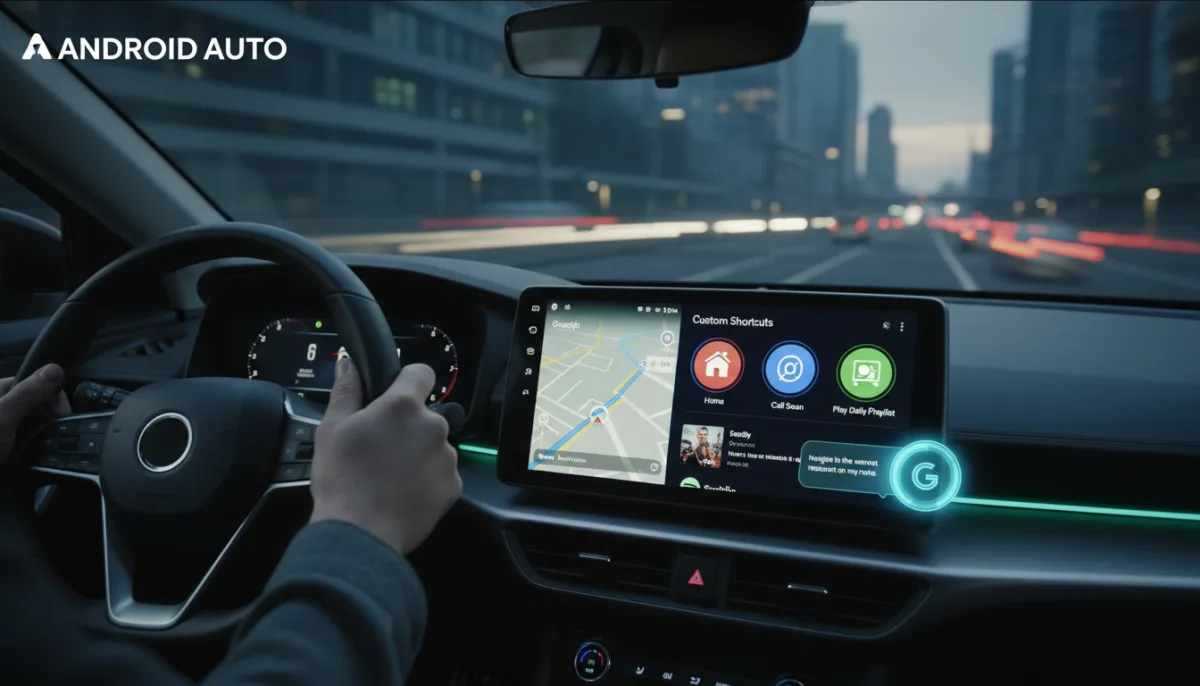
For routine actions, custom shortcuts transform repetitive tasks into one-touch buttons. Instead of repeatedly issuing voice commands to call a family member or navigate home, you can pin these actions directly to the display. To create a custom shortcut, navigate to Settings > Android Auto > Customize launcher > Add a shortcut to the launcher. From here, you can add a favorite contact or configure a specific Google Assistant command.
Automating Media and Managing Notifications
Manually opening Spotify or YouTube Music at the start of every commute is an unnecessary step. Android Auto can automatically resume your last media session the moment it connects to the vehicle, picking up exactly where you left off in any compatible audio app. To enable this, open Settings on your phone, go to Connected devices > Connection preferences > Android Auto, and toggle on Start music automatically.
Similarly, handling text messages while driving is a major distraction. Letting Android Auto read incoming messages aloud and dictating replies keeps your hands on the wheel. If messages are not appearing, ensure the feature is active by navigating to the Android Auto settings menu and turning on Show message notifications.
Taskbar Widgets and Gemini Voice Control
Bouncing between navigation and media apps creates unnecessary friction. Enabling taskbar widgets in the Android Auto settings pins a compact media controller to the screen, allowing you to skip tracks or pause playback without leaving Google Maps. Depending on your activity, you will also see other useful information without leaving your current app.
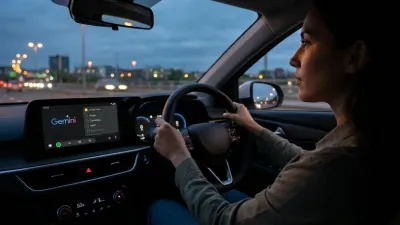
For more complex tasks, Gemini handles natural language requests far better than traditional menu navigation. Asking Gemini to "Navigate to the nearest restaurant on my route" or "Send Sean a message saying I'll be there in 15 minutes" bypasses the need for manual input entirely. Talking is quicker and safer than digging through menus while driving.
The Shift Toward Ambient Driving
The evolution of Android Auto highlights a broader industry shift toward ambient computing in vehicles. Google is clearly moving away from touch-heavy interfaces, recognizing that cognitive load is just as dangerous as physical distraction. By integrating Gemini and automating routine tasks like media playback, the operating system acts less like a smartphone mirror and more like an invisible co-pilot.
This transition is critical as infotainment screens grow larger and more complex. The ultimate goal of in-car software shouldn't be to offer more apps to tap, but to require zero taps at all. Drivers who invest five minutes into configuring these automation settings aren't just saving time; they are actively reducing their crash risk by keeping their eyes on the road instead of a glowing dashboard.
This article was written by AI from reporting by androidpolice.com.