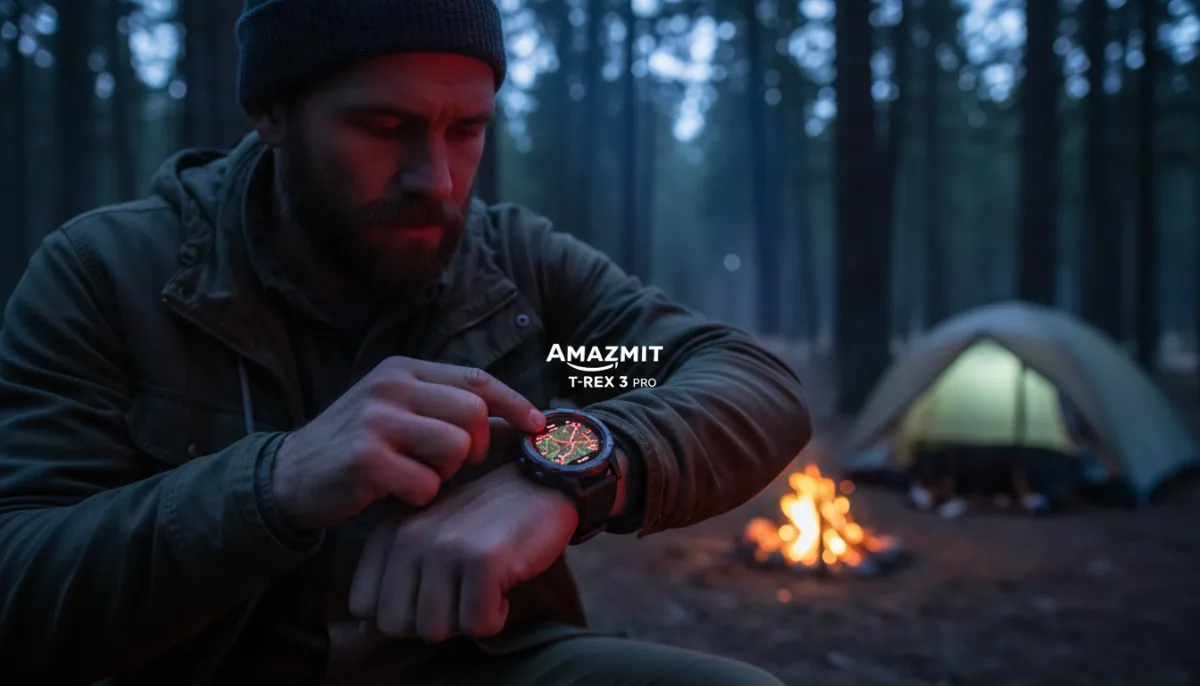
The Amazfit T-Rex 3 Pro packs high-end rugged features for $399.99, but its most powerful tools are hidden deep within its menus. While the titanium bezel and multi-week battery life grab the headlines, the software holds secrets that can drastically improve your daily experience. Whether you want to install custom watch faces or generate automatic hiking routes, mastering these hidden settings transforms the device.
This guide is designed for outdoor enthusiasts and fitness trackers who want to maximize their smartwatch's utility without spending hours digging through manuals. By unlocking these specific features, you can navigate unfamiliar trails safely, preserve your night vision at campsites, and keep your personal training logs perfectly organized.
While competitors often charge a massive premium for advanced offline mapping and specialized workout modes, Amazfit includes them out of the box. You just need to know exactly where to look to activate them.
How to Unlock Developer Mode
Accessing the hidden developer mode allows you to troubleshoot sync issues, check detailed firmware versions, and install custom watch faces directly from your computer via QR code.
- A smartphone with the Zepp app installed and paired to your watch.
- Open the Zepp app and navigate to the Profile tab. This grants access to your device-specific settings.
- Tap on Settings, then select About. This reveals the core software information for your paired devices.
- Tap the Zepp logo exactly seven times. This triggers the hidden developer mode, unlocking advanced customization options.
How to Master the Advanced Flashlight Modes
The built-in flashlight does more than just shine a white beam. The Pro version includes a red LED to preserve night vision and an SOS strobe for emergencies.
- Press and hold the UP button to activate the standard flashlight. This provides immediate illumination in dark environments.
- Tap the flashlight icon on the screen, or press the UP or DOWN buttons quickly. This cycles through normal white intensities and the low-interference red light mode.
- Press the UP and DOWN buttons simultaneously. This activates an ultra-bright beam that lasts for up to 30 seconds, requiring a brief cooldown afterward.
- Pull down the watch screen to open the Control Center and tap SOS. This starts an emergency flashing distress signal without needing your phone.
- Navigate to Settings, select Assistant (or Workout), and enable Safety Light. This triggers automatic flashing patterns while you run or cycle in the dark.
How to Generate Automatic Round-Trip Routes
The offline mapping system supports round-trip routing, generating a loop that brings you back to your starting point without requiring a specific destination.
- Open the map on your watch and wait for GPS positioning. This ensures your starting location is accurately locked in.
- Press SEL, select Navigation, and tap Create Round-Trip Route. This opens the automatic route generation tool.
- Choose your workout type, preferred direction, and target distance. This prompts the watch to automatically calculate a custom loop for your session.
- Tap Start Workout to begin immediately, or Save Route to store it under My Route. This gives you the flexibility to plan hikes in advance.
How to Track Dog Walks Separately
Keep your personal training metrics accurate by separating your casual pet outings from your serious fitness logs.
- Scroll past the standard Running and Walking options in your workout list. This reveals the extended catalog of tracking modes.
- Select More Workouts and locate Dog Walking mode. This ensures your pet's outings are logged as a distinct category, preserving your personal pace data.
How to Silence Distractions with Custom Alerts
When heading into nature, you likely want to disconnect without missing critical alarms or low-battery warnings.
- Navigate to Notifications and Reminders in your watch settings. This opens the master communication controls.
- Select App Notifications, then tap App Alerts. This allows you to toggle individual applications on or off.
- Enable only the specific apps you care about, leaving the rest muted. This ensures your wrist only buzzes for important messages, keeping promotional emails silent during your hike.
How to Eject Water Instantly
If you get caught in inclement weather, water can linger in the microphone and speaker ports, muffling sound or causing false screen touches.
- Swipe down from the main watch face to open the Control Center. This gives you access to quick-action toggles.
- Tap the Droplet icon. This initiates the water ejection sequence.
- Hold your watch with the speaker facing downward. This allows the specific vibration frequencies to physically push moisture out of the hardware ports.
The True Value of Software Optimization
The smartwatch market is fiercely competitive, but the Amazfit T-Rex 3 Pro proves that hardware specifications are only half the battle. By offering features like automatic route recalculation - which triggers seamlessly if you deviate more than 500 meters from your path - Amazfit is directly challenging the dominance of much more expensive GPS watches. This level of autonomous navigation is typically reserved for flagship devices costing twice as much.
Furthermore, the inclusion of highly specific tools like the red LED flashlight mode and the dedicated water ejection frequency highlights a deep understanding of real-world outdoor usage. At $399.99, the device doesn't just compete on price; it competes on practical utility. For users willing to dive past the default settings, the software provides a premium, tailored experience that punches well above its weight class.
This article was written by AI from reporting by lifehacker.com.