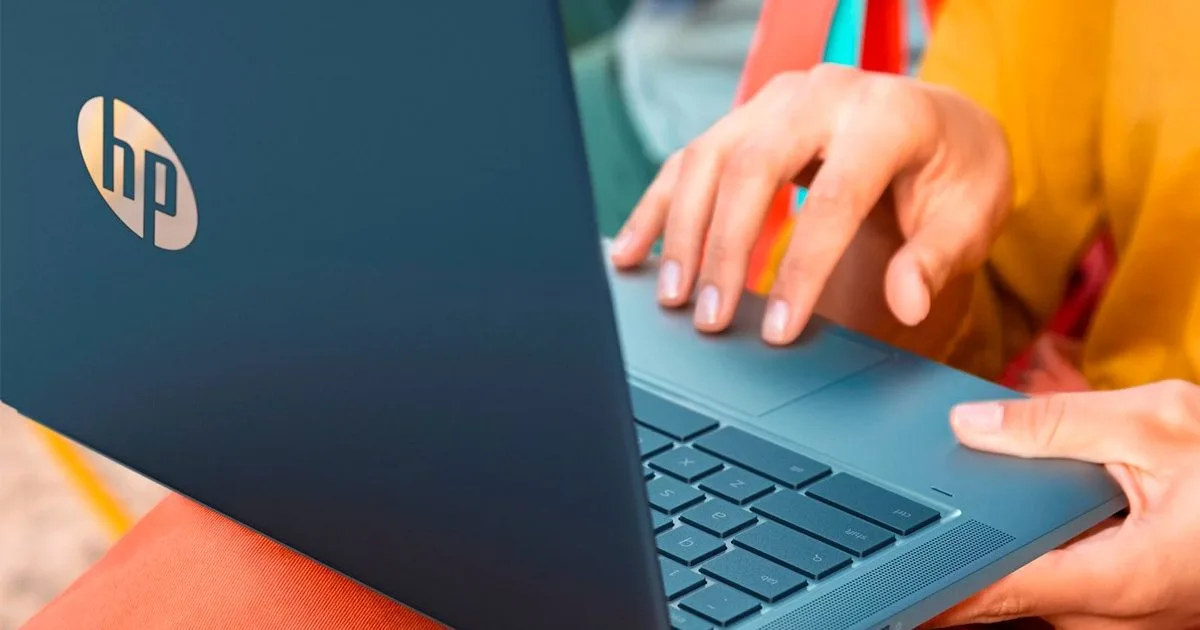
Capturing your screen should not interrupt your workflow, yet finding the right shortcut on ChromeOS can sometimes feel like a guessing game. Whether you need to grab a quick image of a single window, record a partial area for a presentation, or take a screenshot on a Chromebook using tablet mode, the process is actually built right into the operating system. Newer models even include a dedicated hardware key to make this process entirely frictionless.
This guide is designed for students, professionals, and everyday ChromeOS users who need to quickly capture and share visual information. Mastering these built-in tools eliminates the need for clunky workarounds, allowing you to seamlessly save, edit, and annotate your screen directly to your local files or cloud storage.
Standard Keyboard Shortcuts for Full and Partial Captures
The easiest way to capture your display is by utilizing the native ChromeOS Screen Capture tools. If your device features a modern keyboard layout, you can simply press the dedicated Screenshot key to instantly open the capture menu.
- Press the Screenshot key (if available) or use the shortcut Ctrl + Show windows. This instantly captures your entire screen and saves the file.
- Press the shortcut Shift + Ctrl + Show windows if you only need a specific section. This opens the Screen Capture toolbar with the partial capture tool selected.
- Click and drag your cursor over the exact area you want to capture. This allows you to frame the image perfectly without needing to crop it later.
- Release the mouse button or trackpad. This automatically saves the partial screenshot to your device.
Capturing Specific App Windows
ChromeOS also allows you to isolate a single application window, which is incredibly useful for creating clean tutorials or sharing specific messages without exposing your entire desktop background.
- Open the Screen Capture toolbar using your preferred shortcut. This brings up the native capture overlay.
- Select the Window icon from the toolbar options. This changes your cursor to a window-selection tool.
- Click directly on the specific app window you want to capture. This grabs only the selected window, ignoring any overlapping apps or desktop clutter.
Tablet Mode, Stylus, and External Keyboards
If you are using a 2-in-1 device or a desktop Chromebox, the standard keyboard shortcuts might not apply. ChromeOS adapts to these different form factors with specific hardware commands.
- Tablet Mode: Press the Power + Volume down buttons simultaneously. This mirrors the standard Android method and instantly captures the full screen.
- Stylus Input: Tap the Stylus or Pen menu, then select Capture screen or Capture region. Drag your pen across the display to save a specific area.
- External Keyboards: If you are using a standard PC keyboard, press Ctrl + F5 for a full screenshot, or Ctrl + Shift + F5 for a partial capture.
Managing and Editing Your Captures
By default, ChromeOS saves all screenshots locally. You can usually find them by opening the Files app and navigating to the Downloads or Images folders. If you prefer to keep your files organized elsewhere, you can easily change this default behavior.
- Open the Screen Capture toolbar. This gives you access to the capture settings menu.
- Click the gear icon to open the settings. This reveals advanced options, including save locations.
- Select a new destination folder, such as a specific Google Drive directory. This ensures all future screenshots are automatically routed to your preferred workspace.
Once saved, you can click on the notification or open the image in the Files app to access built-in editing tools. These native features allow you to quickly crop, rotate, or make simple lighting adjustments before sharing the file via email or cloud storage.
Advanced Third-Party Capture Tools
While the built-in ChromeOS tools cover the basics exceptionally well, power users who need advanced annotations, blurring, or full-page web captures might want to explore third-party extensions. Here are the most reliable options available:
- Lightshot: A lightweight tool designed for rapid region captures and basic, on-the-fly edits.
- FireShot: Ideal for capturing entire, scrolling webpages without the need to manually stitch multiple images together.
- Awesome Screenshot and Screen Recorder: A comprehensive suite that combines advanced annotations, privacy blurring, and screen recording in a single interface.
- GoFullPage: A highly reliable extension for saving long webpages as high-quality images or PDF documents.
The Maturation of ChromeOS Productivity
The evolution of screenshot tools on Chromebooks perfectly illustrates how far ChromeOS has come from its origins as a simple "browser-in-a-box." By integrating dedicated hardware keys on newer models and building a robust, native Screen Capture overlay, Google has significantly reduced the friction associated with basic productivity tasks. Users no longer have to hunt for third-party extensions just to grab a clean image of a single window or record a quick video snippet.
This native integration is particularly crucial for ChromeOS's dominance in the education sector and its growing footprint in enterprise environments. When core functionalities like region capture and custom save routing - such as sending files directly to Google Drive - are baked directly into the OS, it streamlines workflows and enhances security by minimizing reliance on unverified third-party apps. The built-in tools are now more than sufficient for the vast majority of users, reserving extensions like Lightshot or FireShot strictly for niche, heavy-duty annotation needs.