As Apple continues to pack more capabilities into its mobile operating system, many of the most powerful iOS 26 hidden features remain buried deep within the settings menus. Whether you want to stop media playback automatically at night or completely customize your Lock Screen controls, mastering these lesser-known tools can significantly streamline your daily iPhone experience.
To help you unlock the full potential of your device, here are the essential tips and hidden gestures you need to know.
- Transform app icons into widgets by long-pressing any supported app on your Home Screen and selecting a widget size from the top menu. This enables you to view live app data at a glance without opening the application, and you can easily revert it by selecting the four-square icon.
- Review your location history by opening the Maps app, tapping your profile, selecting Places, and choosing Visited Places. This ensures you can easily recall past destinations like restaurants or weekend trip spots, with options to clear history or disable it entirely in Settings.
- Create custom vibration patterns for specific contacts by opening the Contacts app, tapping Edit, selecting Text Tone or Ringtone, and choosing Create New Vibration under Haptics. This allows you to identify exactly who is texting or calling while your iPhone remains on silent, without needing to look at the screen.
- Swap your default Lock Screen buttons by long-pressing the Lock Screen, tapping Customize, removing the default Camera or Flashlight icons, and adding new Control Center options. This enables quick access to your most-used tools or third-party app shortcuts directly from the locked display.
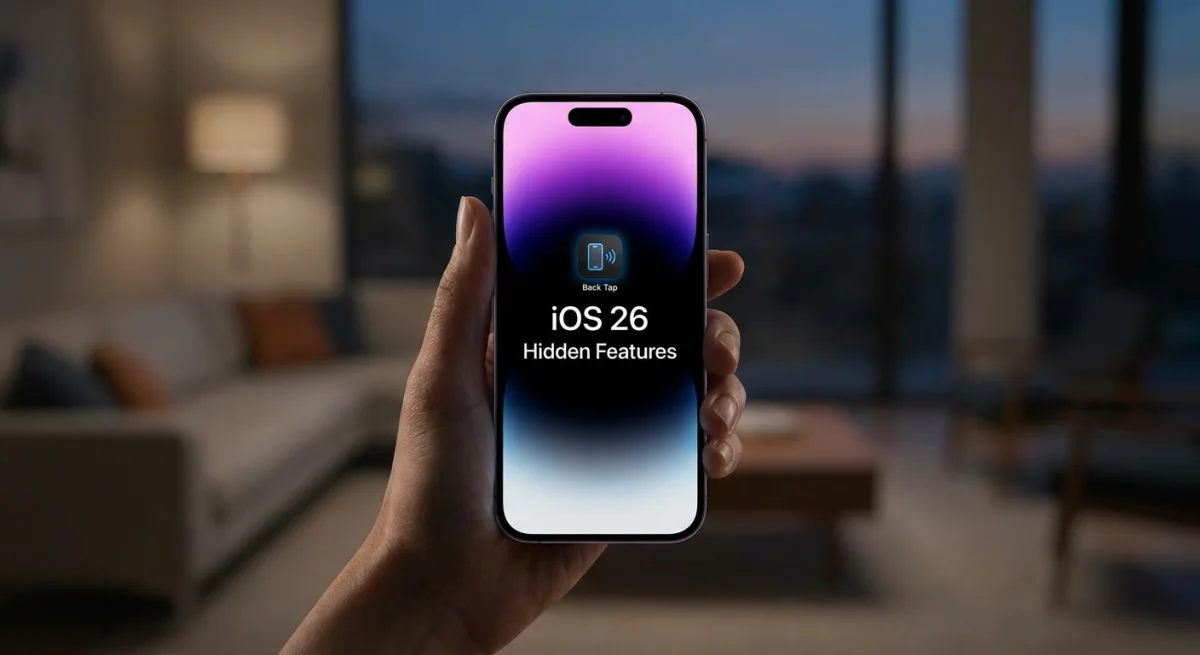
- Configure Back Tap gestures by navigating to Settings, Accessibility, Touch, and scrolling down to Back Tap to assign double or triple tap actions. This provides a hidden physical shortcut to trigger system functions like screenshots, the flashlight, or custom Shortcuts just by tapping the back of your device.
- Capture an entire webpage or PDF by taking a standard screenshot, tapping the preview thumbnail, and selecting the Full Page tab at the top. This allows you to save long, scrolling documents as a single file rather than taking multiple fragmented screenshots.
- Hide specific apps or entire Home Screen pages by long-pressing an app to require Face ID, or entering jiggle mode and tapping the bottom dots to deselect whole pages. This ensures your sensitive applications remain out of sight and out of the App Library's Hidden folder, though they remain accessible via Spotlight Search.
- Set a timer instantly by adding the Timer icon to your Control Center, then long-pressing it to reveal a quick-select slider ranging from one minute to two hours. This eliminates the need to open the Clock app manually, streamlining the process of setting quick countdowns.
- Strip location metadata from your images by swiping up on a photo and tapping Adjust Location, or toggling off Location in the Options menu of the Share sheet. This protects your privacy by ensuring exact GPS coordinates are not shared when you send pictures to others.
- Halt media playback automatically by opening the Clock app, setting a timer, selecting When Timer Ends, and choosing Stop Playing at the bottom of the list. This prevents music, podcasts, or audiobooks from playing all night if you fall asleep while listening.
The Evolution of Invisible Interfaces
The increasing reliance on long-presses and hidden gestures reflects a fundamental shift in how Apple designs its mobile software. By burying these iOS 26 hidden features behind haptic touches rather than traditional visual menus, the company is clearly prioritizing a clean, minimalist aesthetic over immediate discoverability. Features like Back Tap and instant widget conversion require users to inherently know they exist, rather than stumbling upon them naturally.
This approach forces users to rely heavily on muscle memory and community-driven discovery to unlock the full capabilities of their hardware. While this keeps the user interface uncluttered, it risks leaving average consumers completely unaware of powerful privacy and productivity tools. For modern iPhone owners, proactive learning is no longer optional - it is a requirement to get the most value out of a premium device.
This article was written by AI from reporting by macrumors.com.