Smart home platforms promise seamless living, but unlocking their true potential requires moving beyond basic setups. For Apple ecosystem users, the default configurations only scratch the surface of what connected devices can actually achieve.
This guide is designed for Apple Home users looking to maximize their smart home investments. By implementing these advanced configurations and Shortcuts, you can transform isolated gadgets into a fully automated, context-aware environment that responds to weather, motion, and critical emergencies.
- Enable Critical Alerts for emergencies: Apple's critical alerts feature allows emergency notifications to bypass Silent and Do Not Disturb modes.
- Navigate to Settings > Notifications > Home.
This ensures you access the system-level notification permissions for the Home app. - Toggle the Critical Alerts switch to the on position.
This enables life-safety devices like smoke or leak detectors to sound an alarm regardless of your Focus mode.
- Navigate to Settings > Notifications > Home.
- Customize pinned scenes in the Control Center: Take control of your quick-access dashboard.
- Swipe down from the top-right corner to open the Control Center, then long-press the Home control.
This reveals your currently pinned scenes and accessories. - Toggle off Use Recommended and tap Add New Item.
This allows you to manually select your most frequently used automations instead of relying on Apple's algorithm.
- Swipe down from the top-right corner to open the Control Center, then long-press the Home control.
- Split multi-sensor devices into separate tiles: Manage bundled sensors independently.
- Long-press on the multi-sensor device tile and tap Accessory Settings.
This opens the detailed configuration for devices like thermostats or motion detectors. - Select Show as Separate Tiles.
This enables you to build targeted automations, such as triggering smart shades specifically based on the ambient light sensor rather than the bundled motion sensor.
- Long-press on the multi-sensor device tile and tap Accessory Settings.
- Deactivate devices using built-in countdown timers: Automate your shut-off sequences.
- Tap the plus sign in the Home app, select Add Automation, then choose A Sensor Detects Something.
This initiates an automation based on motion or contact. - Select your sensor, choose Opens, tap Next, and select the device to turn on.
This links the trigger to the action. - Tap Turn Off at the bottom of the screen and select your desired timeout before tapping Done.
This automatically turns the light off after a set period, eliminating the need for a separate deactivation automation.
- Tap the plus sign in the Home app, select Add Automation, then choose A Sensor Detects Something.
- Create weather-based automations using Shortcuts: Make your home react to the environment.
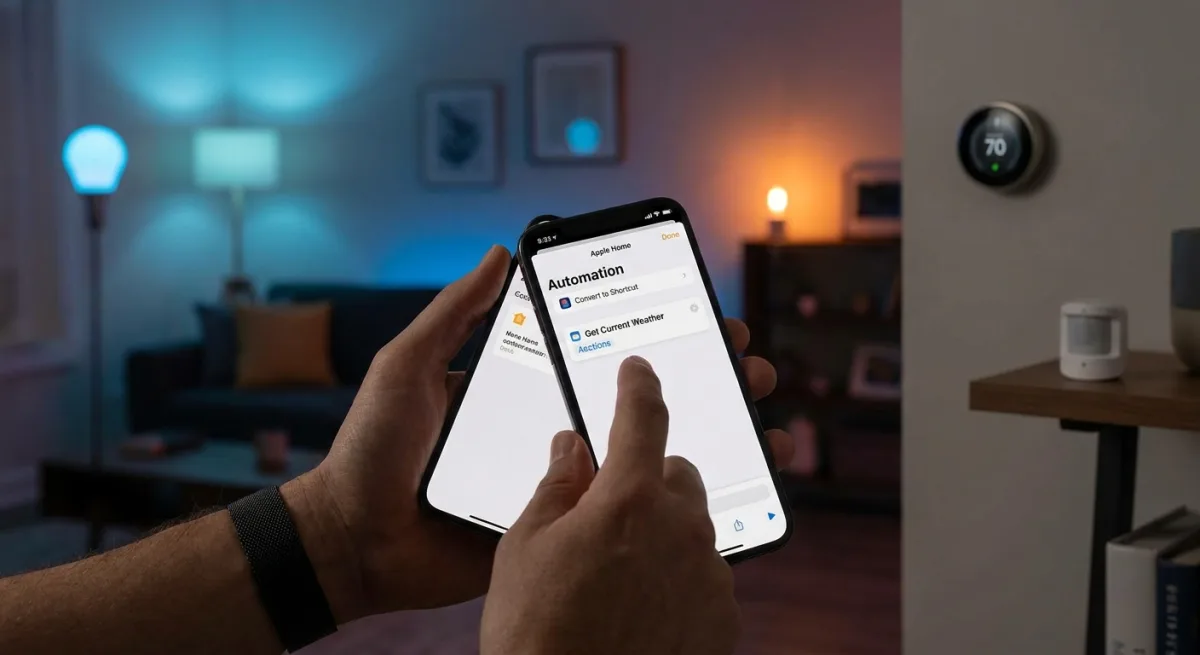
- Initiate a time-based automation (Add Automation > A Time of Day Occurs) and tap Convert to Shortcut.
This unlocks advanced conditional programming beyond basic HomeKit features. - Search for and select Get Current Weather, then add an If block set to Condition (or Temperature) containing the word Sunny.
This checks local weather data before executing the action. - Drag the Control Home action beneath the If block and configure your smart shades or thermostat.
This ensures your home adapts to solar heat, lowering shades when sunny or keeping them open when cloudy.
- Initiate a time-based automation (Add Automation > A Time of Day Occurs) and tap Convert to Shortcut.
- Program smart bulbs as silent intercoms: Use light patterns to communicate.
- Create an automation triggered by an accessory or sensor, then tap Convert to Shortcut.
This allows you to build a sequence of actions for a single device. - Add a Control Home action to turn the target bulb Off, followed by a Wait block set to 1 second.
This creates the first half of the flashing effect. - Repeat the sequence with an On action, adding one more Off and On before saving.
This creates a visual dinner bell or alert without generating noise across the house.
- Create an automation triggered by an accessory or sensor, then tap Convert to Shortcut.
- Transition audio between speakers using motion sensors: Let your music follow you.
- Select A Sensor Detects Something in the Add Automation menu, choose your motion sensor, and select Closes.
This triggers the action when you enter a new room. - Tap Convert to Shortcut, select Hand Off Playback, and set the destination to your target smart speaker.
This moves your active podcast or playlist to the new room. - Add a Set Volume action and adjust the slider.
This ensures the audio plays at a comfortable level in the new space.
- Select A Sensor Detects Something in the Add Automation menu, choose your motion sensor, and select Closes.
- Set up double-tap actions with a dummy switch: Expand the functionality of physical buttons.
- Add an inexpensive smart plug to your Home app to serve as a virtual dummy switch.
This acts as a secondary trigger mechanism for complex inputs. - Create a shortcut that turns on the smart plug for five seconds when your main switch is pressed.
This creates a brief window to detect a second tap. - Program a second shortcut to run an "away" scene if the switch is pressed again while the dummy plug is still active.
This allows one physical switch to control multiple distinct automations.
- Add an inexpensive smart plug to your Home app to serve as a virtual dummy switch.
- Prevent repetitive automation loops: Stop annoying duplicate triggers.
- Deploy a dummy smart plug in your automation sequence.
This creates a conditional barrier for repetitive triggers. - Configure the automation to check the status of the dummy switch before running.
This prevents a HomePod from repeating the same entry announcement or a robot vacuum from restarting if a sensor is triggered multiple times.
- Deploy a dummy smart plug in your automation sequence.
- Reset motion sensor timers continuously: Keep lights on while you are still in the room.
- Set up an automation that turns on both your lights and a dummy smart plug when motion is detected.
This links the lighting to the virtual timer. - Use the third-party Controller for HomeKit app to create an automation when the sensor Stops Detecting Motion.
This handles the delayed execution. - Set the plug to Turn Off with a Delayed Execution of 20 minutes, and toggle on Reset timer if triggered again.
This ensures lights stay on as long as you are in the room, but turn off reliably when you leave.
- Set up an automation that turns on both your lights and a dummy smart plug when motion is detected.
The Hidden Complexity of Apple's Smart Home Ecosystem
While Apple Home is often praised for its privacy and user-friendly interface, the necessity of using third-party apps like Controller for HomeKit or relying on "dummy switches" reveals a significant gap in native functionality. The fact that users must purchase spare smart plugs just to create double-tap actions or prevent repetitive automation loops highlights a structural limitation in Apple's current logic engine.
Furthermore, the heavy reliance on converting automations to Shortcuts demonstrates that the standard Home app is still too basic for power users. As the smart home market matures, Apple will need to integrate these advanced conditional variables - like weather states and multi-tap physical inputs - directly into the native HomeKit UI. Until then, these workarounds remain essential for anyone looking to build a truly autonomous living space rather than just a collection of remote-controlled gadgets.
This article was written by AI from reporting by lifehacker.com.