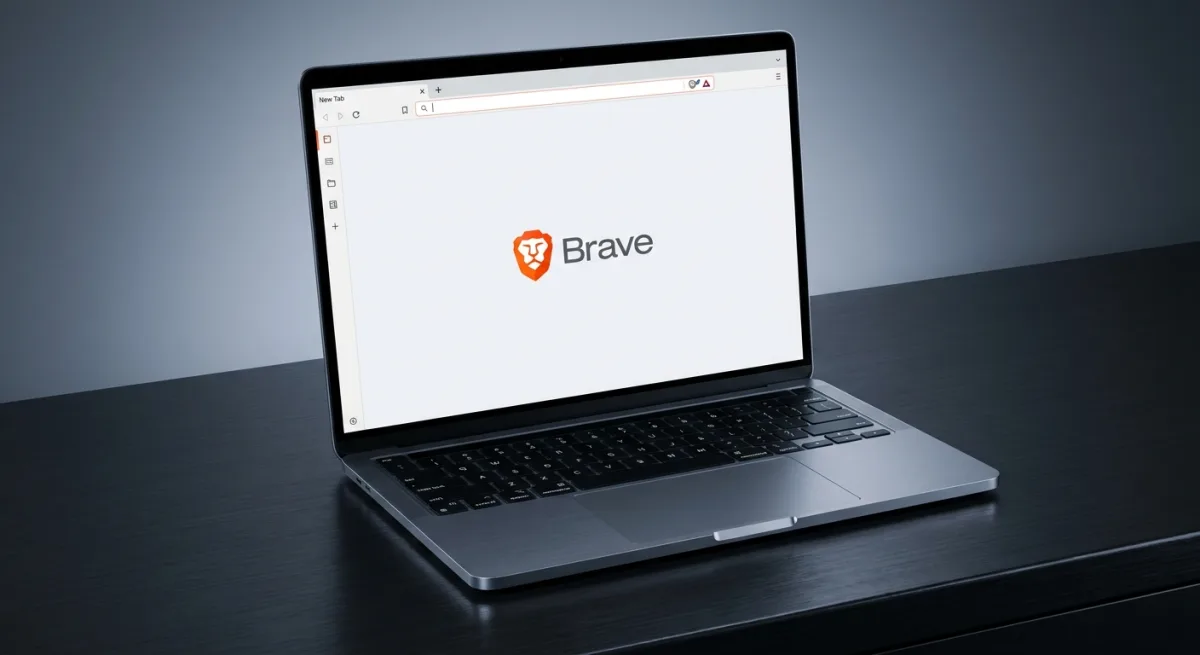
Applying these essential Brave Browser hacks will instantly fix the cluttered default setup, removing self-promotional ads and unnecessary AI tools. This guide is designed for privacy-conscious users and power users who want to maximize their browsing efficiency. Applying these configurations will eliminate visual clutter, reduce memory consumption, and bypass frustrating web restrictions like copy-paste blocks and paywalls.
As browsers increasingly integrate built-in VPNs, crypto wallets, and AI assistants, the core browsing experience often suffers from feature bloat. Reclaiming control over these settings ensures your browser remains a tool for accessing the web, rather than a billboard for proprietary services. Follow these steps to optimize your setup.
- Disable Brave's built-in ads, crypto rewards, and default search engine.
This ensures a minimalist interface and stops the browser from pushing its own VPN and cryptocurrency services. Open a new tab, click the gear icon, and disable Show new tab page ads. Under the Cards menu, turn off Brave stats, Brave VPN, Brave Rewards, Brave Talk, and Brave News. To complete the look, turn off Show top sites. Finally, click Search in the left pane to replace Brave Search, and update your address bar default via the three-lines menu under Settings > Search engine. - Enable advanced content filters within Brave Shields.
This blocks annoying website elements like cookie notices, paywalls, and YouTube Shorts without needing third-party extensions like uBlock Origin. Go to Settings > Shields > Content filters > Show full list. Enable the following: Cookie notice blocker, Annoying distractions blocker, AI suggestions blocker, Newsletter popup blocker, YouTube Shorts blocker, YouTube thumbnail image blocker, Tracking URL blocker, and Paywall blocker. - Turn off the built-in Leo AI bot and hide unwanted toolbar icons.
This removes unwanted AI integrations and leaves you with a clean, distraction-free address bar. Navigate to Settings > Leo and disable all options. Next, right-click the toolbar icons to hide Brave Rewards, Brave Wallet, Leo AI, and Brave VPN. Finally, go to Settings > Appearance and disable Leo AI assistant under the autocomplete suggestions. - Activate the Memory Saver feature to suspend inactive tabs.
This improves overall system performance and prevents your computer from slowing down when managing dozens of open tabs. Navigate to Settings > System and enable Memory Saver. You can also use the Add button to whitelist specific websites from being suspended. - Switch to Vertical Tabs to free up screen real estate.
This provides more room for web content on larger displays by stacking tabs on the left side. Go to Settings > Appearance > Tabs and enable Use vertical tabs. Afterward, disable Show title bar to merge the window controls with the toolbar, and click the minimize tabs button to reduce the bar to a slim column. - Launch Brave's built-in task manager using the Shift+Esc shortcut.
This enables you to identify and close rogue, resource-hungry tabs that are slowing down your browser. If the keyboard shortcut fails, access it via the three-lines menu under More Tools > Task Manager. - Utilize the "Copy Clean Link" function when sharing URLs.
This strips unhelpful tracking parameters from web addresses, protecting your privacy when sharing links. Right-click any hyperlink and select Copy Clean Link. For automated protection, ensure the Tracking URL blocker is enabled in your Shields content filters. - Bypass web restrictions using the "Force Paste" option.
This allows you to paste passwords or usernames into forms on websites (like banks) that frustratingly block clipboard pasting. Right-click the restricted text field and select Force Paste. If a site disables right-clicking entirely, use an extension like Enable right click. - Watch YouTube videos using the Brave mobile app for iOS or Android.
This grants you premium features for free, including ad-blocking, picture-in-picture mode, and background audio playback. Simply use the iOS or Android app instead of the official YouTube application. - Force a hidden dark mode across all websites.
This reduces eye strain and saves system resources without relying on third-party extensions that might compromise your privacy. Type the following into your address bar:
brave://flags/#enable-force-darkEnable the flag and restart the browser to apply the dark theme universally.
The Shift From Privacy to Platform Bloat
The evolution of Brave Browser highlights a growing trend in the tech industry: the transition from a single-purpose privacy tool to a monetized ecosystem. By bundling services like the Leo AI assistant, Brave VPN, and cryptocurrency rewards directly into the interface, the company is actively trying to diversify its revenue streams beyond basic search. While these additions offer value to a specific subset of users, they fundamentally alter the lightweight promise that originally drew power users away from Google Chrome.
However, the fact that Brave still allows users to aggressively disable these features - such as turning off the Leo AI assistant and hiding the Brave Wallet - demonstrates a lingering commitment to user autonomy. Moving forward, we can expect alternative browsers to continue this balancing act, pushing proprietary subscriptions while leaving "opt-out" escape hatches for their core, tech-savvy audience. For now, taking five minutes to configure these hidden settings remains the most effective way to reclaim a truly distraction-free web experience.
This article was written by AI from reporting by lifehacker.com.