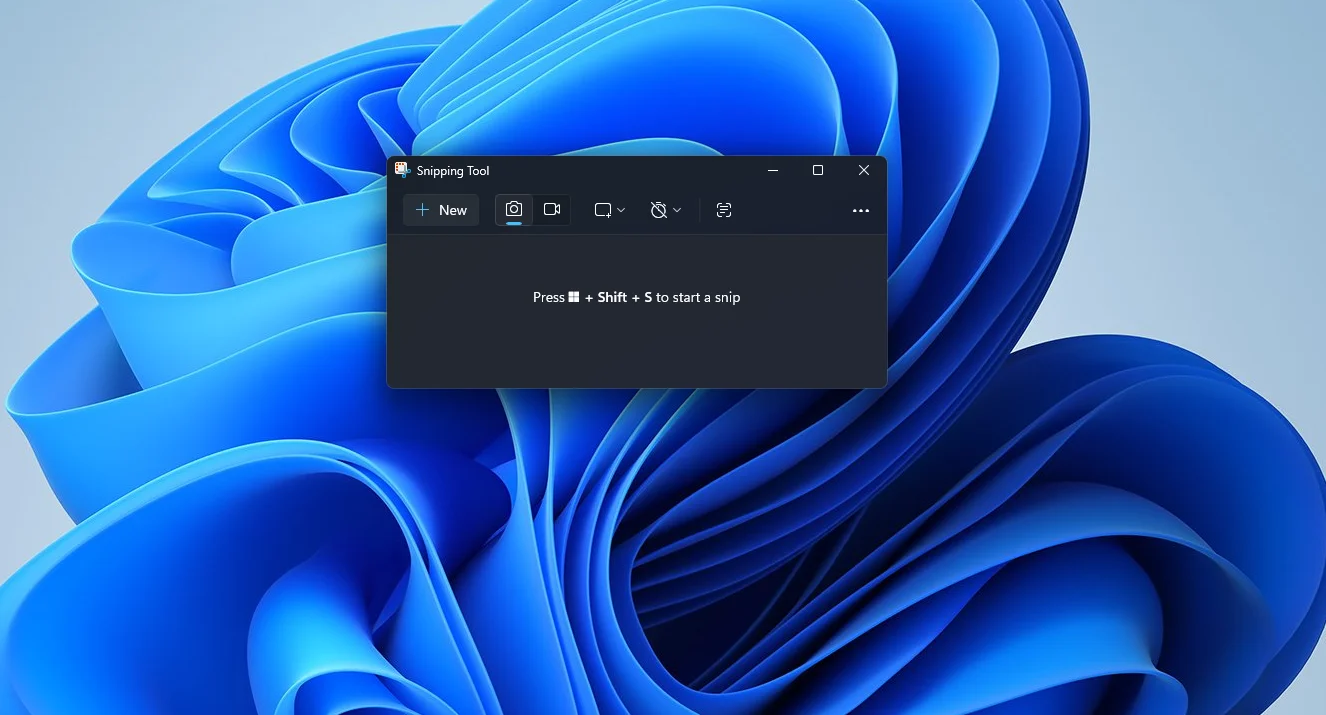
The Windows 11 Snipping Tool OCR feature has quietly evolved into one of the most powerful built-in utilities for PC users. Originally introduced during a major update in 2023, the Text Extractor capability now offers highly accurate text recognition directly from your screen. For professionals, students, and everyday users, this native integration eliminates the need for cumbersome third-party applications or privacy-compromising online converters.
By processing everything locally on the device, the tool ensures that sensitive documents are never uploaded to external servers. This makes it an ideal solution for users who frequently need to digitize printed text, pull data from locked PDFs, or capture error messages that cannot be highlighted. The seamless integration into the Windows ecosystem means that text extraction is now just a keyboard shortcut away.
How to Use the Windows 11 Text Extractor
Microsoft has streamlined the text extraction process, offering two distinct methods depending on your workflow. The traditional method involves taking a standard screenshot and utilizing the built-in toolbar. However, power users can bypass the main interface entirely for a much faster experience.
- Method 1 (Standard): Capture a screenshot using the Snipping Tool, then click the Text Actions button in the toolbar. The app will highlight all recognized text, allowing you to select specific portions or click Copy all text.
- Method 2 (Shortcut): Press the keyboard shortcut Win + Shift + T to trigger the Text Extractor directly. Simply drag your cursor over the area containing the text - whether it is a web page, an image, or a PDF - and click Copy all text to send it straight to your clipboard.
The shortcut method is particularly efficient because it skips the image capture step entirely. Furthermore, the tool excels at handling mixed content. If a web page contains both selectable text and text embedded within an image, the Snipping Tool pulls everything out in a single pass, saving users from running separate OCR processes.
Advanced Features: Quick Redact and Table Extraction
Beyond basic text copying, the Snipping Tool includes several advanced functionalities designed for productivity and privacy. One standout feature is Quick Redact. After running Text Actions on a captured screenshot, clicking Quick Redact will automatically block out detected phone numbers and email addresses.
This is incredibly useful when sharing documents containing sensitive contact information. However, it is important to note that the redaction tool currently only detects emails and phone numbers; it cannot automatically obscure names, physical addresses, or other sensitive data types. Users must still manually verify their screenshots before sharing them publicly.
Additionally, the tool supports structured data through its Copy as table option. This is highly beneficial when extracting information from screenshots of spreadsheets or neatly formatted documents. As an unexpected bonus, the Snipping Tool can even scan QR codes on your screen, instantly extracting the embedded text or URL without requiring a mobile device.
Limitations and When to Use Dedicated OCR Apps
Despite its convenience, the built-in OCR engine is not without its flaws. Handwritten text recognition can be inconsistent; while it manages to read messy handwriting, the output often requires manual cleanup. For extensive handwritten notes, users are better served by dedicated software like the OCR Text Recognition Tool available on the Microsoft Store.
Low-quality images present another significant hurdle. If the source image is too small or suffers from low resolution, the Snipping Tool may throw an "image too small" error and refuse to process the file. Even when it does attempt to read blurry text or unusual fonts, the accuracy drops noticeably, resulting in garbled output.
Finally, the tool does not preserve document formatting. All extracted content is output as plain, unformatted text, meaning that complex layouts, columns, and specific spacing will be lost. For heavy-duty text recognition involving multiple languages or complex document structures, a premium OCR application remains necessary.
My Take
The evolution of the Snipping Tool perfectly illustrates Microsoft's current strategy of quietly supercharging legacy Windows applications. By embedding OCR directly into the OS and tying it to the Win + Shift + T shortcut, Microsoft has effectively killed the need for basic third-party screenshot utilities like ShareX for the average user. The fact that it processes data locally is a massive win for enterprise security and user privacy. While it struggles with low-resolution images and complex formatting, its sheer speed and accessibility make it an indispensable daily driver for quick text grabs. As AI integration deepens in Windows 11, we can expect features like Quick Redact to eventually recognize a much broader spectrum of sensitive data.
Frequently Asked Questions
How do I extract text from an image in Windows 11?
Press the shortcut Win + Shift + T, drag your cursor over the text you want to capture, and click "Copy all text" to save it to your clipboard.
Does the Snipping Tool OCR require an internet connection?
No, the text extraction process runs entirely locally on your device, ensuring your data remains private and is not uploaded to any cloud servers.
Can the Snipping Tool translate text or preserve formatting?
Currently, the tool only extracts plain text and does not preserve document formatting, columns, or spacing. It also does not feature built-in translation capabilities.