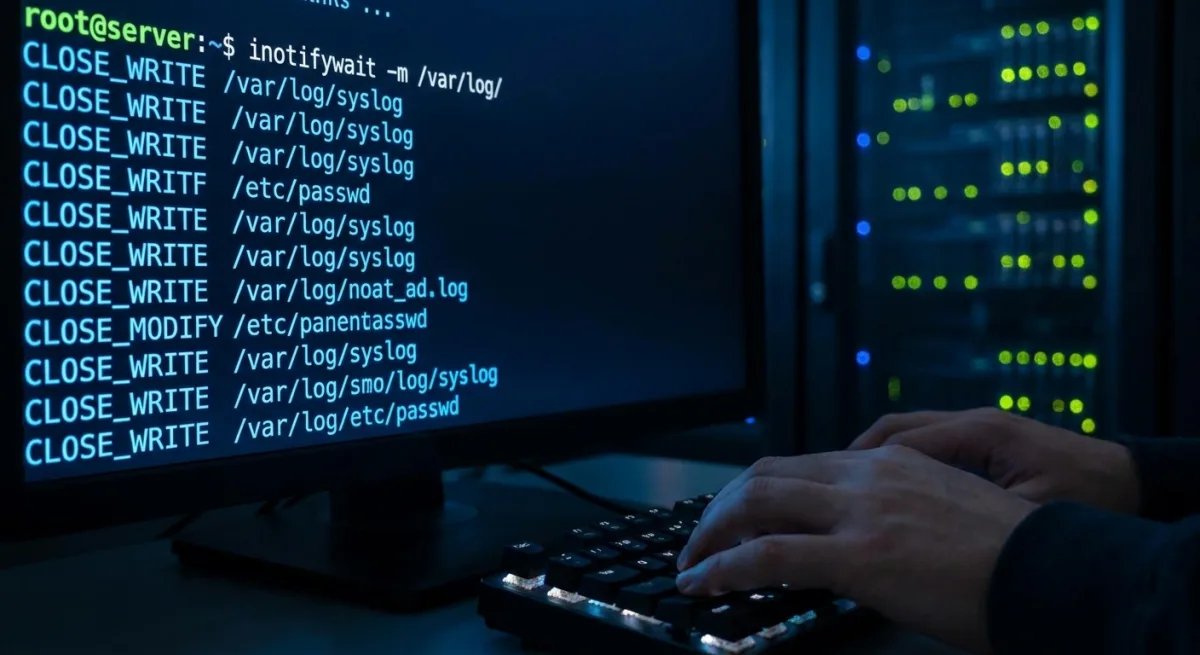
The inotifywait command is a powerful Linux tool that reveals exactly what background processes are silently modifying your system. If you have ever wondered why a configuration file keeps resetting or what an unfamiliar application is doing behind the scenes, this utility provides instant visibility. By tapping directly into the kernel, it allows you to monitor real-time file activity without running heavy background scanners.
Most Linux distributions run smoothly, creating files, updating configurations, and building caches entirely out of sight. However, when things break or behave unexpectedly, having a transparent view of these file operations becomes critical. The inotify subsystem, introduced in Linux kernel version 2.6.13, captures these file system events and reports them as they occur with minimal performance overhead.
Understanding the inotify Ecosystem
Because inotify is a kernel-level feature, you cannot interact with it directly from the standard command line. To bridge this gap, you need to install the inotify-tools package. This package provides user-space utilities that translate kernel signals into readable terminal output.
The ecosystem relies on three primary components working together. The core inotify subsystem generates the raw file system events. The inotifywait utility streams those live events directly to your terminal, making it the primary tool for real-time monitoring. Finally, the inotifywatch utility counts how many times each specific event type occurs over a designated period, which is useful for performance profiling.
How to Install and Configure inotify-tools
To get started with real-time file tracking, you must first install the tools package. The installation process varies slightly depending on your Linux distribution. Use the appropriate command for your system:
- For Ubuntu and Debian-based systems:
sudo apt install inotify-tools- For Fedora systems:
sudo dnf install inotify-tools- For Arch Linux systems:
sudo pacman -S inotify-tools- For openSUSE systems:
sudo zypper install inotify-toolsOnce the installation is complete, you can verify that the utility is ready and begin monitoring a specific directory. For example, to monitor your Documents folder continuously, use the following commands:
inotifywait --version
inotifywait -m ~/Documents
The -m flag is crucial because it forces the command to keep running continuously instead of exiting after detecting a single event. When an event occurs, the output follows a strict format: the watched directory, the event type, and the specific file that triggered the action. You can further refine this output using additional flags:
- -r: Watches all subdirectories recursively.
- -e: Filters for specific event types (e.g., -e create,modify,delete).
- --format: Controls the output structure for better readability or log formatting.
- --timefmt: Adds precise timestamps to each recorded event.
Observing Real-World Application Behavior
When you point the monitoring tool at standard applications, the sheer volume of background activity is often surprising. For instance, saving a file in a standard text editor does not simply trigger a single modification event. Instead, the editor creates a temporary throwaway file, writes the data, and then uses moved_from and moved_to events to swap it in. This layered approach ensures the original file remains intact if a crash occurs mid-write.
Web browsers exhibit even more aggressive background behavior. Monitoring the ~/.mozilla/firefox/ directory reveals an instant burst of writes upon launch. The browser continuously updates the places.sqlite file for bookmarks and the sessionstore.jsonlz4 file for open tabs. Interestingly, these writes continue constantly even when the browser is completely idle, a mechanism designed to ensure tabs can be recovered after an unexpected crash.
Package installations generate the most system noise. Running an apt install command while watching the /var/lib/dpkg/ directory immediately reveals the creation of a lock-frontend file. This critical mechanism ensures that multiple package operations do not run concurrently, which is then followed by massive write sequences across the package database.
Moving From Guesswork to Precision Debugging
The ability to watch file operations in real time transforms Linux system administration from a game of guesswork into a precise science. When evaluating unfamiliar software, you no longer need to wonder where an application stores its data or if it is writing outside of its expected directories. By simply pointing the monitor at the root or home directory, rogue applications reveal their exact behavior instantly.
This level of visibility is particularly invaluable for debugging persistent configuration issues. If a specific system setting keeps reverting after a reboot, watching the configuration directory will immediately identify which background service is overwriting your changes. It bridges the gap between experiencing a system symptom and finding the actual root cause.
However, users must be prepared for the utility's limitations. The output can be overwhelmingly noisy on active systems, requiring careful use of event filters to isolate relevant data. Furthermore, while the tool excels at showing exactly what changed and when, it cannot explain why the kernel initiated the change. Despite these minor constraints, it remains an essential diagnostic tool for any serious Linux user.
This article was written by AI from reporting by makeuseof.com.