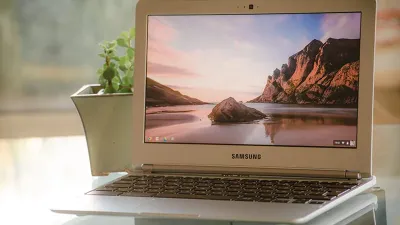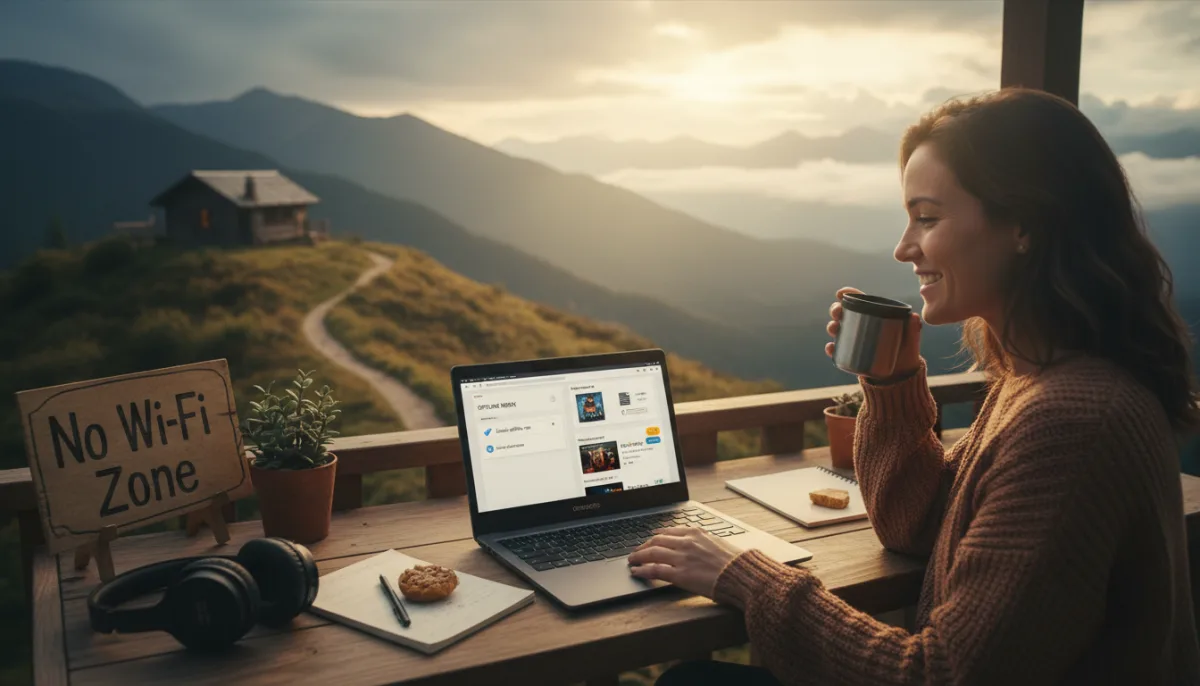
If you want to use a Chromebook offline, you might assume the device becomes a useless brick without an active Wi-Fi connection. However, modern ChromeOS devices are highly capable offline machines, allowing frequent travelers, students, and remote workers to maintain uninterrupted productivity and entertainment. By configuring a few settings ahead of time, you can transform your cloud-dependent laptop into a fully functional local workstation.
Before you disconnect from the internet, there are a few essential steps you must take to prepare your device. This initial setup ensures a seamless transition when you finally go offline.
- Connect to a stable Wi-Fi network for the initial setup. This ensures you can download necessary apps, extensions, and sync your current data.
- Verify your available local storage space. This enables you to download large media files and Android apps without hitting capacity limits.
How to Configure Gmail for Offline Access
- Open Google Chrome and navigate to your Gmail inbox. This ensures you are accessing the web client where offline settings are managed.
- Click the gear icon in the top-right corner and select 'See all settings'. This opens the advanced configuration menu for your account.
- Navigate to the 'Offline' tab and tick the 'Enable offline email' checkbox. This activates the local caching feature for your inbox.
- Configure your storage and sync preferences, then click 'Save changes'. This dictates how many days of emails are stored locally and finalizes the setup.
Note that while you can draft replies and download cached attachments, emails will remain in your Outbox until you reconnect to the internet. You also cannot preview attachments without an active connection.
How to Enable Offline Mode for Google Docs and Drive
- Open the Google Drive settings menu while connected to the internet. This provides access to your global Drive preferences.
- Tick the checkbox under the 'Offline' section within the 'General' tab. This allows Google Docs, Sheets, and Slides to save your recent work locally.
- Confirm the installation of the Google Docs Offline extension if prompted. This enables the browser to process document edits without a live server connection.
- Right-click specific critical files and select 'Available offline'. This forces Drive to pin those exact files to your local storage for guaranteed access.
How to Download Entertainment and Games
- Download movies and shows via Google TV, Netflix, or Hulu. This allows you to watch high-quality video content during flights or commutes by saving files directly to your drive.
- Install offline-supported Android games from the Google Play Store. This provides access to titles like Cut the Rope without needing a live server connection (look for the 'Runs offline' tag).
- Sync eBooks using the Kindle Android app. This lets you read your entire library without relying solely on downloaded PDF files.
How to Edit Media Without Wi-Fi
- Utilize the built-in ChromeOS Gallery app. This enables you to crop, adjust, and apply AI-driven edits to photos locally without third-party software.
- Install dedicated offline editing apps from the Play Store. This gives you access to advanced video and photo manipulation tools that function entirely on your device's hardware.
The Evolution of ChromeOS Local Storage
The narrative that Chromebooks are merely "browser boxes" is outdated, largely due to the integration of the Google Play Store and the shift toward larger local storage drives. Five years ago, a standard Chromebook shipped with 32GB of eMMC storage, making offline media hoarding nearly impossible. Today, with 128GB and 256GB SSDs becoming the baseline for mid-tier ChromeOS devices, treating your Chromebook like a traditional offline laptop is not just possible - it is highly practical.
Furthermore, the offline capabilities of Progressive Web Apps (PWAs) and Android apps highlight a strategic pivot by Google. By bridging the gap between cloud reliance and local execution, ChromeOS now competes directly with entry-level Windows machines for frontline workers and students. The key takeaway is proactive management: a Chromebook is only as good offline as the preparation you put into it while online.
This article was written by AI from reporting by bgr.com.