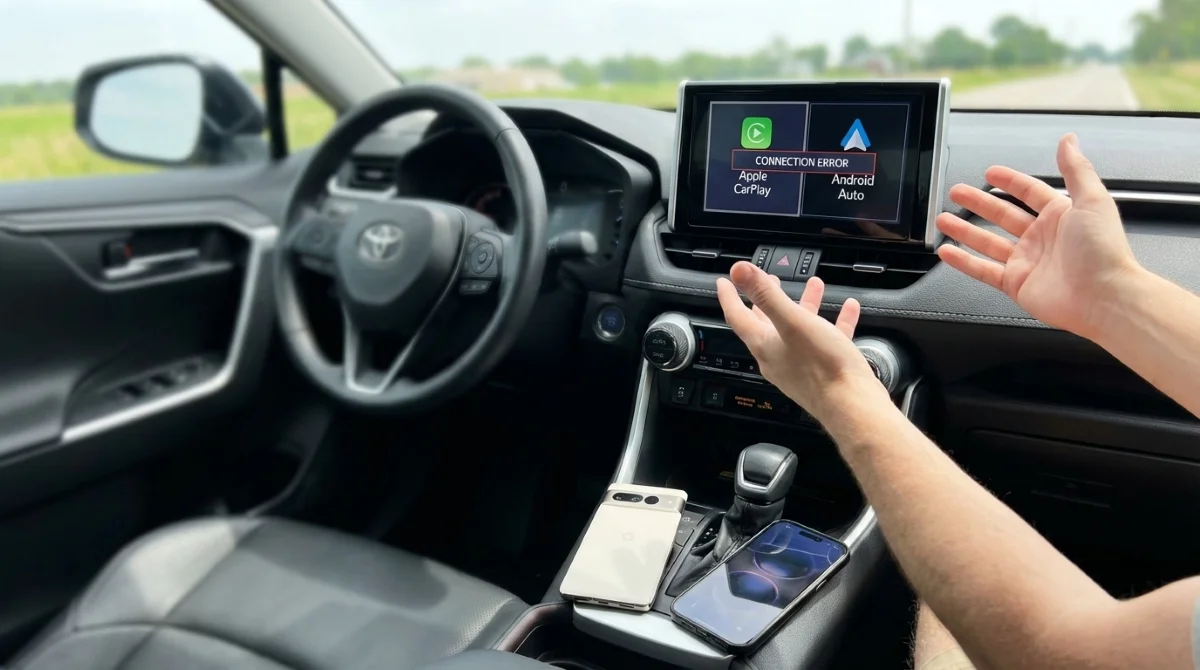
Sharing a vehicle with an iPhone user often turns the infotainment system into a frustrating battleground, especially when trying to switch from Apple CarPlay to Android Auto. For multi-driver households relying on wireless connections, the aggressive auto-connect features of modern vehicles can easily lock out the secondary driver. This guide provides a streamlined method to bypass the digital tug-of-war, ensuring you can access your navigation and media without restarting the vehicle.
The convenience of wireless Android Auto and Apple CarPlay is undeniable, but it introduces unique friction for couples sharing a single vehicle. For example, a family navigating city life with a toddler might alternate driving duties in a 2023 Toyota RAV4. When one driver uses a Google Pixel 10 Pro and the other an iPhone 16, the car's system often defaults to the last connected device. While wired connections bypass this issue entirely, wireless setups require a specific sequence to force the handoff smoothly.
Prerequisites for a Seamless Handoff
- Enable Bluetooth on your Android device before entering the vehicle cabin.
- Ensure the vehicle's infotainment system is fully powered on and booted up.
How to Switch from Apple CarPlay to Android Auto
- Enable your smartphone's Bluetooth before sitting in the driver's seat. This ensures the vehicle immediately recognizes your device upon startup, substantially shortening the connection process.
- Navigate to the vehicle's main settings menu on the infotainment display. This allows you to bypass the currently active Apple CarPlay interface and access the core system controls.
- Select the Bluetooth connection option from the menu. This reveals the list of all paired smartphones, such as the Google Pixel 10 Pro and iPhone 16.
- Choose your Android device from the list to force the connection. This manually overrides the active CarPlay session and initiates the Android Auto interface.
The User Profile Pitfall
Many modern vehicles, including the 2023 Toyota RAV4, offer dedicated user profiles protected by a six-digit PIN code. While it seems logical that logging into a specific driver profile would automatically trigger the correct phone connection, the reality is quite the opposite.
Switching user profiles does not expedite the transition between Apple CarPlay and Android Auto. In the best-case scenario, it adds an unnecessary step to your commute. In the worst-case scenario, the software conflict can freeze the infotainment system entirely, forcing a complete vehicle restart. Drivers are better off ignoring the built-in user profiles and relying on the manual Bluetooth menu swap.
Expanding Your Android Auto Experience
Once connected, Android Auto offers utility far beyond standard Google Maps and Spotify integration. Users can customize their experience by downloading specialized apps directly to their phones and organizing them via the Customize launcher option in the Android Auto settings.
The platform supports a wide array of practical and entertaining applications. You can manage parking reservations through SpotHere, maintain communication via WhatsApp, or even play casual games like Diamond Rush and Fruit Ninja via GameSnacks while parked.
The OEM Software Handoff Problem
The difficulty of swapping between wireless Android Auto and Apple CarPlay highlights a glaring oversight in modern automotive software design. Automakers are eager to implement wireless projection, but they have largely failed to build intuitive, one-touch handoff mechanisms for multi-driver households.
The fact that a 2023 Toyota RAV4's dedicated user profiles actively hinder the phone-switching process proves that native infotainment software remains disconnected from how people actually use their cars. Until OEMs prioritize seamless device arbitration over clunky PIN-locked profiles, drivers will have to rely on manual Bluetooth overrides to keep their daily commutes stress-free.
This article was written by AI from reporting by androidpolice.com.