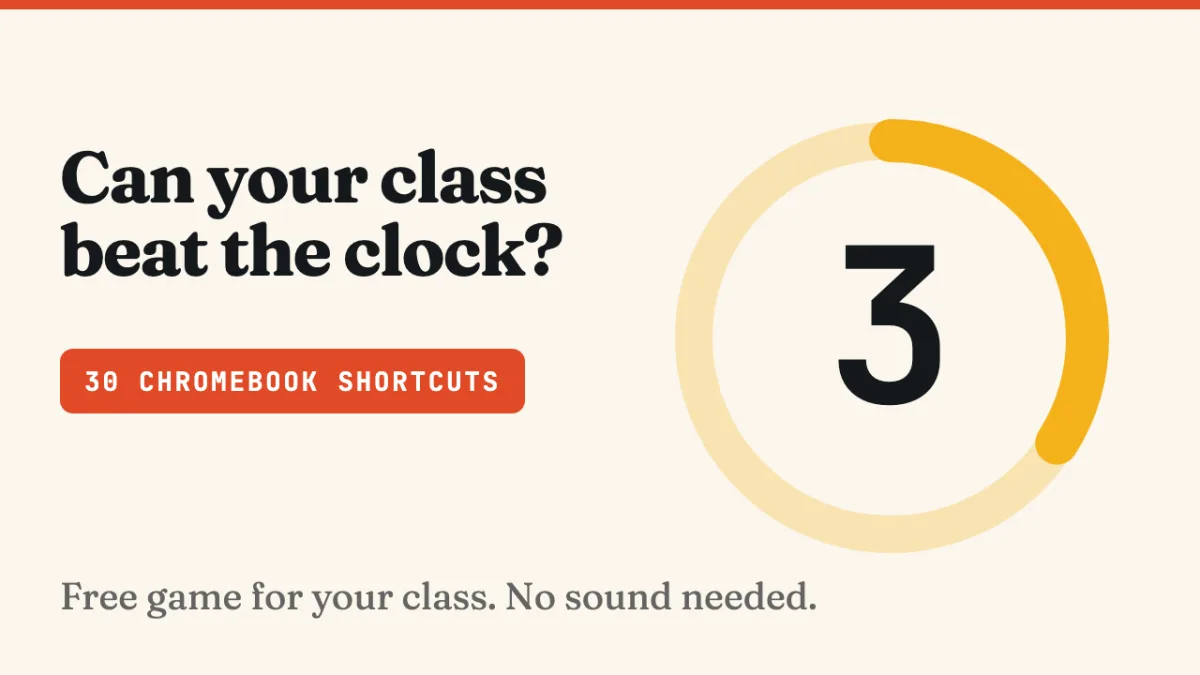
Teaching students how to navigate ChromeOS efficiently often falls flat, but a new zero-prep classroom tool called The Chromebook Drill turns OS navigation into a competitive race. The free 30-round game requires no accounts, no sound, and no setup, allowing an entire class to learn essential Chromebook keyboard shortcuts simultaneously.
By gamifying basic system commands, the activity helps students build muscle memory for everyday tasks. This reduces the time teachers spend troubleshooting lost tabs or hidden files, allowing them to focus on actual lesson content.
How The Chromebook Drill Scoring Works
The game operates via a video projector, displaying one plain-language instruction per round, such as "Bring back the tab you just closed." A visual countdown ring immediately starts, and students race to execute the command on their own devices.
The countdown ring doubles as the scoreboard, shifting colors to indicate the medal earned based on completion speed. There is no complex scoring system to memorize, as the class naturally understands the mechanics after watching a single round.
- Gold: Awarded if the student finishes in the first 40 percent of the clock.
- Silver: Awarded if they finish in the first 70 percent.
- Bronze: Awarded if they complete the task before the time runs out.
Students track their own scores. Every five rounds, the game pauses on a scorecard screen, giving the classroom a moment to tally their points, compare results, and help anyone who has fallen behind.
How to Run the Game in Class
Running the activity requires minimal preparation. Follow these steps to integrate it into a lesson:
- Print the answer key provided below, one per student, or simply have them number 1 to 30 on a blank piece of paper.
- Ask every student to open a few browser tabs before starting. An empty browser will make half of the shortcut rounds do nothing visible.
- Put the game video on the projector and press play. The first card explains the rules visually, eliminating the need for a long introduction.
- Pause every five rounds when the video stops on a scorecard. Use this moment to let the room compare scores and catch up.
- At the end of the 30 rounds, count the gold medals. Run the game again on another day and challenge students to beat their previous scores.
The Complete 30-Round Answer Key
The rounds are color-coded and progressively increase in difficulty. The first three rounds cover shortcuts most students already know, ensuring early success to maintain engagement. All answers are sourced directly from Google’s official documentation.
| Task | Shortcut | Category | Time Limit |
|---|---|---|---|
| Open a new tab. | Ctrl + T | Tabs | 6s |
| Close the tab you are on. | Ctrl + W | Tabs | 6s |
| Bring back the tab you just closed. | Ctrl + Shift + T | Tabs | 6s |
| Move to the next tab along. | Ctrl + Tab | Tabs | 7s |
| Jump straight to your first tab. | Ctrl + 1 | Tabs | 7s |
| Jump straight to your last tab. | Ctrl + 9 | Tabs | 7s |
| Open a brand new window. | Ctrl + N | Windows | 6s |
| Open a private window. | Ctrl + Shift + N | Windows | 7s |
| Make your window fill the whole screen. | Alt + = | Windows | 7s |
| Shrink your window out of the way. | Alt + - | Windows | 7s |
| Snap your window to the left half. | Alt + [ | Windows | 8s |
| Snap your window to the right half. | Alt + ] | Windows | 8s |
| Take a picture of your whole screen. | Ctrl + Show windows | Screen | 7s |
| Take a picture of just part of your screen. | Shift + Ctrl + Show windows | Screen | 10s |
| Open the Files app. | Shift + Alt + M | Files | 7s |
| Open your Downloads. | Ctrl + J | Files | 6s |
| Show the hidden files in the Files app. | Ctrl +. | Files | 8s |
| Save this page to your Chromebook. | Ctrl + S | Files | 7s |
| Print this page. | Ctrl + P | Files | 6s |
| Put your cursor in the address bar. | Ctrl + L | Search | 6s |
| Find a word on this page. | Ctrl + F | Search | 7s |
| Jump to the next match you found. | Ctrl + G | Search | 7s |
| Bookmark this page. | Ctrl + D | Search | 6s |
| Show or hide the bookmarks bar. | Ctrl + Shift + B | Search | 7s |
| Open your history. | Ctrl + H | Search | 6s |
| Turn Caps Lock on, then off again. | Search + Alt | System | 8s |
| Lock your screen. | Search + L | System | 6s |
| Open the settings panel in the corner. | Shift + Alt + S | System | 8s |
| Show every shortcut your Chromebook has. | Ctrl + Search + S | System | 8s |
| Make everything on the screen bigger. | Ctrl + Shift + + | System | 8s |
Admin Policy Warnings for Managed Devices
School-issued devices are frequently locked down by strict administrator policies. Because of this, a few specific rounds may not function as intended on managed hardware.
Teachers should test Round 8 (private window), Round 27 (lock screen), and Round 29 (the built-in shortcut list) before running the drill. Verifying these three commands in advance ensures there are no unexpected technical surprises in front of the classroom.
The Hidden Value of Gamified IT
The brilliance of The Chromebook Drill lies in its ability to disguise essential IT training as a fast-paced game. In modern classrooms, digital friction - such as a student accidentally closing a vital research tab and not knowing how to retrieve it - can derail a lesson's momentum. By drilling these shortcuts until they become second nature, the cognitive load on students shifts from fighting the operating system to actually engaging with the curriculum.
Furthermore, the self-scoring mechanism fosters independent problem-solving. Instead of raising a hand every time a window needs to be snapped to the side of the screen, students rely on the muscle memory built during the 30-round race. This approach not only empowers the user but fundamentally reduces the daily technical support burden placed on educators.