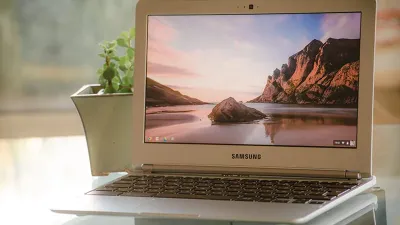
Chromebooks offer a built-in screensaver feature known as Ambient Mode, which transforms your idle lock screen into a personalized photo slideshow. Instead of staring at a blank black screen when you step away from your device, you can display curated artwork or your own memories.
Setting up this feature requires just a few clicks within the system settings. By linking your Google account, you can seamlessly pull images directly from your Google Photos albums or opt for Google's pre-selected art galleries.
Prerequisites for Ambient Mode
- Update your device to the latest version of ChromeOS. This ensures the personalization hub is fully available and bug-free.
- Sign in with your primary Google account. This enables the system to sync and display your personal Google Photos albums.
How to Enable the Chromebook Screensaver
- Open the Settings app on your Chromebook. This grants you access to the core system configuration menus.
- Navigate to the Personalization tab on the left sidebar, then click on Set your wallpaper & style. This opens the dedicated hub for customizing your device's visual appearance.
- Select the Screen saver option and toggle the switch to turn it on. This activates Ambient Mode for your lock screen.
- Choose your preferred image source by selecting either Google Photos or Art gallery. This dictates whether you see personal memories or curated professional artwork when the device is idle.
The Smart Display Transformation
While a screensaver might seem like a purely cosmetic addition, ChromeOS's Ambient Mode effectively bridges the gap between a traditional laptop and a smart home display. When docked or left open on a desk, a Chromebook running Ambient Mode mimics the functionality of a Google Nest Hub, providing ambient value even when you are not actively typing or browsing.
This feature is particularly beneficial for users with convertible 2-in-1 Chromebooks. By flipping the keyboard back and standing the device up like a tent, the Chromebook serves a dual purpose as a digital photo frame in a living room or kitchen. As Google continues to unify its hardware ecosystem, these small software integrations make ChromeOS devices feel more versatile and integrated into the modern smart home environment.