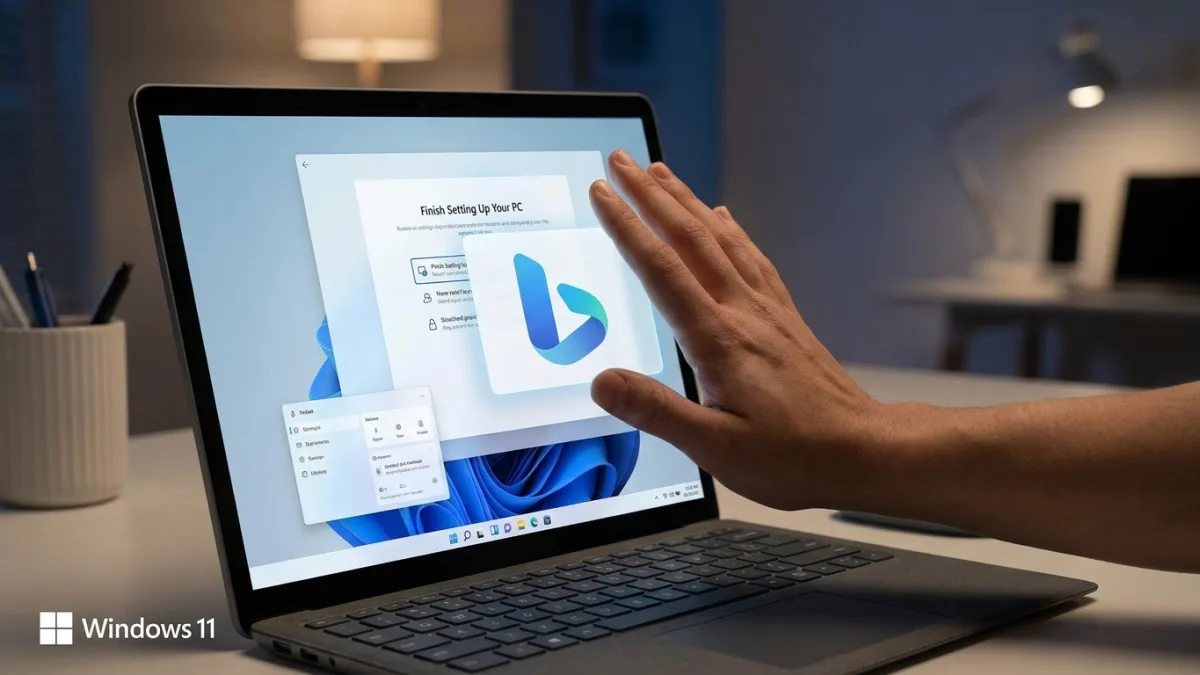
Windows 11 frequently interrupts workflows with full-screen setup wizards, taskbar widgets, and persistent prompts to use Copilot or Microsoft 365. Disabling these built-in advertisements and telemetry features transforms a cluttered operating system into a streamlined, user-focused environment. This guide is for Windows 11 users who want to regain control over their system resources and stop Microsoft from using their personal machine as a software sales tool.
Prerequisites for System Cleanup
- Administrator Privileges: Required to modify system registry files for the Start menu search fix.
- Windows 11 PC: These specific settings paths apply to current builds of Windows 11.
1. Stop the "Finish Setting Up Your PC" Wizard
Microsoft periodically triggers a full-screen prompt urging users to connect more services to their Microsoft account. You can permanently disable this interruption.
- Open the Settings app and navigate to System, then Notifications. This accesses the core notification toggles where Microsoft hides its setup prompts.
- Click on Additional settings at the bottom of the menu. This reveals the hidden toggles for system-level suggestions.
- Uncheck all items, specifically "Suggest ways to get the most out of Windows" and "Get tips and suggestions when using Windows." This prevents the OS from launching the full-screen setup wizard after future reboots.
2. Remove Bing Search Results from the Start Menu
By default, searching for a local file in the Start menu also pulls in web results from Bing, which slows down the search process and clutters the interface. A simple registry tweak removes this.
- Press the Windows key + R to open the Run dialog, type "regedit", and press Enter. This launches the Registry Editor required to modify system-level search behaviors.
- Navigate to the following path by pasting it into the top address bar:
This directs you to the specific policy folder for Windows user configurations.HKEY_CURRENT_USER\Software\Policies\Microsoft\Windows - Right-click the Windows folder, select New, then Key, and name it "Explorer" (if it does not already exist). This creates the necessary directory to house the search modification rule.
- Right-click an empty space inside the Explorer key, select New > DWORD (32-bit) Value, and name it:
This creates the specific registry entry that controls Bing integration.DisableSearchBoxSuggestions - Double-click the new entry and change the Value data to:
This activates the block, forcing the Start menu to only search local files and apps after you reboot your PC.1
3. Disable Personalized Offers and Recommendations
Windows 11 analyzes your usage patterns to push targeted suggestions, such as prompts to buy more OneDrive storage or subscribe to Game Pass.
- Navigate to Settings, then Privacy & Security, and select Recommendations & offers. This section controls how Microsoft uses your diagnostic data for marketing.
- Toggle off "Personalized offers." This stops the OS from customizing ads based on your specific usage habits.
- Toggle off "Recommendations and offers in Settings." This removes the persistent nudges to set up Windows Backup or other paid Microsoft services.
4. Turn Off Taskbar Widgets
The widgets board in Windows 11 consumes background system resources and primarily serves as a conduit for MSN news and ad revenue.
- Right-click an empty space on the taskbar and select Taskbar Settings. This opens the customization menu for taskbar elements.
- Toggle off the Widgets switch. This instantly removes the weather icon and news ticker, freeing up system memory and reducing visual clutter.
5. Uninstall or Hide Copilot
If you prefer alternative AI tools like Claude or ChatGPT, Microsoft's persistent push to integrate Copilot can be intrusive.
- Go to Settings, select Apps, then Installed Apps. This lists all software currently provisioned on your machine.
- Search for Copilot, click the three dots next to it, and select Uninstall. This completely removes the standalone Copilot application from your system.
- Navigate to Settings > Personalization > Taskbar > Other system tray icons, and uncheck Copilot if the app cannot be uninstalled. This hides the persistent Copilot icon from your system tray if it is deeply integrated into your specific Windows build.
The Hidden Cost of Default Settings
Microsoft's aggressive push of these features is not about improving the user experience; it is a calculated strategy to boost recurring services revenue. By embedding MSN content directly into the taskbar and forcing Bing web results into local searches, the company artificially inflates its daily active user metrics for its advertising network. The widgets board, in particular, acts as a Trojan horse for content consumption rather than a genuine productivity tool.
The registry tweak to disable Bing in the Start menu is arguably the most critical adjustment a power user can make. Beyond simply removing visual clutter, it fundamentally restores the speed and reliability of local file indexing. When Windows no longer has to ping external servers to fetch web links for every keystroke, the Start menu returns to being a lightning-fast launcher, proving that the best version of Windows 11 is the one where Microsoft's marketing engine is entirely shut off.
This article was written by AI from reporting by makeuseof.com.