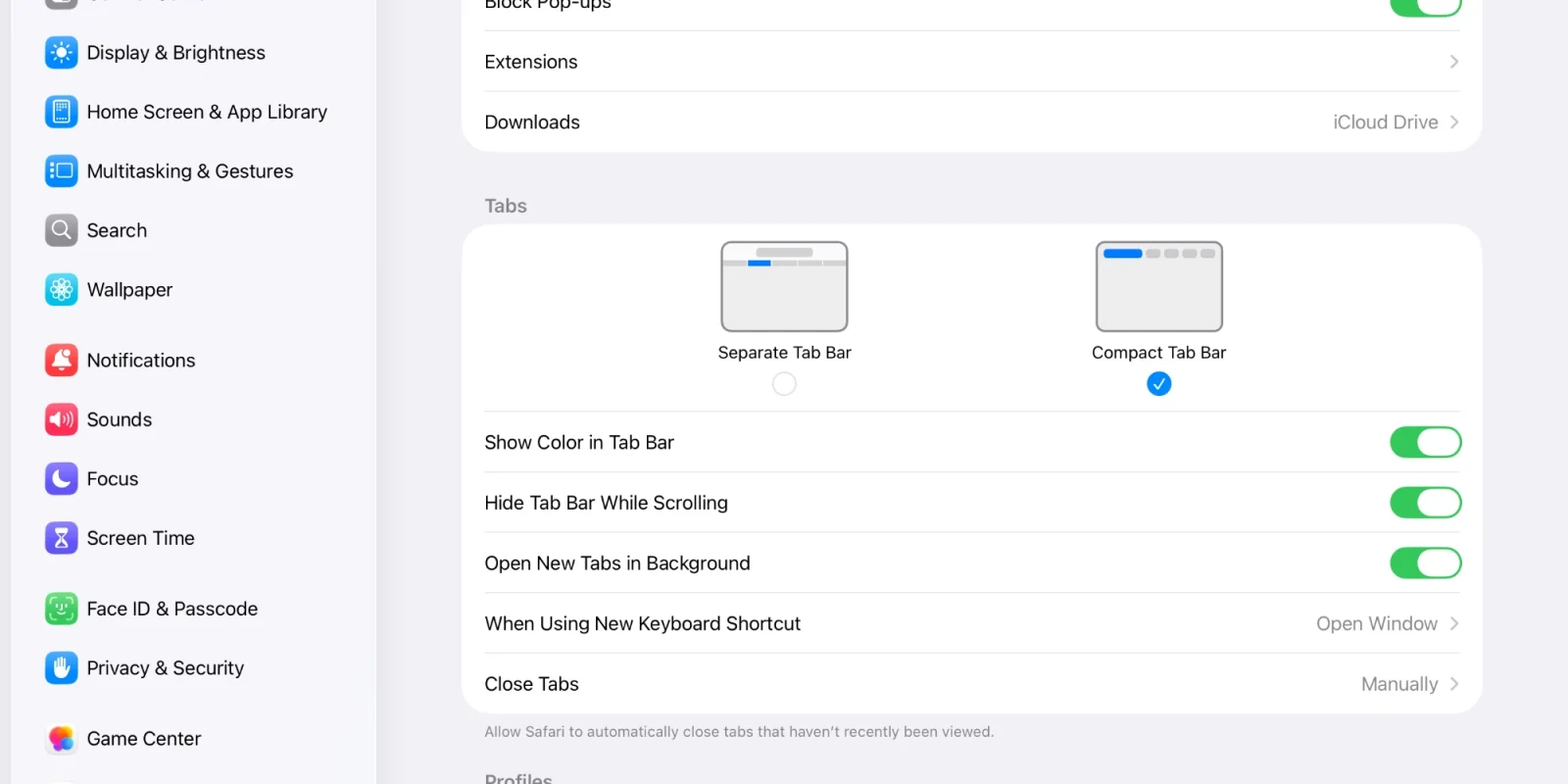
Apple has officially resurrected a fan-favorite browsing feature that quietly vanished last fall. With the release of macOS 26.4 and iPadOS 26.4, Safari's Compact Tab Bar is finally back, allowing users to merge the address bar and tabs into a single, space-saving row. The feature was notably absent during the initial launch of macOS Tahoe and iPadOS 26, leaving many users stuck with the default separated layout for months.
This update is a major win for MacBook Air and iPad mini users who need to maximize every pixel of vertical screen real estate. By consolidating the interface, the Compact layout provides a cleaner, less cluttered browsing experience. However, it does require users to rely more heavily on website favicons rather than full page titles, as the text is aggressively truncated to fit the unified design.
How to Enable the Compact Tab Bar on Mac
Restoring the unified layout on your Mac takes only a few clicks within the browser preferences. Ensure your system is updated to macOS 26.4 before proceeding.
- Open Safari.
- In the top menu bar, click Safari, then select Settings....
- Navigate to the Tabs pane.
- Next to the "Tabs Layout" option, select Compact.
The address bar and tab bar will immediately merge into a single row. If you ever want to revert the change, simply return to this menu and select Separate.
How to Enable the Compact Tab Bar on iPad
For iPadOS users, the toggle is located within the system settings rather than the browser itself. You must be running iPadOS 26.4 to see this option.
- Open the Settings app on your iPad.
- Scroll down and navigate to Apps, then select Safari.
- Under the "Tabs" section, tap Compact Tab Bar.
To switch back to the standard view later, just retrace these steps and choose Separate Tab Bar.
The Value of Vertical Screen Real Estate
The quiet removal of the Compact layout in the initial macOS Tahoe and iPadOS 26 releases was a puzzling UI decision, especially given Apple's broader push toward minimalist design. Its return in version 26.4 highlights a responsive pivot based on user feedback. For users on smaller displays, like the 11-inch iPad Pro or the 13-inch MacBook Air, reclaiming that extra vertical space significantly improves reading and web app navigation.
However, power users who routinely keep dozens of tabs open should weigh the trade-offs. Because the Compact view aggressively truncates tab titles to fit the URL bar in the same row, visual navigation becomes heavily dependent on favicons. If your workflow involves multiple pages from the exact same domain, the traditional Separate layout remains the more practical choice for quick identification.
This article was written by AI from reporting by macrumors.com.