Typing on an iPhone can feel tedious for users accustomed to physical keys, but hidden iOS features transform the default keyboard into a high-speed productivity tool. Apple has quietly integrated advanced gestures, optical character recognition, and artificial intelligence into the typing experience. iPhone users who want to stop fumbling with cursor placement or constantly switching language layouts can optimize their workflow using these built-in settings.
- Prerequisite: An iPhone running a recent version of iOS.
- Prerequisite: An iPhone 15 Pro or later to access Apple Intelligence features.
- Enable haptic feedback by navigating to Settings > Sounds & Haptics > Keyboard Feedback and toggling on Haptic Feedback. This ensures the built-in Taptic engine provides subtle physical vibrations with each keystroke, simulating the tactile response of a mechanical keyboard.
- Swipe directly from the "123" key to the desired number or symbol, then release your finger. This enables you to type a single number or special character instantly without permanently switching away from the standard letter layout.
- Scan physical text by tapping a text field, selecting the Live Text icon, and pointing your camera at a document. This allows the built-in OCR (optical character recognition) to copy real-world text directly into your app, bypassing manual typing entirely.
- Activate one-handed mode by pressing and holding the Globe key, then selecting the left or right docked keyboard icon. This shifts the entire keyboard layout closer to your thumb, making it significantly easier to type on larger devices like the Pro Max models.
- Create custom shortcuts by going to Settings > General > Keyboard > Text Replacement and adding trigger characters for long phrases. This enables you to instantly expand short codes into full email templates, addresses, or signatures, saving time on repetitive typing.
- Tap the screen multiple times to highlight text: double-tap for a word, triple-tap for a sentence, and tap four times for a full paragraph. This eliminates the frustration of dragging the tiny cursor handles to select specific blocks of text.
- Use the spacebar as a trackpad by pressing and holding it, then dragging a second finger to highlight text. This provides pinpoint precision for cursor placement and text selection without lifting your hands from the keyboard area.
- Reset your predictive text by navigating to Settings > General > Transfer or Reset iPhone > Reset > Reset Keyboard Dictionary. This clears out accidental typos or unwanted slang that autocorrect keeps aggressively suggesting, giving you a fresh start.
- Turn on multilingual support by going to Settings > General > Keyboard > Keyboards > Add New Keyboard and selecting a second language. This allows the keyboard to automatically detect which language you are typing in and adjust its predictive suggestions without requiring manual layout switches.
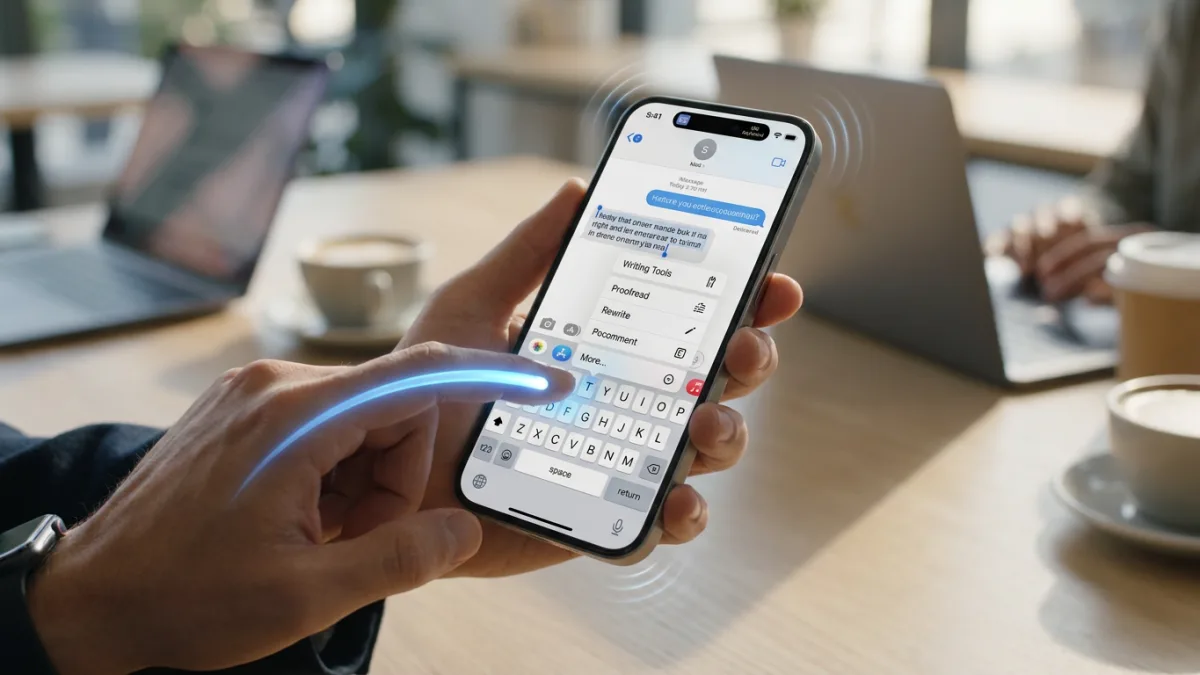
- Proofread your drafts by selecting your text and choosing Writing Tools from the pop-up menu. This leverages Apple Intelligence to check grammar, adjust the tone to be more formal, or condense the text before you hit send.
The AI Shift in Everyday Typing
The integration of Writing Tools marks a fundamental shift in how Apple views text input. For over a decade, the iPhone keyboard was strictly a passive input mechanism - relying on basic autocorrect and user-generated text replacements to speed up communication. By embedding Apple Intelligence directly into the system-level text menu, Apple is transforming the keyboard into an active editorial assistant.
This system-wide approach directly challenges third-party grammar applications like Grammarly. Because Writing Tools operates natively across the Notes app, Mail app, and third-party messaging platforms, users no longer need to grant full keyboard access to external developers - a major privacy advantage. As these AI features expand beyond the iPhone 15 Pro lineup, the baseline expectation for mobile typing will shift from simply correcting spelling to actively refining tone and structure.
This article was written by AI from reporting by lifehacker.com.