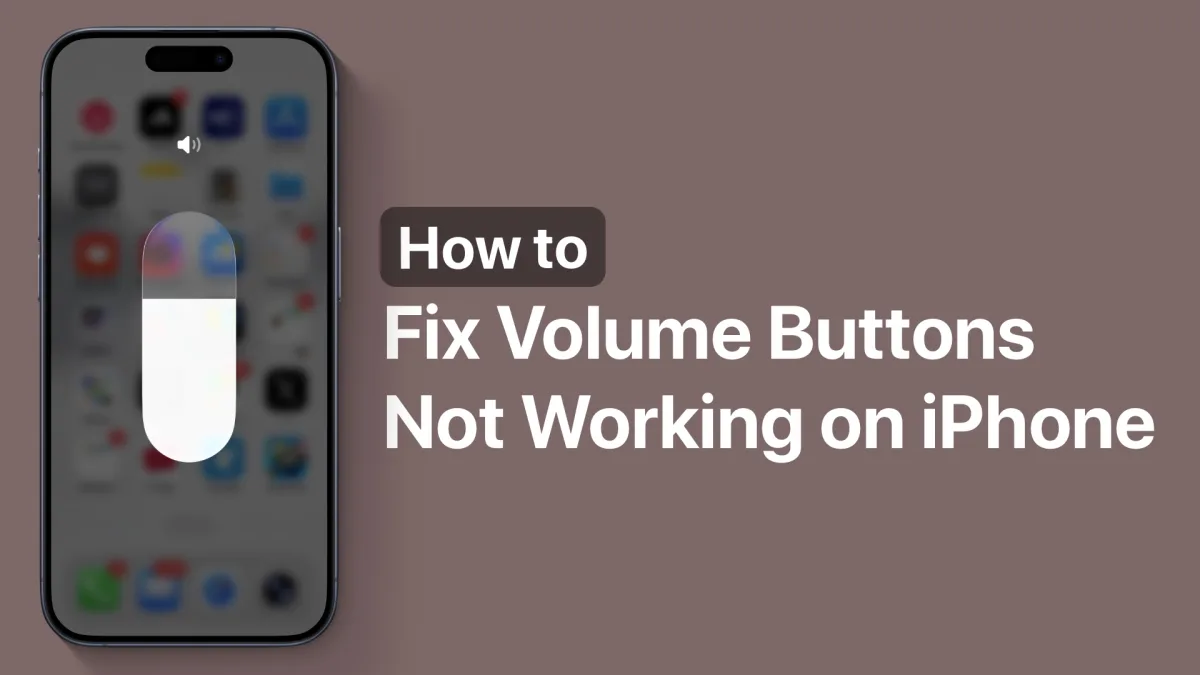
Dealing with iPhone volume buttons not working can be incredibly frustrating, especially when you need to quickly silence a call or adjust media audio. If your physical buttons have suddenly become unresponsive, the problem is often tied to a simple software glitch or a misaligned protective case rather than permanent hardware failure.
Before rushing to an Apple Store, there are several diagnostic steps you can take to restore full functionality to your device. This guide breaks down the most effective methods to troubleshoot and resolve volume control issues on your iPhone.
Initial Troubleshooting Steps
- Remove your iPhone case and inspect the button cutouts. This ensures that thick or misaligned cases are not applying constant pressure or blocking the physical mechanism.
- Clean the area around the volume rockers using a soft brush. This removes accumulated dust and debris that can cause the buttons to feel stuck or unresponsive.
- Navigate to Settings > Sounds & Haptics and toggle on "Change with Buttons". This enables the physical buttons to control the ringer and alert volume, which is a common reason users think their buttons are broken.
System Resets and Alternative Controls
- Swipe down from the top right corner to access the Control Center. This provides an immediate software-based slider to adjust your audio if the physical buttons are temporarily disabled.
- Adjust the volume directly through Settings > Sounds & Haptics. This bypasses the physical hardware entirely, allowing you to confirm if the issue is hardware-specific or a system-wide audio bug.
If software adjustments do not resolve the unresponsiveness, a force restart is required to clear underlying system glitches.
- Press and quickly release the Volume Up button. This initiates the first phase of the hardware-level reset sequence.
- Press and quickly release the Volume Down button. This continues the mandatory sequence for modern iOS devices.
- Hold the Side power button until the Apple logo appears on the screen. This forces the iPhone to reboot, clearing temporary cache errors that may be freezing the volume controls.
Alternatively, you can perform a standard shutdown by navigating to Settings > General and selecting the Shut Down option. Wait 15 seconds before powering the device back on.
Identifying Permanent Hardware Damage
If none of the software resets or cleaning methods restore functionality, your device may be suffering from internal hardware damage. Press the buttons repeatedly to check for a tactile click; if they feel mushy, loose, or completely stuck, the internal flex cable might be compromised.
In these scenarios, the most reliable solution is to have the device professionally inspected. You should take your iPhone to an official Apple Store or an Apple Authorized Repair Center for a hardware diagnostic.
My Take
The persistence of the "iPhone volume buttons not working" issue highlights a fundamental friction point in modern smartphone design: the vulnerability of moving mechanical parts. While Apple has significantly improved water and dust resistance over the years, the physical gaps around the volume rockers remain susceptible to debris buildup and case interference. The fact that a simple toggle in the "Sounds & Haptics" menu causes so much confusion suggests that iOS could benefit from clearer user onboarding regarding how audio controls are separated between media and ringtones.
Looking forward, this common hardware failure point is exactly why the industry is slowly pivoting toward solid-state buttons with haptic feedback. Until that transition is complete across all iPhone models, users should prioritize high-quality cases with precise button cutouts and regularly clean their devices. If you find yourself relying on the Control Center slider permanently, do not delay a professional hardware inspection, as internal flex cable damage can sometimes worsen over time.
This article was written by AI from reporting by ioshacker.com.