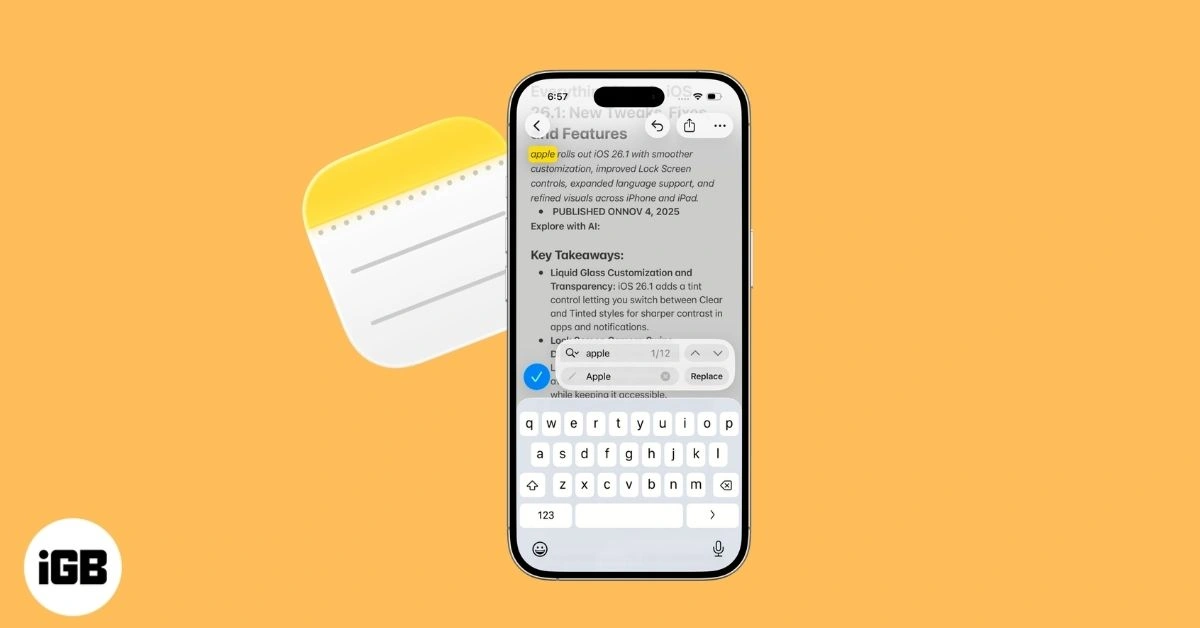
Mastering Find and Replace in Apple Notes
The Notes app on iPhone, a staple for quick jotting and organization, gained a powerful editing tool with iOS 16: Find and Replace. This feature lets users locate specific words or phrases across a note and swap them out efficiently, addressing a long-standing gap in Apple's lightweight note-taking software.
Why this matters: In an era where users capture meeting notes, shopping lists, or creative ideas on the fly, manual editing wastes time. Find and Replace streamlines corrections, like fixing repeated misspellings or updating project names, boosting productivity for students, professionals, and anyone managing digital clutter.
Requirements and Setup
This functionality requires iOS 16 or later. Users on older versions should update via Settings > General > Software Update. Open the Notes app, select a note, and proceed. The tool works on body text but not across multiple notes simultaneouslyeach edit happens within one note.
Method 1: Using 'Find in Note'
- Open the Notes app and tap a specific note to edit.
- Tap the three-dots menu (top right).
- Select Find in Note.
- Tap the magnifying glass icon, then choose Find & Replace.
- Enter the search term in the top field and replacement text in the bottom field.
- Tap Replace to change one instance at a time, or repeat for multiples. Tap Done to exit.
This method suits broad searches without pre-selecting text. Additional options include Whole Words, which ignores partial matches (e.g., searching 'eat' skips 'great'), and Match Case for case-sensitive results (e.g., 'forbes' vs. 'Forbes').
Method 2: Using 'Find Selection' for Speed
- Open the note and double-tap or long-press to select a word.
- In the pop-up menu strip, tap the arrow to expand options, then select Find Selection.
- Tap the magnifying glass > Find & Replace.
- Enter the new text in the bottom field and tap Replace.
Ideal for quick fixes on a single highlighted term, this skips initial searching. Note: Unlike Pages app, Notes lacks a 'Replace All' buttonyou replace instances individually to avoid unintended bulk changes.
Real-World Scenario: Correcting Meeting Notes
Imagine transcribing a client meeting where you repeatedly typed 'Q1 2026' but need 'Q4 2025' after a date mix-up. A 2,000-word note would take minutes to scan manually. With Find & Replace, select 'Find in Note', input the error, type the correction, and tap Replace 15 timesdone in seconds. Professionals like journalists or managers save hours weekly this way.
Common Pitfalls and Pro Tips
Avoid over-reliance on partial matches; enable Whole Words to prevent swapping 'cat' in 'category'. Match Case ensures brand names stay capitalized. For heavy editing, consider Pages app, which offers true Replace All across documents.
Enhance searches with Notes' broader tools: filter by attachments, checklists, or scanned documents via the main search bar. Quick Notes (swipe from screen corner) integrates seamlessly for on-the-go capture.
Why Notes Excels for Everyday Users
Apple prioritizes simplicityFind and Replace fits without bloating the app. Humans juggle dozens of notes daily; this feature reduces frustration, letting focus stay on ideas, not fixes. For power users, it pairs with iCloud sync for cross-device edits.
Forward-Looking Implications
As iOS evolves (watch for iOS 19+), expect expansions like multi-note search or AI-assisted replacements, mirroring advancements in apps like Pages. This positions Notes as a viable Evernote rival, emphasizing native, privacy-focused tools over third-party apps. Early adopters gain an edge in efficient digital workflows.
Integrate with Siri for voice-activated searches, or Lock notes for sensitive data. Experiment in a test note to build confidenceyour future self will thank you for cleaner, faster editing.
This article was written by AI from reporting by igeeksblog.com.