If you share a vehicle, you already know the frustration of trying to switch phones on Android Auto when a wireless dongle automatically connects to the wrong device. Instead of manually digging through settings menus to toggle Bluetooth and Wi-Fi, you can automate the entire process. By leveraging affordable NFC tags and Samsung’s built-in automation tools, you can instantly dictate which device takes control of your dashboard.
This guide is designed for drivers who share a car and use wireless Android Auto adapters. Implementing this setup eliminates the daily connection tug-of-war, allowing you to seamlessly swap active devices with a simple tap. Wireless Android Auto relies on both Bluetooth and Wi-Fi Direct, meaning the dongle typically connects to whichever device it detects first - usually the last one paired.
While a wired connection solves this issue, it sacrifices the convenience of a cable-free cabin. This NFC workaround restores that convenience by forcing the unwanted phone to drop its connection while prioritizing the new driver's device. Here is exactly how to configure your devices to make the switch instantaneous.
Prerequisites for the Dual-Phone Setup
- Two blank NFC tags.
- Two Samsung smartphones equipped with Modes and Routines (or Bixby Routines on older models).
- A wireless Android Auto dongle installed in your vehicle.
How to Configure Your NFC Automation
- Navigate to the automation settings on your Samsung device by opening Settings, selecting Modes and Routines, and tapping the Routines tab (or Settings > Advanced features > Bixby Routines on older models). This grants you access to the system-level triggers required to automate your connectivity radios.
- Program the first NFC tag to act as the "Connect" trigger by creating a routine that turns Wi-Fi, Location, and Bluetooth On, waits 2-3 seconds, connects to your specific Android Auto dongle via Bluetooth, turns Mobile Data On, and gets the Android Auto status. This ensures the desired phone actively broadcasts the necessary signals and forces a handshake with the wireless dongle.
- Configure the second NFC tag as the "Disconnect" trigger with a routine that disconnects from the dongle, turns Wi-Fi and Location Off, waits 15-45 seconds, and then turns Location and Mobile Data back On. This temporarily hides the secondary phone from the dongle, preventing it from stealing the connection back before the primary phone connects.
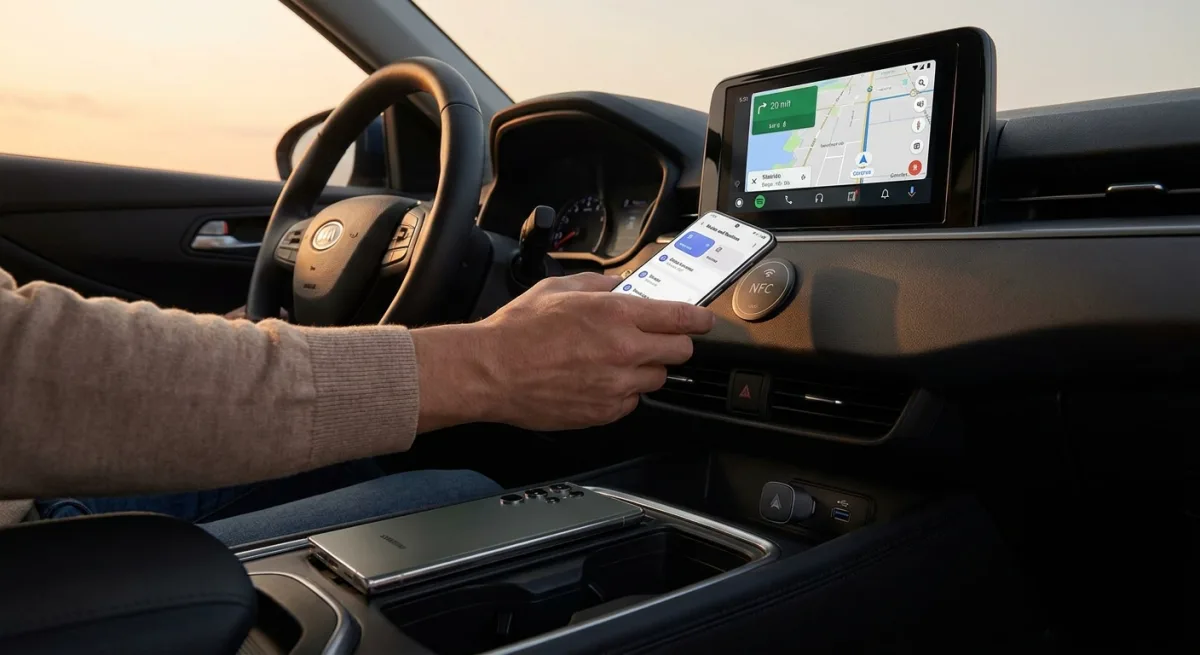
- Mount both NFC tags on your car's dashboard and simply tap the driver's phone to the "Connect" tag and the passenger's phone to the "Disconnect" tag. This executes the complex sequence of radio toggles instantly, bypassing the need to manually navigate through Android settings.
The Untapped Potential of Local Automation
This dual-phone workaround highlights a significant gap in current wireless Android Auto dongles: the lack of a native priority system. Until hardware manufacturers implement physical switch buttons or software-level device prioritization, users are left to engineer their own solutions. The reliance on NFC tags here is a brilliant, low-cost method to regain control over aggressive Bluetooth auto-connect protocols.
Furthermore, this setup underscores the immense value of native automation tools like Samsung's Modes and Routines. While third-party apps like Tasker or Automate are powerful, they often require complex permissions or ADB workarounds to toggle system-level radios like Wi-Fi and Location. Samsung’s deep system integration allows these routines to execute flawlessly in the background.
For households juggling multiple devices, investing in a pack of NFC tags remains one of the smartest tech purchases you can make. Even as they fade from mainstream tech discussions, their ability to trigger hyper-local, context-aware actions makes them indispensable for bridging the gap between our physical environments and our digital ecosystems.