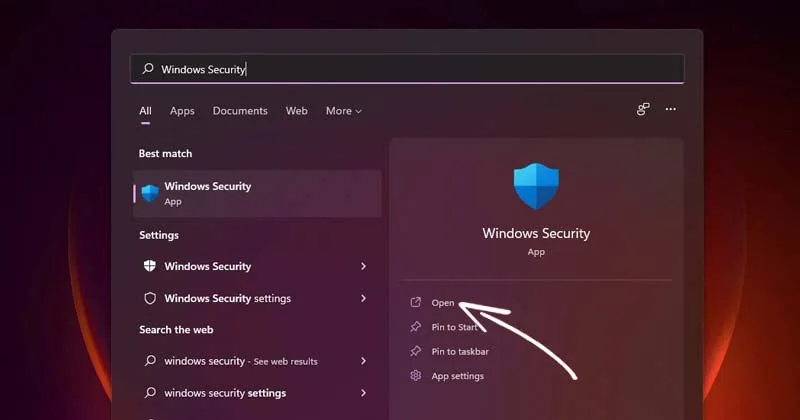
Windows 11 users who find themselves unable to open the Windows Security dashboard are left blind to potential malware threats and system vulnerabilities. When the built-in antivirus fails to launch, it often points to deeper OS conflicts rather than a simple glitch. Resolving this requires systematically clearing out corrupted files, resetting app packages, and eliminating third-party software interference.
Common Culprits Behind Security App Crashes
Before diving into the command line, it helps to understand what breaks the security dashboard. Common triggers include:
- Corrupted system files or invalid registry entries.
- Outdated versions of the Windows OS.
- Conflicts with third-party antivirus programs.
- Unlicensed or modified versions of the operating system.
Method 1: Repair and Reset Windows Security
- Open the Windows 11 Start Menu and type Windows Security.
This locates the application shortcut within the system search. - Click on App Settings from the right-hand pane.
This opens the dedicated configuration page for the security dashboard. - Scroll down and click the Repair button.
This attempts to fix missing or corrupted app files without deleting your configuration data. - Click the Reset button if the repair fails to resolve the issue.
This completely wipes the app's local data and restores it to its factory state.
Method 2: Restart the Security Center Service
- Press the Windows Key + R to open the RUN dialog box.
This provides direct access to system execution commands. - Type
services.mscand press Enter.
This launches the Windows Services manager where background processes are controlled. - Locate the Security Center service in the alphabetical list.
This specific service is responsible for monitoring system health and security status. - Right-click on Security Center and select Restart.
This forces the background service to reboot, clearing temporary memory hangs that prevent the app from opening.
Method 3: Run an SFC Scan
- Type Command Prompt in the Windows search bar.
This locates the command-line interface required for system-level scans. - Right-click the result and select Run as administrator.
This grants the elevated privileges necessary to modify core system files. - Execute the following command:
This triggers the System File Checker to scan for and automatically replace corrupted OS files.sfc /scannow - Wait for the verification process to reach 100 percent before closing the window.
This ensures all damaged sectors are fully repaired before the system reboots.
Method 4: Re-register the App via PowerShell
- Launch Command Prompt or PowerShell as an administrator.
This provides the necessary environment to execute advanced package management scripts. - Run the primary reset command and press Enter:
This forces Windows to re-register the specific user interface package for the security app.Get-AppxPackage Microsoft.SecHealthUI -AllUsers | Reset-AppxPackage - Execute the unrestricted execution policy command if the first fails:
This bypasses standard execution limits to forcefully reinstall all default Windows applications, including the security dashboard.powershell -ExecutionPolicy Unrestricted Get-AppXPackage -AllUsers | Foreach {Add-AppxPackage -DisableDevelopmentMode -Register "$($_.InstallLocation)\AppXManifest.xml"} - Restart your computer.
This applies the registry changes and initializes the newly registered app packages.
Method 5: Isolate Third-Party Conflicts
- Uninstall any third-party antivirus programs currently on your system.
This prevents overlapping security protocols from blocking the native Windows defender. - Press Windows Key + R, type
msconfig, and press Enter.
This opens the System Configuration utility to manage startup behavior. - Navigate to the Services tab, check Hide all Microsoft Services, and click Disable All.
This safely turns off non-essential third-party background processes without breaking core OS functions. - Switch to the Startup tab and click Open Task Manager.
This redirects you to the modern interface for managing applications that launch on boot. - Disable all listed startup programs and restart your PC.
This performs a Clean Boot, allowing you to verify if a specific third-party app was causing the crash.
Method 6: System Updates and Recovery
- Navigate to Settings, then Windows Update, and click Check for Updates.
This downloads the latest security patches and bug fixes directly from Microsoft. - Go to Settings, select Windows Update, and click Advanced Options.
This accesses the deeper system recovery menus. - Click on Recovery, then select the Reset PC button.
This initiates the final troubleshooting step to reinstall the operating system. - Choose the Keep my files option.
This ensures your personal data remains intact while all system settings and apps are restored to their default state.
The Hidden Cost of Overlapping Security Tools
The persistent failure of the Windows Security dashboard often highlights a broader issue within the Windows ecosystem: the messy aftermath of third-party antivirus software. While tools from external vendors were once mandatory for PC health, modern Windows 11 relies on a deeply integrated security architecture. When users install, and subsequently uninstall, third-party suites, these programs frequently leave behind orphaned registry keys and modified group policies that actively suppress the native Security Center service.
Relying on aggressive PowerShell commands to re-register the SecHealthUI package is highly effective, but it underscores the fragility of Windows app packages when subjected to external modifications. For most users, maintaining a clean system environment - free from redundant security tools and unnecessary startup bloat - is the most reliable way to ensure the built-in defender remains active and accessible.