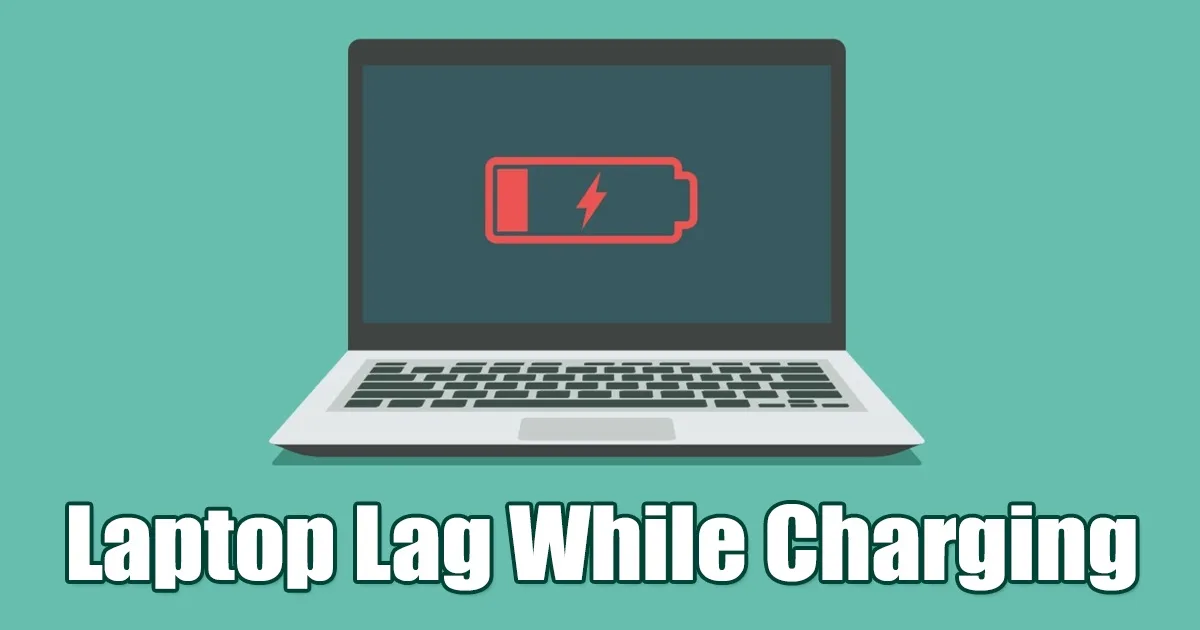
Fixing laptop lag when plugged in on Windows 11 is a critical troubleshooting step for users experiencing sudden performance drops. This frustrating slowdown while charging is typically caused by thermal throttling, incompatible power adapters, or misconfigured system power plans. By adjusting your processor power management and optimizing system settings, you can restore your device's speed and eliminate charging-related performance bottlenecks.
This guide is designed for Windows 11 users, gamers, and professionals who notice a severe performance dip the moment they connect their charger. Resolving this issue ensures consistent frame rates during intensive tasks and prevents long-term hardware degradation caused by excessive heat buildup. Before proceeding, ensure you have the following prerequisites ready.
- Original OEM power adapter for your specific laptop model.
- Administrator privileges on your Windows 11 operating system.
- Basic understanding of the Control Panel and Task Manager interfaces.
Hardware and Thermal Checks
- Inspect your device for overheating and clean the heat sink if necessary.
This ensures that the excess heat generated during charging is properly dissipated, preventing the hardware from thermal throttling. - Verify your power adapter condition and strictly use the original OEM charger.
This prevents irregular power delivery that can cause excessive heating and potential damage to internal hardware components.
Optimizing Windows 11 Power Settings
- Navigate to Settings, select System, and click on Power & Battery.
This enables access to the core power profiles within the operating system. - Select 'Better Performance' or 'Best Performance' from the Power Mode dropdown menu.
This forces the operating system to prioritize processing speed over energy efficiency while the device is plugged in.
Adjusting Processor Power Management
- Open the Control Panel from Windows Search and select Power Options.
This provides access to legacy advanced power configurations that are not available in the modern Settings app. - Click 'Change plan settings' followed by 'Change Advanced Power Settings'.
This opens the detailed hardware power management dialog box for granular control. - Expand the 'Processor Power Management' category and locate the 'Maximum processor state' option.
This reveals the exact parameters responsible for capping your CPU performance. - Change the 'Plugged in' percentage from 100% to 95% or lower, then click Apply.
This prevents the processor from maxing out and generating excess heat, effectively stopping the thermal throttling cycle.
System Resources and Security
- Run a Full Scan using the Windows Security app under Virus & Threat Protection.
This ensures that hidden malware or background cryptominers are not consuming system resources. - Open Task Manager, navigate to the Processes tab, and end unnecessary background tasks.
This frees up critical RAM and CPU cycles, allowing your primary applications to run smoothly. - Consult a local service center if software optimizations fail to resolve the lag.
This rules out underlying hardware failures, such as a degraded battery or a failing motherboard power delivery system.
The Hidden Cost of Thermal Throttling
The phenomenon of a laptop slowing down while charging perfectly illustrates the delicate balance between power delivery and thermal management in modern hardware. When you plug in a device, the battery generates additional heat, which often pushes the CPU past its thermal threshold, triggering automatic throttling. Lowering the maximum processor state to 95% is a highly effective workaround because it sacrifices a negligible amount of peak performance to maintain stable, sustainable clock speeds.
Looking ahead, as manufacturers continue to pack more powerful silicon into thinner chassis, software-based power management will become even more critical. Users should always prioritize using original OEM chargers, as third-party adapters frequently lack the necessary communication chips to regulate voltage properly. Failing to address these power delivery mismatches will only exacerbate both heat generation and system lag over time.
This article was written by AI from reporting by techviral.net.