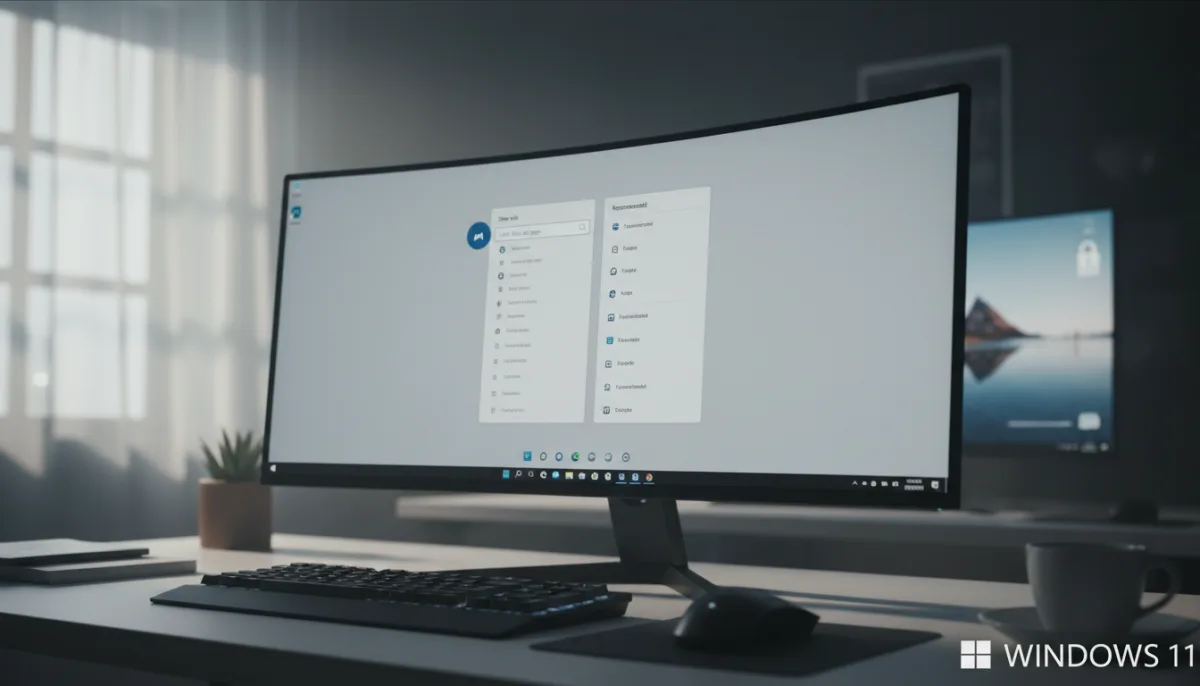
Windows 11 has become increasingly cluttered with Bing integrations, MSN news feeds, and unsolicited content suggestions. For users seeking a streamlined, distraction-free desktop environment, disabling these features is essential. This guide provides actionable steps to disable Bing in Windows 11, specifically targeting the lock screen, taskbar, and Start menu. By removing these web-based suggestions, you reduce visual noise and prevent your system from constantly fetching background data.
Prerequisites for System Cleanup
- Administrator Privileges: Required for modifying the Windows Registry.
- Windows 11 OS: Ensure your system is updated to a recent build to access all relevant settings.
How to Clean Up the Windows 11 Lock Screen
- Open the Settings app. This ensures you access the core system personalization options.
- Navigate to Personalization, then select Lock screen. This enables you to modify the background behavior.
- Change the "Personalize your lock screen" dropdown to Picture or Slideshow. This ensures Windows Spotlight stops pulling web-based images and ads.
- Uncheck the box for "Get fun facts, tips, tricks and more on your lock screen". This ensures random Bing quizzes and MSN content are permanently removed.
- Set the "Lock screen status" to None. This enables a completely serene, text-free login experience.
How to Turn Off Taskbar Widgets
- Right-click on an empty space on the taskbar and select Taskbar settings. This enables direct access to taskbar behavior controls.
- Toggle the Widgets option to the off position. This ensures the weather and news ticker disappears from the bottom-left corner, reducing visual clutter.
How to Disable Bing Search in the Start Menu
- Press Windows+R, type
and press Enter. This enables access to the Registry Editor.regedit - Navigate to the following path:
This ensures you are modifying the correct user policy hive.HKEY_CURRENT_USER\Software\Policies\Microsoft\Windows - Right-click an empty space inside the Windows folder, select New > DWORD (32-bit) Value, and name it:
This creates the specific key required to block web results.DisableSearchBoxSuggestions - Double-click the new entry and change the Value data to
, then click OK. This ensures the Start menu search is restricted to local files and apps only.1 - Reboot your machine. This ensures the registry changes take effect across the operating system.
The Local Search Advantage
Microsoft's aggressive push to integrate Bing into every corner of Windows 11 highlights a broader industry shift toward monetizing the desktop interface. By transforming the Start menu and lock screen into ad-delivery mechanisms, the operating system prioritizes engagement metrics over user productivity. However, disabling these web hooks does more than just clean up the UI; it fundamentally improves system responsiveness.
When you sever the Start menu's connection to Bing, local app and file searches execute noticeably faster because the system no longer waits for external server queries to populate the results panel. For power users, reclaiming this local control is not just an aesthetic preference - it is a necessary step to maintain a high-performance, distraction-free workflow.
This article was written by AI from reporting by makeuseof.com.