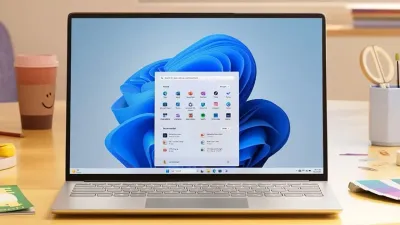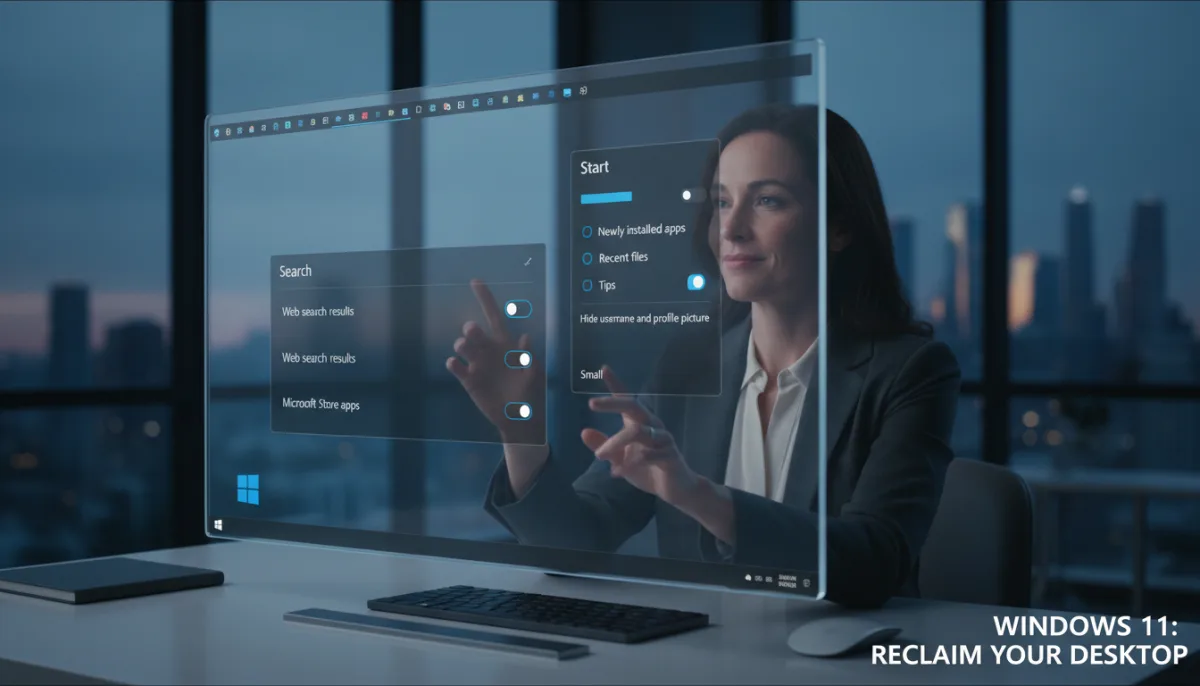
Windows 11 is finally fixing its most cluttered interfaces with the upcoming September 8, 2026, Patch Tuesday update. Users who have spent years battling algorithmically generated recommendations and a locked taskbar will soon have native toggles to reclaim their desktop experience.
Microsoft is rolling out highly requested features that allow you to strip away unwanted suggestions, resize core UI elements, and fundamentally change how Windows Search operates. If you want to transform your operating system from a promotional billboard back into a streamlined productivity tool, here is exactly how to configure the new settings.
Prerequisites for Customization
- A PC running Windows 11 that has installed the September 8, 2026, Patch Tuesday update (or later).
- Administrator privileges to modify system-wide personalization and taskbar settings.
How to Declutter the Start Menu
- Navigate to Settings, select Personalization, and then click on Start. This opens the newly updated control panel where the dedicated toggle switches are located.
- Toggle off the switches for newly installed apps, recent files, or tips. This instantly removes the algorithmically generated suggestions and recommendations that clutter the bottom half of the menu.
- Hide your username and profile picture using the new interface toggle. This creates a much cleaner, more streamlined look for users who prefer a minimalist aesthetic.
- Adjust the overall size of the menu by selecting either the small or large option. This ensures the interface fits your specific screen resolution and personal workflow preferences.
How to Move and Resize the Taskbar
- Open the Taskbar settings menu from the main Personalization screen. This grants access to the placement options that have been missing since the operating system originally launched.
- Change the position of the bar from the default bottom alignment to the top of the screen. This allows long-time users to restore their preferred desktop layout and improves ergonomics for certain monitor setups.
- Select the new option to shrink the size of the Taskbar and its associated icons. This frees up valuable vertical screen space, which is especially useful on smaller laptop displays.
How to Disable Web Results in Windows Search
- Access the simplified search home user interface via the system settings. This new menu clearly delineates between local files, system settings, and applications.
- Switch off the web search results toggle to completely disable the Bing integration. This stops internet queries from filling in your local searches, prioritizing your actual files and installed applications.
- Turn off the suggestions for Microsoft Store apps. This prevents the search home screen from being overwhelmed by promotional content and app recommendations you do not need.
A Long-Overdue Retreat from Forced Integration
The September update represents a significant philosophical shift for Microsoft. For years, the company has aggressively pushed Bing integration and Microsoft Store recommendations directly into the core user interface, often at the expense of basic usability. By finally providing native toggles to disable web results and hide algorithmic suggestions, Microsoft is acknowledging that forced ecosystem integration causes more friction than engagement.
The return of the top-aligned Taskbar is particularly notable. This was a staple feature in Windows 10 that was controversially stripped away during the transition to Windows 11. Restoring it, alongside the ability to shrink the taskbar footprint, shows that Microsoft is finally listening to power users who prioritize vertical screen real estate over a rigid, macOS-style dock experience.
Ultimately, these changes make Windows Search significantly faster and more reliable. When the system no longer has to ping Bing servers to populate web results alongside local files, the entire search experience becomes instantaneous. Users should manually check for updates on September 8 to ensure they receive these customization tools as soon as the gradual rollout begins.
This article was written by AI from reporting by makeuseof.com.