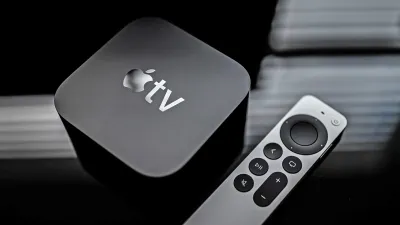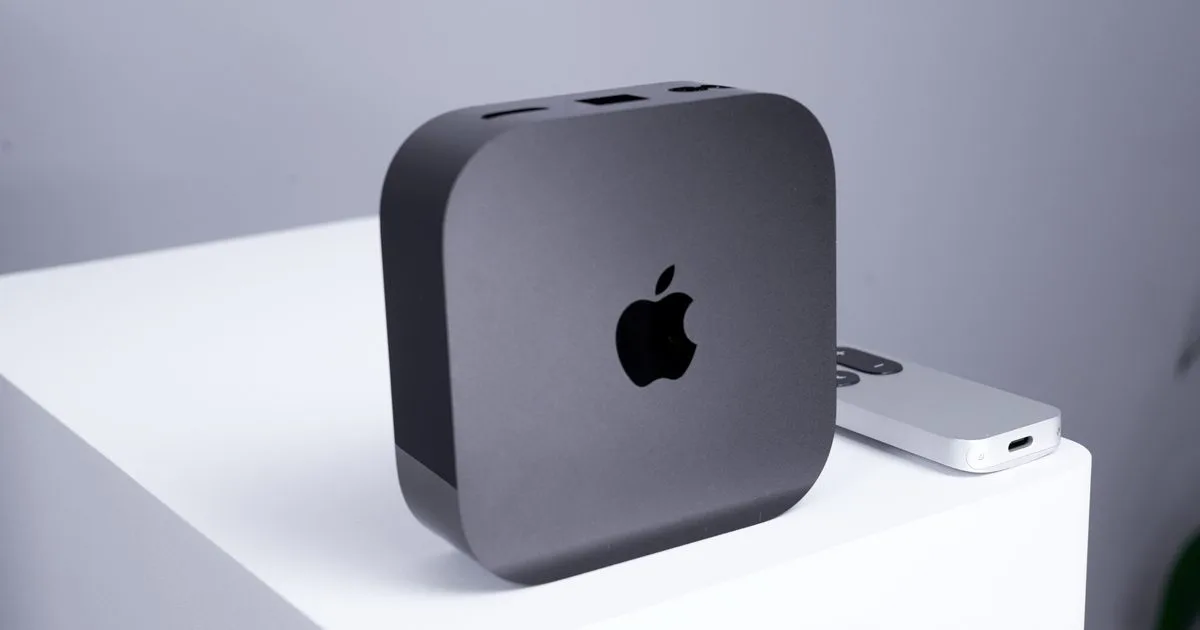
A comprehensive Apple TV troubleshooting guide is essential for resolving common streaming interruptions on tvOS 26. While Apple's streaming hardware delivers premium performance, users frequently encounter unresponsive remotes, Wi-Fi buffering, and HDMI handshake errors. This guide provides expert-verified solutions to restore your home theater experience without requiring a trip to the Genius Bar.
Designed for Apple TV 4K and HD owners, these actionable steps enable users to diagnose and fix hardware or software glitches independently. Understanding these diagnostic workflows saves time and prevents unnecessary equipment replacements. This is especially critical when dealing with complex home theater setups involving soundbars and mesh networks.
Required Materials and Prerequisites
- Apple TV device running tvOS 17.4 or later.
- Siri Remote (USB-C or Lightning version) or an iPhone with the Remote app in Control Center.
- Certified Premium High Speed HDMI cable.
- Access to your local Wi-Fi router credentials.
The Initial Diagnostic Step
Before diving into specific errors, perform a basic system restart. Navigate to Settings > System > Restart, or physically unplug the power cord for 30 seconds. This simple action clears temporary cache files and resolves the vast majority of minor software glitches.
Fixing an Unresponsive Siri Remote
- Execute the secret reboot by holding the TV/Control Center and Volume Down buttons simultaneously for five seconds until the status light flashes.
This forces the remote to restart and automatically re-pair with the set-top box. - Charge the remote for at least 30 minutes using a USB-C or Lightning cable.
This ensures sufficient power, as modern Siri Remotes do not display low battery warnings until they are nearly depleted. - Clear the line of sight between the remote and the Apple TV, moving away from 2.4GHz soundbars.
This prevents Bluetooth interference that causes erratic cursor jumping or ghost touches.
Resolving Wi-Fi Buffering and Network Drops
- Switch your connection to the 5GHz band on your dual-band router if the device is close enough.
This bypasses the crowded 2.4GHz frequency, eliminating the spinning wheel of death during high-bitrate streaming. - Reset the connection by navigating to Settings > Network > Wi-Fi, forgetting the current network, and rejoining.
This clears stale IP assignments and forces the router to provide a fresh IP address. - Verify signal strength under Settings > General > About.
This identifies if you need a mesh Wi-Fi extender or a hardwired Ethernet connection, which is required if the signal shows two bars or fewer.
Correcting Video Flickering and HDMI Handshake Errors
- Replace your current cord with a Certified Premium High Speed HDMI cable.
This guarantees the bandwidth necessary for 4K HDR transmission without signal drops. - Configure the display output by going to Settings > Video and Audio > Match Content, then enabling Match Dynamic Range and Match Frame Rate.
This prevents black screen flashes when applications switch between HDR and SDR formats. - Perform a physical HDMI reset by unplugging both ends of the cable and plugging them back in firmly.
This forces the television and the Apple TV to re-establish their digital handshake.
Syncing Audio and Fixing App Crashes
- Calibrate wireless audio lag by opening Settings > Video and Audio > Wireless Audio Sync.
This utilizes your iPhone microphone to measure output delay and perfectly align lip-sync for AirPods or HomePods. - Force close freezing applications like Netflix or YouTube by double-clicking the TV/Control Center button and swiping up on the app.
This terminates the suspended process and clears corrupted temporary memory. - Reinstall persistently crashing apps by holding the center clickpad on the Home Screen until the icon jiggles, pressing Play/Pause, and selecting Delete.
This removes corrupted local data, allowing you to download a clean version from the App Store.
Handling Fatal Firmware Errors
If the status light blinks rapidly without stopping, or the screen displays an iPhone next to an Apple TV, the firmware has failed.
- Contact Apple Support immediately if you own an Apple TV 4K.
This is mandatory because the 4K models lack a diagnostic USB port for manual user restoration. - Connect older Apple TV HD models directly to a Mac using a USB-C cable.
This allows you to perform a complete factory firmware restore via the macOS Finder. - Enable automatic updates via Settings > System > Software Updates once the device is functional.
This ensures you always have the latest security patches and bug fixes installed.
My Take
The troubleshooting workflows for the Apple TV highlight a broader industry shift toward self-contained, minimalist hardware. By removing the diagnostic USB-C port from the Apple TV 4K, Apple has streamlined the physical design but significantly increased the friction for advanced users facing firmware corruption. When a device enters the dreaded Restore screen, forcing users to contact support rather than flashing the firmware themselves feels like a regression in consumer ownership.
However, the software-side diagnostic tools remain best-in-class. The Wireless Audio Sync feature, which leverages the iPhone microphone to calculate latency, is a brilliant ecosystem integration that competitors like Roku and Amazon Fire TV have yet to match with the same level of precision. This seamless interplay between iOS and tvOS justifies the premium price tag of the hardware.
Moving forward, I expect future iterations of tvOS to incorporate more automated diagnostics. Instead of requiring users to manually toggle Match Frame Rate to fix HDMI handshake issues, the operating system should detect cable bandwidth limitations and adjust these parameters dynamically. Until then, keeping your Siri Remote charged and your HDMI cables certified remains the most effective defense against streaming interruptions.
This article was written by AI from reporting by digitaltrends.com.