Many smartphone users barely scratch the surface of their device's capabilities, missing out on powerful tools buried deep within the system menus. By unlocking these Google Pixel hidden settings, you can automate daily tasks, recover lost messages, and eliminate frustrating screen rotations. While custom Android skins like Samsung's One UI are famous for their exhaustive customization, the clean Pixel UI secretly packs a robust suite of quality-of-life upgrades.
If you are tired of missing important alerts or fighting with your phone's orientation in bed, these built-in tools are designed specifically for you. Below is a comprehensive breakdown of the most impactful, lesser-known features you should enable immediately.
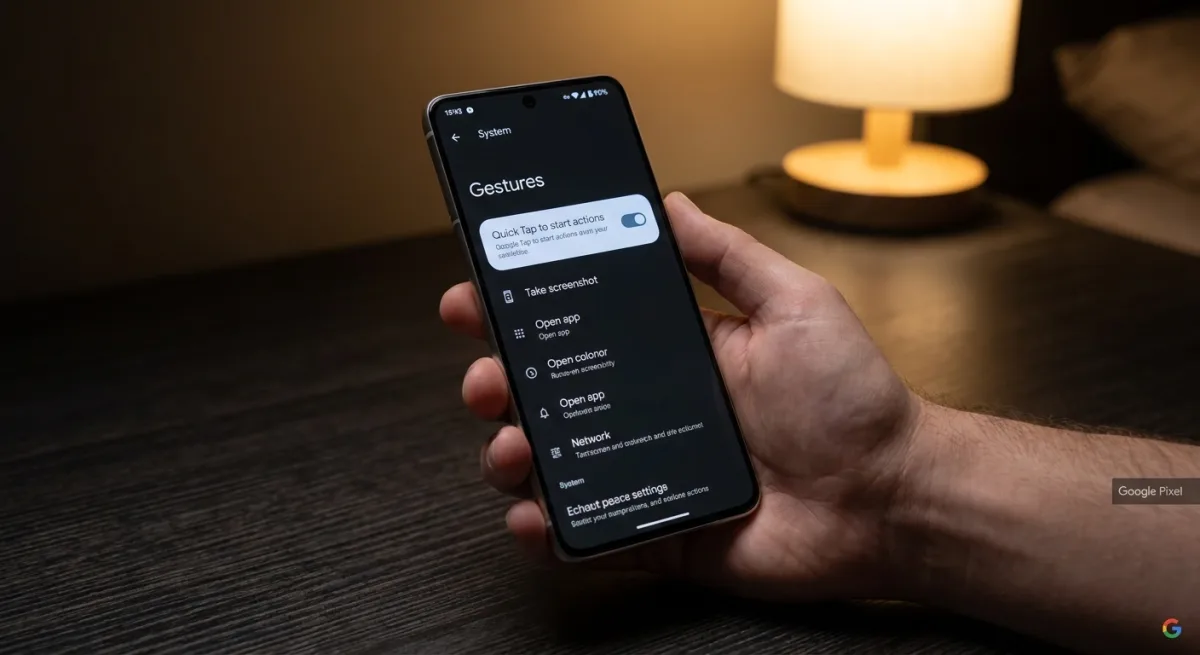
- Configure Quick Tap for virtual button shortcuts.
This enables you to perform actions like taking screenshots or opening specific apps by simply double-tapping the back of your device.- Open the Settings app. This ensures you access the core system configuration.
- Navigate to System, then Gestures. This enables you to find the physical interaction menus.
- Tap Quick Tap to start actions and toggle it on. This activates the rear-panel touch sensor.
- Select your preferred action or app from the list. This ensures the double-tap performs your exact desired function.
- Enable Notification history to catch missed alerts.
This ensures you can recover accidentally swiped messages or review a backlog of alerts from the past 24 hours.- Navigate to Settings, then Notifications, and select Notification history. This ensures you reach the system's alert logging center.
- Toggle on the Use notification history button. This enables the device to log all incoming alerts for the next 24 hours.
- Create Rules to automate frequent setting changes.
This enables your phone to automatically switch to silent mode or Do Not Disturb based on your current Wi-Fi network or physical location.- Go to Settings, select System, and tap Rules under the Automation & Intelligence section. This ensures you access the location and network-based triggers.
- Tap Next and grant the requested permissions. This enables the system to monitor your background location and network status.
- Tap the Add rule button. This enables you to create a new automated routine.
- Select Add Wi-Fi network or location to choose your trigger. This ensures the rule activates exactly when you arrive at a specific place.
- Choose an action under the Do the following menu and tap Add. This enables the phone to automatically switch audio profiles based on your setup.
- Configure Modes to cut down on daily distractions.
This ensures you only receive critical notifications from select apps and contacts during work hours, driving, or bedtime.- Go to Settings and select Modes. This ensures you access the distraction-management dashboard.
- Select an existing mode or tap Create your own mode. This enables you to customize focus profiles for specific daily routines.
- Configure the allowed notifications, contacts, and display settings. This ensures only essential alerts reach you while the mode is active.
- Activate Adaptive vibration for context-aware haptics.
This enables your phone to automatically adjust its vibration strength based on whether it is resting on a hard table or tucked inside your pocket.- Go to Settings, select Sound & vibration, then Vibration & haptics. This ensures you access the hardware feedback controls.
- Scroll to the Notifications and alarms section and tap Adaptive vibration. This enables you to find the context-aware haptics toggle.
- Flip the Use adaptive vibration toggle on. This ensures your phone dynamically scales its motor intensity using microphone and sensor data.
- Use Smart auto-rotate to fix sideways screen flipping.
This ensures your screen orientation aligns with your face rather than gravity, allowing you to comfortably use your phone while lying in bed.- Navigate to Settings, then Display & touch. This ensures you access the screen orientation controls.
- Tap Auto-rotate screen under the Other display controls section. This enables you to configure how the display responds to movement.
- Enable the Use auto-rotate option. This ensures the basic accelerometer-based rotation is active.
- Flip the Face Detection toggle on. This enables the front camera to align the screen orientation with your face, preventing unwanted rotations.
The Marketing Gap Behind Pixel's Best Features
Google's marketing campaigns heavily push generative AI features like Magic Editor and Call Screen, but the true value of the Pixel ecosystem lies in these understated quality-of-life toggles. Features like Adaptive vibration and Face-Detected Auto-Rotate solve genuine, everyday friction points that competitors like Apple and Samsung still struggle to address elegantly. By burying these tools deep in the Settings app rather than highlighting them during the initial device onboarding, Google is doing a disservice to its own software engineering.
If the company wants to solidify its reputation as the smartest smartphone on the market, it needs to bring these ambient computing features to the forefront of the user experience. Relying on users to manually hunt for automation rules or haptic adjustments means millions of Pixel owners are currently using a compromised version of what their hardware can actually achieve.