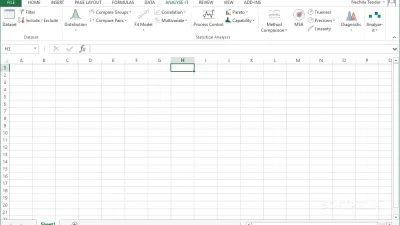
Desktop Excel is the standard choice for complex tasks like macros, Power Query, Solver, Goal Seek, and utilizing keyboard shortcuts. However, according to MakeUseOf's Adaeze Uche, the mobile app is actually the better tool for a handful of specific jobs, particularly when it comes to data entry and portability.
1. Turning a photo into a spreadsheet
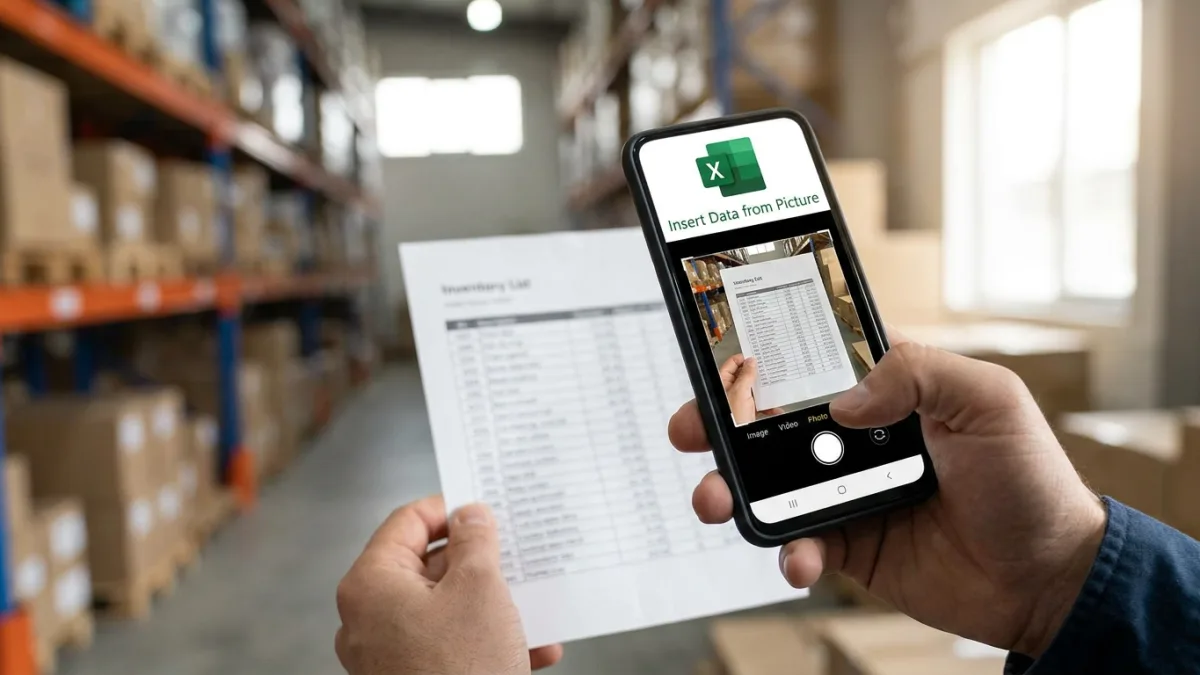
Mobile Excel uses the smartphone camera for its Insert Data from Picture feature. Instead of manually retyping printed financial tables, physical invoices, or photographed schedules into a desktop spreadsheet, users can snap a picture or import an existing image.
To use this, open the ribbon and select Insert > Data from Picture. Users can crop the image to highlight only the desired table. The automated OCR tool then converts the visual data into editable spreadsheet cells, though users must check the results for misread digits or formatting errors before importing.
2. Entering records with Cards View
Standard spreadsheet grids shrink on mobile displays, forcing users to pinch, zoom, and scroll horizontally. Cards View solves this by adapting the interface for touchscreens, turning each row of an Excel Table into an individual, vertically formatted digital card.
After formatting a cell range as a table, tap the Cards View icon under the mobile ribbon by navigating to Home > Cards View. Users can tap a plus icon at the bottom to add rows, or click any card to edit fields like Date or Amount line by line. A columns icon at the top right allows users to change number formats, add, or delete columns. Uche notes this interface feels more intuitive than the desktop version's Data Form feature.
3. Capturing data in real time
Smartphones allow users to record information as events happen, rather than retroactively relying on paper notes or physical receipts collected throughout the day.
Whether tracking sports match scores, logging warehouse inventory, or recording travel expenses at the register, mobile entry captures data instantly. When the workbook is connected to Microsoft OneDrive or another cloud storage service, this mobile data syncs with the master workbook, allowing colleagues at their desks to analyze live data as it comes in.
4. Looking up information away from the desk
Mobile Excel serves as a practical information retrieval tool. Opening a workbook on a phone is ideal for finding specific data points rather than attempting to alter complex formulas or rebuild a spreadsheet.
Examples include checking inventory levels while walking around a warehouse, referencing budget targets during a meeting, or comparing laptop prices and technical specifications in a store.
5. Simplifying data submission for non-technical users
Sharing a full spreadsheet with casual users or field workers can lead to broken formulas or formatting errors. On a desktop, they must navigate to the correct sheet, find the next empty row, and enter values carefully.
By building a protected master workbook on a desktop and saving it to the cloud, administrators can give field workers access to simplified mobile entry layouts. Workers can simply open Cards View, enter the required fields, and submit the data without interacting with underlying VBA macros or cell structures.
Combining desktop and mobile workflows
Users do not have to choose between the two platforms, as they serve different stages of the same workflow. The desktop version is best for building workbooks with complex formulas, formatting, and macros. Once uploaded to the cloud, the mobile app provides operational portability for daily data entry, combining analytical depth with on-the-go convenience.
This article was written by AI from reporting by makeuseof.com.