Receiving a spreadsheet when you do not have a Microsoft Office license can bring your workflow to a sudden halt. Fortunately, you do not need to spend money on expensive software just to view or edit your data. You can easily open XLSX without Excel using a variety of free online and desktop tools that handle complex formulas and formatting perfectly.
The XLSX format was introduced with Excel 2007 and has remained the default standard ever since. Whether you are a student, a home user, or a professional on a budget, there are excellent alternatives that cover most everyday spreadsheet needs. Note that the legacy Microsoft Excel Viewer is discontinued, so you should rely on modern cloud or open-source solutions instead.
Top Free Online Spreadsheet Tools
If you prefer working in the cloud and need real-time collaboration, browser-based applications are your best option. These tools require you to upload your file, but they offer seamless sharing and automatic saving.
- Google Docs (Google Sheets): This is arguably the most popular online option. It requires a free Google account and supports full editing, including formulas, charts, and multiple sheets. You can download your work back as an XLSX, PDF, or CSV file.
- Zoho Sheet: A solid alternative to Google's ecosystem, Zoho offers a clean, ad-free interface. It preserves formulas and charts well and supports real-time collaboration, though macro support is limited compared to a desktop installation.
- Excel for the web (Microsoft 365): Microsoft’s own free browser editor is the most reliable option for preserving complex formatting. It opens files directly via OneDrive without any software installation, making it ideal for users already in the Microsoft ecosystem.
Best Offline Desktop Alternatives
For users who handle sensitive data or prefer working entirely offline without cloud uploads, desktop applications provide robust, free alternatives to Microsoft Office.
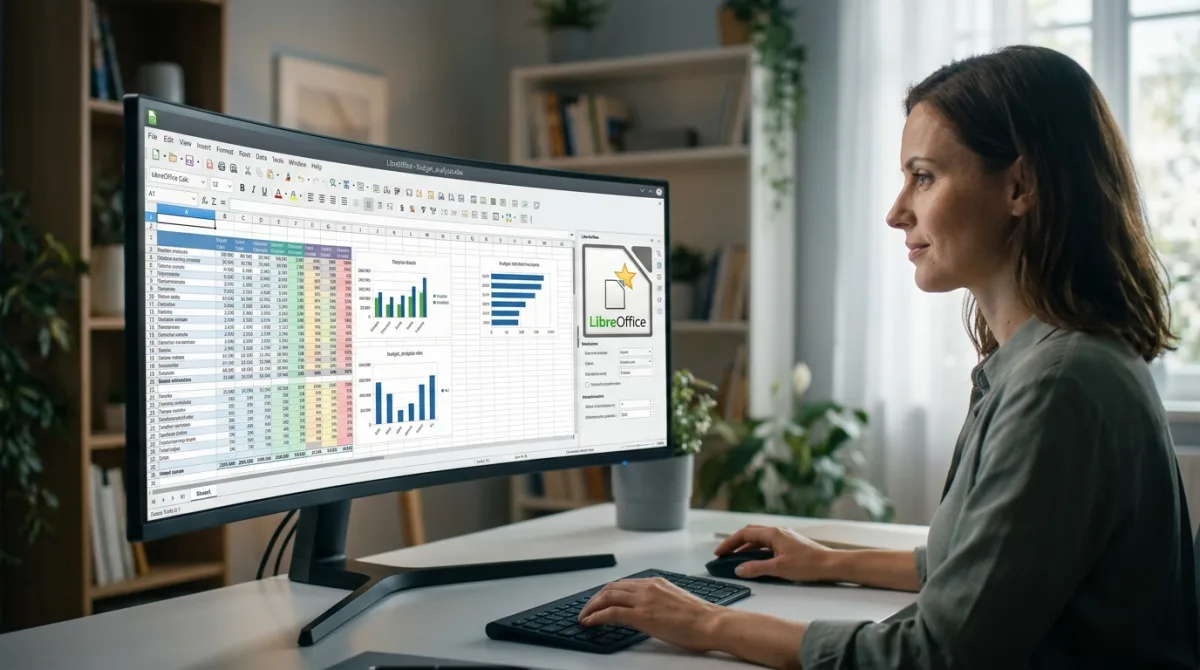
- LibreOffice Calc: This actively maintained open-source suite is the strongest offline choice for Windows, macOS, and Linux. It offers excellent XLSX compatibility, handles complex formatting better than older alternatives, and exports to multiple formats including ODS and PDF.
- OpenOffice Calc: A dependable, free office suite that handles multiple sheets and basic formulas reasonably well. However, it lacks real-time collaboration, and compatibility with complex Excel VBA macros can be inconsistent.
- Apple Numbers: A free, built-in option exclusively for Mac and iOS users. It opens XLSX files locally with good chart support and allows collaboration through iCloud, though highly complex Excel formatting may not transfer perfectly.
Step-by-Step: How to Open an XLSX File
The exact method for accessing your spreadsheet depends on your chosen platform. Follow these steps to open your files seamlessly across different devices.
On Windows or macOS (Desktop Apps)
- Double-click the XLSX file if you already have LibreOffice or OpenOffice installed. This prompts the OS to open it in the default application.
- Select your preferred app from the list if prompted with a "How do you want to open this file?" dialog. Checking the "Always use this app" box ensures future files open automatically.
- Right-click the file on macOS, choose Get Info, expand the Open with section, select your app, and click Change All. This permanently sets your default spreadsheet viewer on Mac.
In Google Sheets via Google Drive
- Navigate to drive.google.com and sign in. This gives you access to your cloud storage.
- Click New, then File upload, and select your spreadsheet. This uploads the local file to Google's servers.
- Double-click the uploaded file to open it in compatibility mode. To unlock full features, go to File and select Save as Google Sheets.
In Excel for the Web
- Visit Microsoft 365 for the web and sign in with a free account. This connects you to the official web-based Office suite.
- Click Upload and open, then select your file. The spreadsheet will render directly in your browser with native formatting.
- Navigate to File and select Save As or Download a Copy when finished. This allows you to save the edited version back to your local drive.
On Mobile Devices
- Download the free Microsoft Excel or Google Sheets app from your respective app store. Both apps offer basic editing on smaller screens at no cost.
- Open the app and tap the folder icon to locate your file. You can access files stored locally or via cloud services like OneDrive and iCloud.
Troubleshooting Common XLSX Errors
If your spreadsheet refuses to open, the issue is usually tied to file associations, outdated software, or corruption. Here is how to diagnose and fix the most common problems.
- No default app associated: Right-click the file, select Open with, choose your app, and tick "Always use this app" to establish a permanent link.
- Outdated software: Versions of Excel from 2003 or earlier cannot read the modern format. Upgrade to a current free alternative like LibreOffice Calc.
- Altered file extension: If the file ends in.xlsx_ or lacks an extension, right-click, select Rename, and correct it to.xlsx. Ensure "File name extensions" is enabled in the View menu of Windows File Explorer.
- Password protection: Free tools cannot bypass Excel workbook encryption. You must obtain the password from the original creator.
- Corrupted download: A partial download will render the file unreadable. Delete it and download it again, or ask the sender to resend the email attachment.
- Cloud sync issues: Files in OneDrive or Google Drive may fail to open if they haven't finished syncing. Move the file to a local folder and try again.
- Macro-enabled workbooks (.xlsm): If the file contains embedded macros, basic viewers may fail. Use LibreOffice Calc or Excel for the web, or ask the sender for a static XLSX version.
The End of the Paid Viewer Era
The fact that Microsoft officially discontinued the Excel Viewer highlights a massive shift in how the industry handles basic data accessibility. Ten years ago, receiving an XLSX file without a paid Office license was a genuine barrier to entry, forcing users to hunt down clunky compatibility packs. Today, the maturity of cloud infrastructure has completely commoditized spreadsheet viewing.
By offering Excel for the web for free, Microsoft is actively cannibalizing its own legacy standalone software sales to keep users locked inside the OneDrive ecosystem. Meanwhile, open-source projects like LibreOffice have advanced to the point where they handle complex proprietary formatting almost flawlessly. For the average consumer or small business, the necessity of a paid local Office installation for basic data review has effectively dropped to zero.
This article was written by AI from reporting by addictivetips.com.