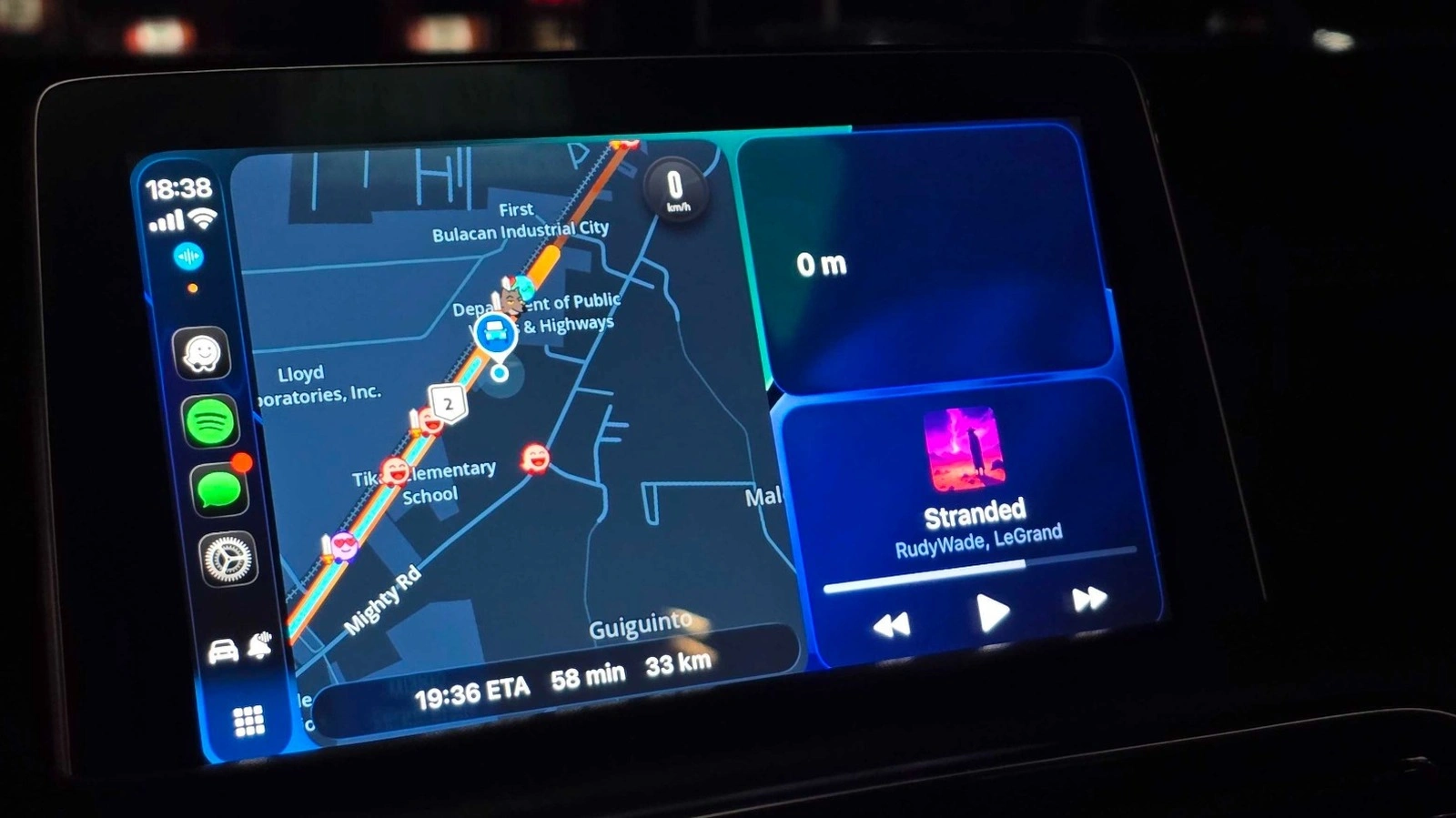
For drivers looking to minimize distractions while navigating or managing entertainment, Apple CarPlay voice commands offer a crucial hands-free solution. By enabling Voice Control within the accessibility settings, users can keep their eyes on the road while executing essential tasks.
This guide is designed for daily commuters and tech-savvy drivers who want to enhance their in-car safety. Utilizing these specific voice prompts allows drivers to seamlessly control navigation, audio, and smart home integrations without taking their hands off the steering wheel. As automotive interfaces become more complex, features introduced in recent updates like iOS 26 emphasize voice-first interactions to reduce cognitive load and prevent accidents.
To activate this feature, users must park their vehicle, navigate to the CarPlay settings, select Accessibility, scroll to Physical and Motor, and toggle on Voice Control. Once active, a dedicated icon appears beneath the signal bar on the left side of the display. Drivers can manage the system's active listening state by simply saying "Stop Listening" or "Start Listening." When stopped, the icon grays out with a slash, preventing accidental command triggers during passenger conversations. This function only mutes the CarPlay command interface, not the vehicle's microphone during active phone calls.
The "Open [App Name]" command allows instant access to applications like Spotify or Calendar without swiping through menus. While highly effective for standard apps like Maps or Brave, the system occasionally struggles with complex or non-standard application names like SpotHero. For navigation, users can say "Pan Left," "Pan Right," "Pan Down," or "Pan Up" to survey traffic conditions ahead on Apple Maps, Google Maps, and Waze. Although Apple introduced commands like "Zoom In," current testing indicates they may not function reliably across all apps yet.
Additionally, drivers with retrofitted CarPlay screens lacking steering wheel buttons can simply say "Siri" to summon the digital assistant for directions or smart home controls. Finally, saying "Swipe Left" or "Swipe Right" enables users to page through the CarPlay home screen. This is particularly beneficial for interacting with the new CarPlay widgets introduced in iOS 26.
Frequently Asked Questions
How do I turn on Voice Control in Apple CarPlay?
Park your car, open the CarPlay settings, go to Accessibility, select Physical and Motor, and turn on Voice Control.
Does the "Stop Listening" command mute my phone calls?
No, the "Stop Listening" command only pauses the CarPlay voice command recognition; it does not mute your microphone during active phone calls.
My Take
The integration of granular voice commands in Apple CarPlay represents a necessary shift toward safer driving environments. The fact that commands like "Pan Left" work across third-party apps like Google Maps and Waze shows Apple's willingness to support broader ecosystems. However, the inconsistent recognition of complex app names and zooming functions indicates that Apple's voice parsing engine still requires refinement in future iOS updates to achieve true hands-free reliability.
This article was written by AI from reporting by slashgear.com.