YouTube TV stands out among live TV streaming services as a strong option for sports fans looking to watch and record every game from their preferred leagues. Users who rely on the platform can take advantage of several built-in features to optimize their daily viewing.
1. Set up family sharing to separate recommendations and storage limits
Households with varying streaming preferences can create unique profiles for each person, ensuring that recommendations and DVR libraries remain separate. A single subscription supports up to five additional family members, provided they technically reside in the same household. Members who are outside the home must check in once every three months to maintain their access. The platform also limits accounts to three active streams at a time, preventing six people from watching on separate devices simultaneously.
2. Regularly reset your YouTube TV 90-day home area allowance
Frequent travelers or users sharing an account from outside the home base should launch YouTube TV whenever they are in the account's home area. The service requires all users to check in every 90 days to avoid losing access while away. For baseball fans, MLB enforces stricter viewing restrictions after just 30 days. Regularly resetting this 90-day window reduces the risk of being locked out while on the road.
3. Create custom multiviews to monitor multiple games or content types at once
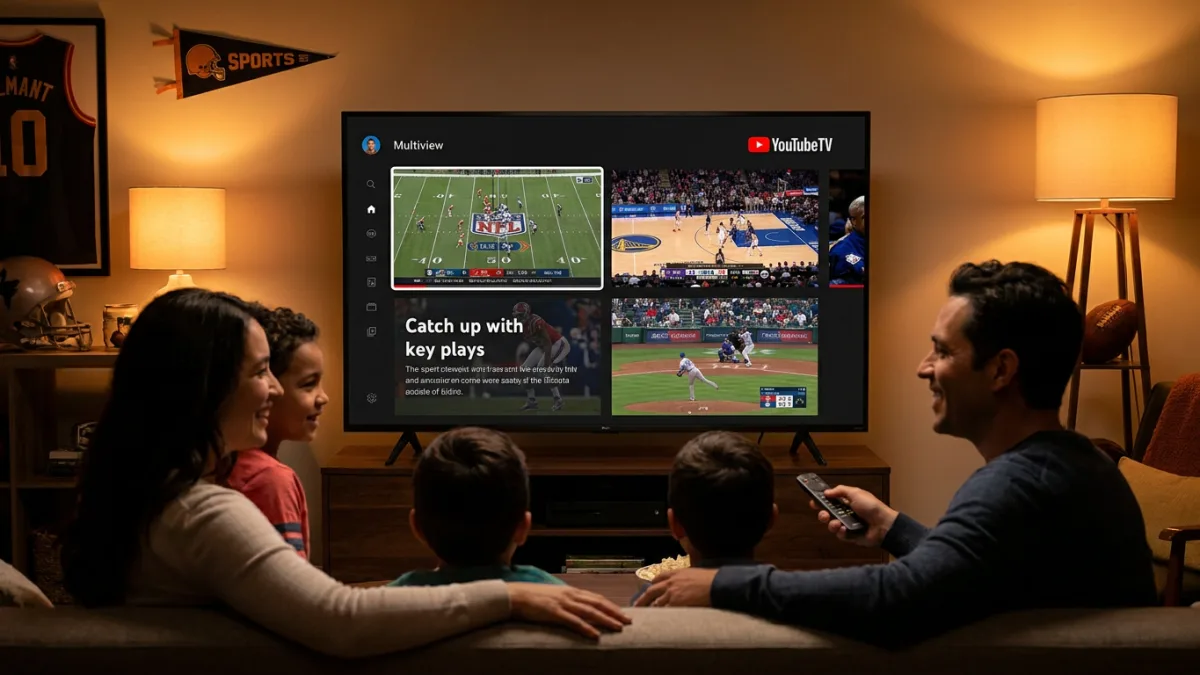
While YouTube TV provides pre-built multiviews that display three or four channels simultaneously - often grouping games from a single sport or various sports channels - the platform recently introduced a customizable multiview feature. This allows users to select up to four channels across different content categories, making it possible to mix specific games with news, TV shows, and movies.
- Press the down button from any livestream.
- Select Multiview > Your multiview to choose up to four channels.
4. Use “catch up through key plays” to get curated highlights before syncing with live action
YouTube TV includes several features tailored for sports fans. If you join a broadcast after a game has started, the platform offers options to start from the beginning, join live, or catch up to live through key plays. The key plays option displays only the highlights of the action before dropping you into the live stream, allowing you to see important moments without having to watch or fast-forward through the entire game. This feature supports events from the NFL, NBA, MLB, NHL, college football, and college basketball.
- Select the key plays option when launching the stream, or find the key plays view via Scores & stats at the bottom of the screen.
5. Hide sports scores to avoid spoilers until you can watch a recorded game
To prevent final scores or live previews from spoiling a game before you start watching, you can hide scores for NFL, NBA, and MLB games. This can be done on a team-by-team basis, or for an entire league if individual team pages are not available.
- Navigate to the team or league page.
- Go to More.
- Turn on Hide all scores for this team/league.
6. Customize your Live Guide
If the platform's recommendations are not appealing, the Live Guide functions like a traditional cable channel guide. However, this version is customizable, allowing users to avoid scrolling through unwatched channels.
- Go to Settings > Live Guide on the web browser or app.
- Reorder, favorite, or hide channels from your list. This cannot be done directly from a streaming box.
- Select the Custom filter view when you open the live guide on your TV to see your updates.
7. Pause your YouTube TV watch history when you don’t want content informing your algorithm
Watch history drives recommendations on both YouTube and YouTube TV. To prevent unusual viewing habits or a guest's choices from influencing your algorithm, you can temporarily pause this tracking.
- Tap your profile photo.
- Go to Settings > Privacy.
- Toggle on Pause watch history.
8. Select specific teams or franchises for recording to keep your library under control
Although YouTube TV offers unlimited DVR storage, users can keep their libraries organized by recording only specific teams or franchises rather than entire sports or leagues. DVR playback includes options similar to delayed live events, such as resuming where you left off and watching key plays.
- Search for the league and tap Add + or the "+" icon to get every game, or search for your favorite team or individual matchup.
9. Choose the DVR version over VOD to skip ads
Content recorded from the live feed may also be available as video on demand (VOD). While VOD includes unskippable ads, the DVR version allows users to fast-forward through them.
- Click down on the stream to see whether you are on VOD or DVR.
- Go back to the show page.
- Select Choose a Version > DVR (if available).
10. Check Stats for Nerds to diagnose streaming issues
If you encounter technical difficulties, the built-in Stats for Nerds feature can help you diagnose the problem and determine whether it originates from your network or YouTube TV itself. Metrics such as connection speed, buffer health, and dropped frames can indicate if Wi-Fi is responsible for a significant drop in resolution.
- Go to player controls > More > Bug icon on your TV.
- Right-click on the video player on your computer.
- Tap More > Stats from the video player on mobile.
This article was written by AI from reporting by lifehacker.com.