Relying solely on basic password saving leaves your most sensitive digital assets vulnerable to local device access and session hijacking. While Bitwarden provides robust cross-platform encryption by default, maximizing its potential requires configuring advanced security layers that go far beyond standard autofill.
This guide is designed for privacy-conscious users managing credentials across multiple operating systems. By implementing these specific Bitwarden security hacks, you can eliminate unauthorized local access, streamline your two-factor authentication (2FA) workflow, and establish fail-safes for emergency account recovery.
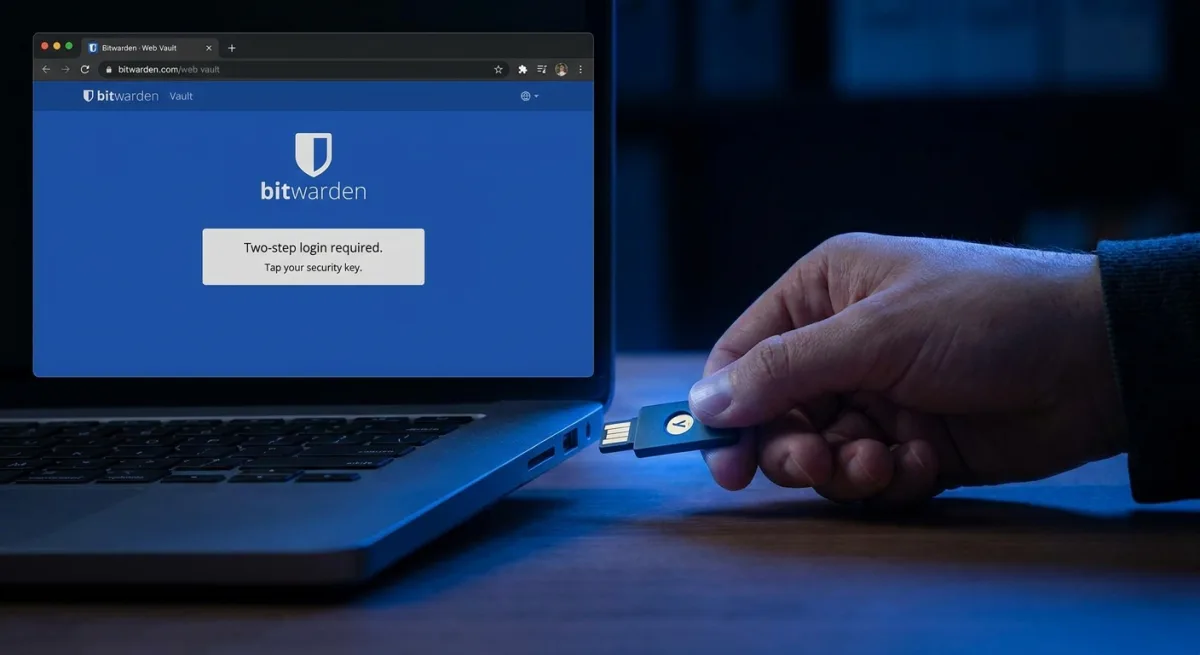
- Enable a secondary authentication measure for your vault. This ensures that your account remains impenetrable even if your master password is compromised. Navigate to Settings > Security > Two-step login to configure a software authenticator or, for maximum protection, a hardware key like the Yubico YubiKey 5C NFC (available for $58.00).
- Disable automatic autofill on page load to prevent unauthorized logins. This prevents anyone with physical access to your unlocked device from instantly accessing your accounts. Go to Settings > Autofill and turn off Show autofill suggestions on form fields. Instead, manually trigger logins using the Bitwarden extension button.
- Shorten the session timeout window for browser extensions. This ensures your vault locks automatically when you step away, preventing snooping. Head to Settings > Account Security, find the Session Timeout section, and set the dropdown to Immediately or 1 minute. Set the Timeout Action to Lock rather than Logout for easier re-entry.
- Activate biometric unlocking on trusted devices. This enables rapid, secure access using Face ID, Touch ID, or fingerprint scanners without typing your master password repeatedly. Open the app and navigate to Settings > Security (or Account Security in the extension) and toggle on Unlock with Biometrics. Alternatively, use Unlock with Pin for a traditional numeric lock.
- Set Bitwarden as your default passkey and autofill provider on mobile. This centralizes your cryptographically generated passkeys and passwords across all supported devices. On iOS, go to Settings > General > AutoFill and Passwords and enable AutoFill Passwords and Passkeys for Bitwarden. On Android, navigate to Settings > Autofill > Autofill services and select Bitwarden.
- Consolidate your two-factor authentication codes directly within the password manager. This streamlines the login process by allowing the extension to generate and autofill one-time passwords automatically. Scan the site's QR code to add it to your vault. If you prefer keeping 2FA separate from your main vault, use Bitwarden's standalone, mobile-only Authenticator app.
- Share sensitive data securely using the Send feature. This allows you to transmit passwords or files to colleagues for a limited time without exposing them in plaintext messages. Open the Send tab, click New Send, and configure auto-delete timers or password protection for the shared link. Note that file sharing requires a Premium subscription.
- Designate trusted contacts for emergency access. This guarantees that authorized individuals can recover your secure notes and accounts if you are incapacitated. Log into the web interface, navigate to Settings > Emergency Access, and customize whether your contact gets view-only rights or full account takeover privileges.
- Utilize keyboard shortcuts to accelerate your workflow. This saves time by bypassing the need to manually click through extension menus. Press Command/Control + Shift + L to autofill the last used password. If 2FA is enabled, the code copies to your clipboard automatically - just press Command/Control + V to paste it.
- Force a master password reprompt for highly sensitive entries. This adds a critical final layer of friction, protecting bank accounts and secure notes even if your vault is currently unlocked. Select any specific login or note, click Edit, scroll to the bottom, and enable the Master password re-prompt toggle.
The Hidden Risk of Convenience in Credential Management
While password managers are fundamentally designed to reduce friction, Bitwarden’s architecture highlights a critical tension between usability and local security. The fact that features like "Autofill on page load" are available but inherently risky demonstrates that the biggest threat to a modern vault isn't remote decryption, but physical device compromise. By forcing a master password reprompt for banking details and utilizing hardware keys like the YubiKey, users acknowledge that an unlocked browser is a vulnerability in itself.
As passkeys become the standard - effectively turning the device itself into the authentication token - securing the password manager's local session timeout and biometric gates becomes just as important as the master password. This transition from remote threat mitigation to local session lockdown is the defining security challenge for the next generation of credential management.