For years, reviving a malfunctioning iPhone required hunting down a cable and connecting it to a Mac or PC. With the upcoming iOS 27 update, Apple is finally cutting the cord by introducing a standalone, Mac-style Recovery Screen that you can trigger manually. Previously, this interface only appeared automatically if a device completely failed to boot.
This update is a massive quality-of-life improvement for users testing the iOS 27 beta or preparing for the fall release. The new recovery environment can connect automatically to a known Wi-Fi network and displays your battery percentage in the corner of the screen. This ensures you have enough power and connectivity to troubleshoot, update, or erase your device without ever plugging it into external hardware.
Accessing this mode is identical to the process on Apple silicon Macs, and it works exactly the same way on iPads running iPadOS 27. Here is how to trigger it manually.
How to Boot Into Recovery Mode
- Turn off your iPhone, then wait about a minute to ensure it has fully shut down.
- Press and hold the Side button. The Apple logo will appear as it normally does during startup - continue holding the button and you will see "Continue holding for recovery...".
- Release the button when "Loading recovery options..." appears.
Your iPhone will then bypass the standard iOS lock screen and boot directly into the new recovery interface.
What the Recovery Options Do
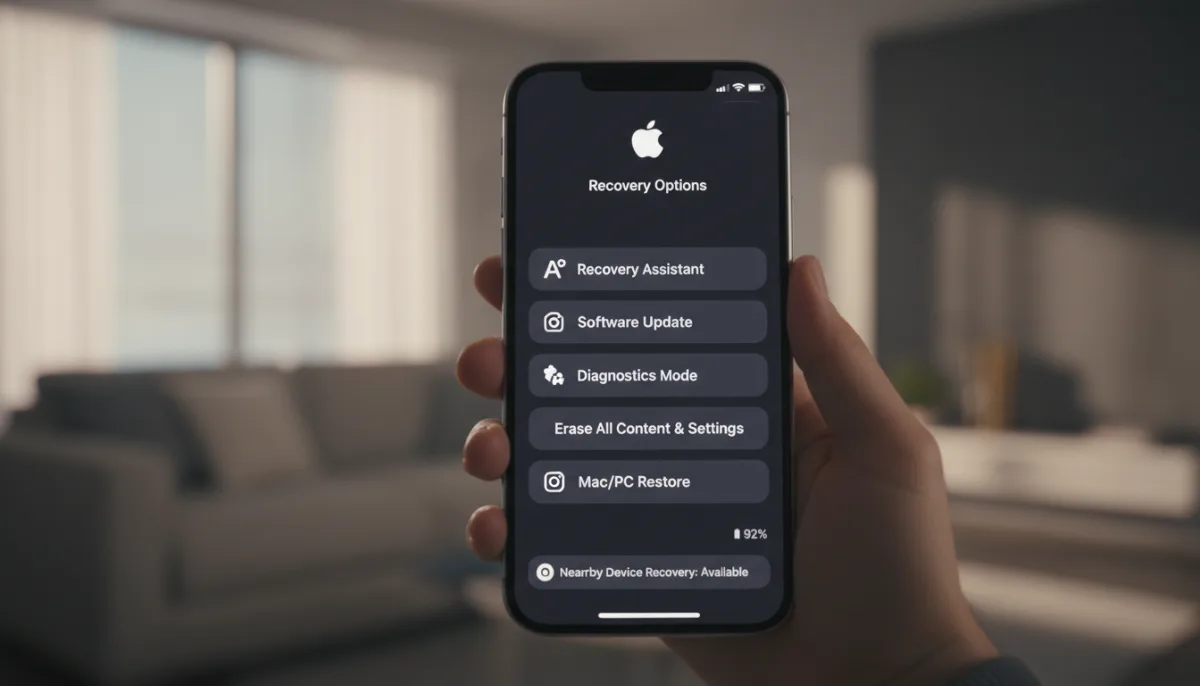
Once inside the recovery screen, you are presented with five primary tools to rescue your device:
- Recovery Assistant: Automatically scans for software issues and attempts to fix them without requiring further input.
- Software Update: Installs the latest version of iOS available for your device, which can help if a failed update has left your iPhone stuck in a boot loop.
- Diagnostics Mode: Runs diagnostics to check for hardware and software issues, and can recommend repairs if needed.
- Erase All Content and Settings: Completely wipes your iPhone, just like the equivalent option in the Settings app.
- Recovery Mode: Puts your iPhone into the traditional recovery mode for restoring it with a Mac or PC, without requiring the usual button-press sequence.
On newer iPhone models, there is also a sixth hidden option. While on the recovery screen, if you press and hold the Side button again, a popup menu will appear showing the option Nearby Device Recovery. This lets you restore your iPhone using another Apple device close by, similar to an existing recovery feature that debuted on iPhone 16 models.
To exit the recovery screen, simply tap the power button in the top-right corner of the display and confirm that you want to restart. Alternatively, you can press and hold the physical Side button and choose to either restart or shut down the device.
The Final Hurdle for a Portless iPhone
This change represents a fundamental shift in Apple's approach to mobile device independence. By borrowing the robust recovery environment from macOS, the company is giving users unprecedented power to rescue their devices while traveling or away from a computer. It significantly boosts the overall reliability of the iOS ecosystem, turning what used to be a stressful, hardware-dependent crisis into a simple on-device menu.
More importantly, this move feels like a strategic stepping stone toward a completely portless iPhone. Historically, relying on a physical cable for complex Device Firmware Update (DFU) restores was one of the biggest technical barriers to removing the charging port entirely. With wireless Nearby Device Recovery maturing and standalone on-device troubleshooting now standard in iOS 27, Apple is systematically eliminating the last remaining reasons to plug a cable into an iPhone.
This article was written by AI from reporting by macrumors.com.