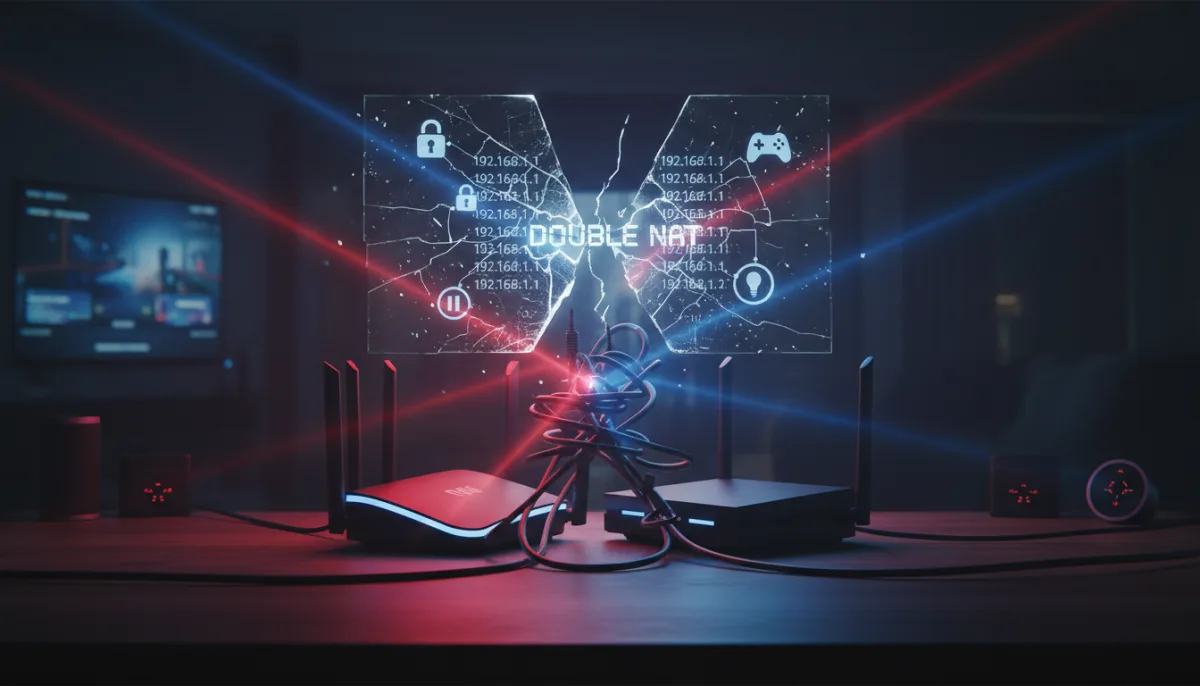
Upgrading your home network with a powerful new router is the best way to eliminate dead zones, but plugging it directly into your ISP-provided equipment often triggers an immediate network crash. This conflict, known as a double NAT, causes smart home devices to drop offline and ruins online gaming by forcing two routers to fight over IP address assignments. Fortunately, resolving this clash requires just a few simple configuration changes to establish a clear hierarchy.
Understanding the Double NAT Conflict
Having two routers active on the same network introduces a second DHCP server. Because a DHCP server is responsible for handing out IP addresses and directing devices to DNS servers, having two of them creates duplicate IP assignments and routing errors.
Additionally, this setup creates a double NAT (Network Address Translation) scenario. A single NAT translates your local device addresses into one external IP address to communicate with the internet. Stacking two NAT layers obfuscates data routing, making it nearly impossible for devices to connect to external servers or maintain stable online gaming sessions.
Method 1: Enable Bridge Mode (The Optimal Solution)
The cleanest way to integrate your own hardware is to put the ISP router into bridge mode, sometimes labeled as modem mode. This disables its internal routing, Wi-Fi antennas, and firewall, turning it into a simple internet pass-through.
- Log in to your ISP router's administrative panel via a web browser.
This grants you access to the core network settings required to disable routing functions. - Locate the network settings and toggle the switch for Bridge Mode or Modem Mode.
This ensures the ISP device stops acting as a router and only functions as a modem. - Connect your new router to the ISP modem using an Ethernet cable.
This enables your new hardware to take over all DHCP, NAT, and Wi-Fi responsibilities without interference.
Method 2: Configure a DMZ (If Bridge Mode is Unavailable)
Some ISPs lock down their equipment and remove the bridge mode option to simplify their own technical support. If you cannot disable the routing features entirely, you can use a Demilitarized Zone (DMZ) to bypass the ISP firewall.
- Assign a static IP address to your new router during its initial setup.
This ensures the ISP router always knows exactly where to send incoming network traffic. - Enter that static IP address into the DMZ settings of your ISP router.
This enables your new router to completely bypass the restrictive firewall of the ISP equipment. - Disable the Wi-Fi and DHCP server on the ISP router manually.
This prevents wireless interference and stops the ISP hardware from handing out conflicting IP addresses.
Method 3: Switch to Access Point Mode
If you prefer to let the ISP router handle the heavy lifting of network routing, you can configure your new hardware to act strictly as a wireless extension.
- Access the settings menu of your newly purchased router.
This allows you to change its primary operational mode before it conflicts with the network. - Switch the device from Router Mode to Access Point (AP) Mode.
This disables its internal DHCP server and routing features while keeping its Wi-Fi radios active. - Connect your devices to the new Wi-Fi network broadcasted by the AP.
This ensures you benefit from the stronger wireless signal while the ISP router manages the data traffic.
The Hidden Cost of ISP Hardware Restrictions
The friction users experience when adding third-party routers highlights a broader industry trend: ISPs intentionally cripple their provided hardware to minimize customer support variables. By locking down features like bridge mode, providers ensure a uniform, easily diagnosable environment for their technicians, even if it means trapping users with subpar Wi-Fi performance. This artificial limitation forces consumers to jump through technical hoops just to utilize the bandwidth they already pay for.
However, navigating these configuration hurdles is absolutely necessary for modern home networks. Upgrading to advanced hardware, such as a Wi-Fi 7 router like the $177 TP-Link Tri-Band BE9300, provides massive leaps in device capacity and latency reduction that ISP equipment simply cannot match. As smart home ecosystems expand and bandwidth demands increase, mastering these network handshakes is no longer optional for power users - it is a mandatory step for future-proofing digital infrastructure.
This article was written by AI from reporting by makeuseof.com.