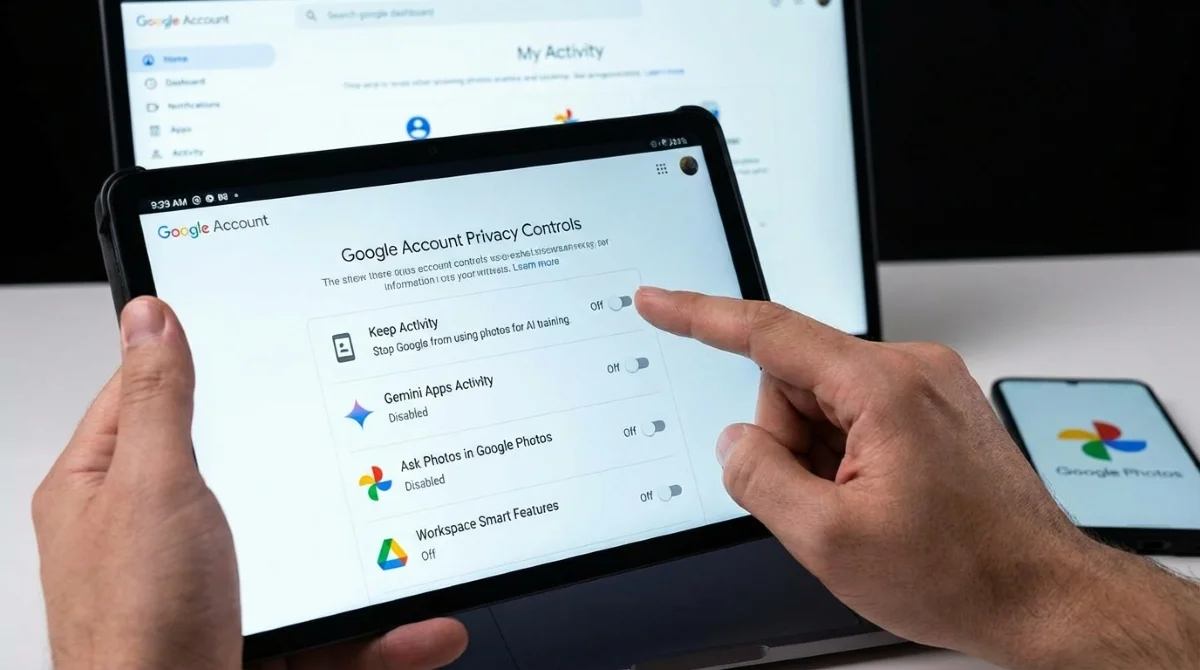
To stop Google from using your photos for AI training, you must manually disable several hidden data-sharing settings across your account. While Google Photos does not directly feed your private library into external AI models, sharing images with the Gemini app or using integrated workspace tools grants the company permission to use your data by default. Since late 2025, Google has been utilizing photos, files, and prompts uploaded through Gemini to improve its generative AI models.
This data collection is enabled automatically for most users, though regions with stricter privacy laws, such as the EU, UK, and Japan, require explicit consent first. The primary privacy risk occurs when you upload a photo from your library directly to the Gemini app to ask a question. Once that transfer happens, the image is no longer confined to your private library and falls under different data usage terms. To regain control over your personal data, you must audit multiple interconnected services.
How to Turn Off Keep Activity in Gemini
This is the most critical setting to modify, as it directly dictates whether Google can use your uploaded media and prompts for AI training. In September 2025, Google renamed this specific toggle from "Gemini Apps Activity" to "Keep Activity," making it harder for some users to locate.
- Navigate to gemini.google.com and sign in to your account. This ensures you are modifying the correct profile where your AI interactions are stored.
- Click the hamburger menu icon (three horizontal lines) on the top left. This opens the main navigation panel for the application.
- Select Settings & help, then click on Activity. This directs you to the core data retention controls.
- Choose Turn off or Turn off and delete activity from the dropdown menu. This prevents future data collection and clears previously saved prompts from the servers.
Even after you disable this feature, Google retains recent conversations for up to 72 hours for operational and safety reasons before permanently deleting them. If you want to use the AI without leaving a footprint, you can utilize Temporary Chats, which function like an incognito mode.
How to Manage Ask Photos and Gemini Memories
Ask Photos is a conversational AI feature built directly inside Google Photos that searches your library based on natural language queries. It also allows Google to generate narrated recap videos of your past memories using Gemini.
- Open the Google Photos app and tap your profile icon. This accesses your account-specific media preferences.
- Navigate to Settings and select Preferences. This reveals the advanced feature toggles for the application.
- Tap Gemini features in Photos. This opens the dedicated menu controlling AI integrations.
- Disable Ask Photos and Gemini-powered memories. This stops the AI from scanning your library to generate automated recaps or personalized search results.
- Toggle off Allow us to access your queries. This prevents Google from reviewing your anonymized search terms to improve the feature.
How to Disable Smart Features in Gmail and Drive
Google also accesses your personal content through Smart Features in Gmail and Google Workspace. When enabled, these tools scan your emails and documents to offer auto-complete suggestions, extract travel bookings, and generate document summaries.
- Open Google Drive and click the gear icon in the top right corner. This accesses your global Workspace preferences.
- Navigate to Settings, then select Privacy. This locates the data access permissions for your documents.
- Click Manage Workspace smart feature settings. This opens a pop-up with specific toggles for email and document scanning.
- Turn off both Smart features in Google Workspace and Smart features in other Google products, then hit Save. This completely disables AI-assisted tools in apps like Gmail, Chat, Meet, and Drive.
Other Notable Privacy Controls
- Global Activity Review: Visit myactivity.google.com to review and delete saved activity across all Google products.
- Auto-Delete Timers: Set up an automatic deletion schedule to remove any account data older than three or eighteen months.
- Privacy Checkup: Use the centralized tool at myaccount.google.com to walk through all major data settings in one unified dashboard.
My Take: The Hidden Cost of "Free" AI
Google’s decision to rename its data collection toggle to "Keep Activity" in September 2025 highlights a broader industry trend of obscuring privacy controls behind vague terminology. By defaulting users into data sharing, the company ensures a massive, steady stream of training data for its generative AI models. Most consumers simply accept default settings, unknowingly trading their personal documents and images for minor conveniences like email auto-complete.
While Google explicitly states that private Google Photos libraries are not directly scraped for external AI training, the moment a user interacts with the Gemini app using an image, that protective boundary dissolves. Furthermore, the fact that Google still retains conversations for 72 hours even after disabling the feature proves that true data sovereignty remains elusive in the cloud era.
For privacy-conscious users, relying on default settings is no longer a viable option. You must proactively audit your account permissions across all interconnected services, as disabling a feature in one app does not automatically revoke access in another. Taking back control requires vigilance, but the steps outlined above are essential for protecting your digital footprint.
This article was written by AI from reporting by makeuseof.com.