Managing a cluttered Google Workspace can quickly drain productivity, especially when juggling multiple accounts and endless file duplicates. Mastering a few hidden Google Drive hacks transforms this basic storage hub into a highly efficient collaboration engine. By utilizing built-in shortcuts and advanced file management tools, you can streamline your workflow and reclaim wasted storage space.
- Prerequisite: An active Google Account.
- Prerequisite: The Google Drive mobile app (for document scanning features).
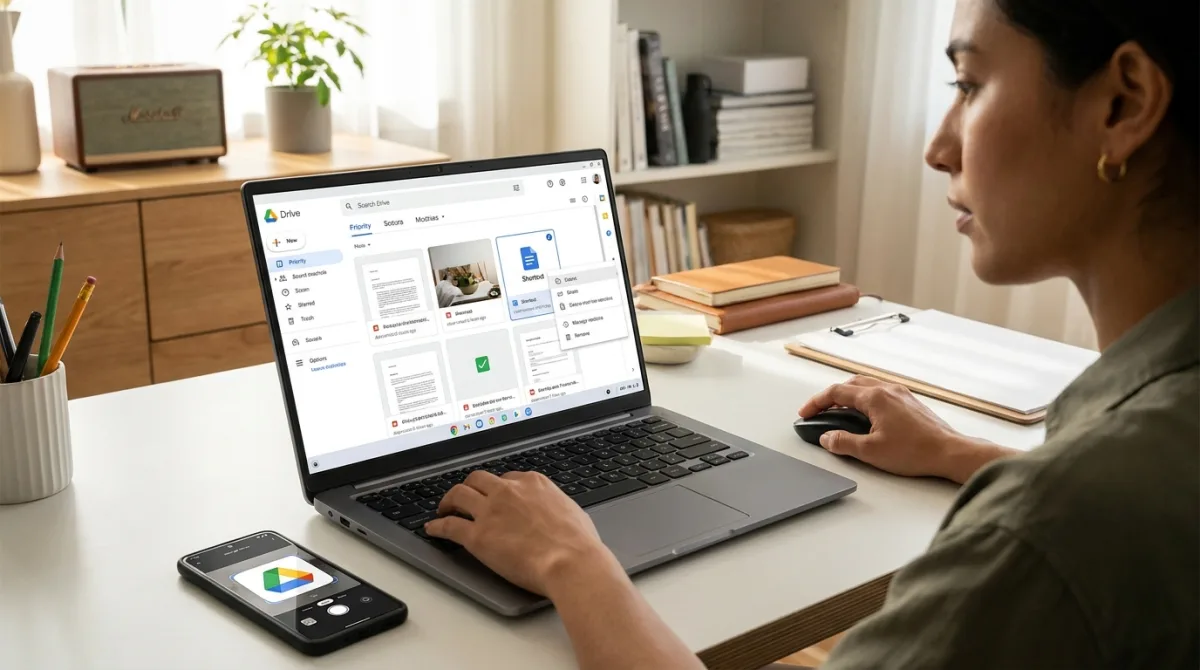
- Create shortcuts instead of duplicating files by right-clicking any file, navigating to Organize, and selecting Add shortcut.
This saves storage space and ensures all collaborators work on the same live version across different folders. - Type URL shortcuts like doc.new, sheet.new, or slide.new directly into your browser address bar.
This instantly creates a new file; adding /1 or /2 at the end forces the file to open in a specific logged-in account, bypassing the standard menu. - Replace the /edit or /view text at the end of a sharing link with /copy.
This forces recipients to make their own copy of templates or checklists upon opening, preventing them from altering your master version. - Upload new versions of non-Google files by right-clicking the file and selecting Manage versions, then Upload new version.
This overwrites the existing PDF, image, or video while keeping the original sharing link completely intact. - Lock files in read-only mode by right-clicking the document and navigating to File information, then Lock.
This prevents accidental or intentional edits to final drafts without needing to manage complex user permissions. - Toggle on auto-conversion by going to Settings, selecting General, and checking Convert uploads to Google Docs editor format.
This automatically transforms incoming Microsoft Word, Excel, or PowerPoint files into compatible Workspace formats, saving manual conversion time. - Double-click any image or PDF to open preview mode, then tap the Comment icon at the top of the screen.
This allows you to highlight specific areas and leave direct feedback on visual layouts without downloading the file to a separate program. - Enter advanced search operators like type:, owner:, and before: into the main search bar.
This rapidly filters out clutter to locate buried files when you have forgotten the exact document name. - Build a custom project hub using the Priority tab (for paid Workspace users) or by creating a master Docs file and embedding file tiles using the "@" menu.
This centralizes related project files for quick access without moving them from their original folders. - Tap the Scan icon or the (+) button in the Drive mobile app and select Scan document.
This utilizes your phone's camera to digitize printed receipts and contracts, making them instantly searchable in your cloud storage.
The Hidden Cost of Cloud Clutter
These features highlight a critical shift in how we should approach cloud storage: moving away from treating it as a digital dumping ground and treating it as an automated workflow engine. The ability to force a file copy simply by changing a URL from /edit to /copy eliminates the friction of explaining template rules to external clients. It is a small technical tweak that solves a massive behavioral problem.
Furthermore, Google's integration of optical character recognition (OCR) directly into the mobile scanning tool proves that third-party scanning apps are largely obsolete for everyday users. By centralizing document digitization and auto-converting Microsoft formats, Google Drive actively reduces the number of applications a professional needs to juggle daily. Mastering these specific operators and shortcuts reclaims hours of lost productivity previously spent hunting for buried files.