Mastering Apple CarPlay hacks is the ultimate way to eliminate driving distractions, stop annoying autoplay music, and transform your vehicle's dashboard into a truly personalized command center. With the recent rollout of iOS 26, Apple has introduced powerful new widgets and customization tools that many drivers are completely ignoring.
This guide is designed for daily commuters and road-trippers who want to streamline their in-car tech experience. By applying these hidden settings and automation shortcuts, you will significantly reduce screen-tapping while driving, ensuring a safer and more enjoyable journey.
10 Essential Apple CarPlay Hacks for iOS 26
- Customize your CarPlay home screen by navigating to Settings > General > CarPlay > [Your Vehicle] > Apps on your iPhone to rearrange or delete unused icons. You can also explore third-party app workarounds for custom wallpapers.
This ensures you do not have to scroll through multiple pages while driving, keeping your most-used apps front and center. - Launch collaborative road trip playlists using SharePlay in Apple Music or Jam in Spotify.
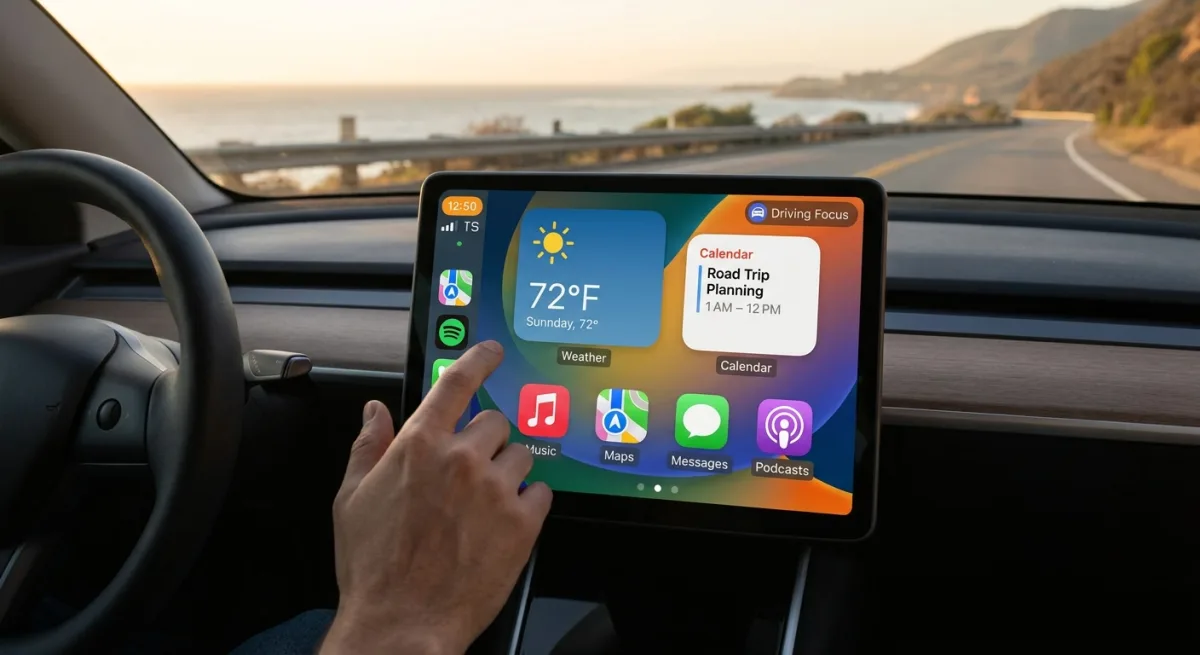
This enables passengers to contribute to the music queue in real time via QR code, so you do not have to play DJ alone. - Add iPhone widgets directly to your CarPlay screen by going to Settings > General > CarPlay > [Your Vehicle] > Widgets > Add Widgets on your iPhone.
This enables you to see crucial iOS 26 information at a glance, from Weather and Calendar events to live Apple Sports scores, without touching your phone. - Enable hands-free Voice Control by toggling the feature under Settings > Accessibility directly on your CarPlay unit.
This allows you to navigate menus, open apps, and swipe between screens using a host of voice commands without needing a wake word. - Activate "Announce Notifications" by navigating to Settings > Notifications > Announce Notifications > CarPlay on your iPhone.
This ensures Siri reads incoming messages from apps like WhatsApp or Messages aloud, allowing you to reply entirely hands-free. - Pin your favorite playlists, artists, or albums to the top of your Apple Music Library by touching and holding the item on your iPhone and selecting Pin [Item].
This enables lightning-fast access to your heavy rotation music directly from the CarPlay interface, minimizing search time. - Disable annoying Bluetooth autoplay by creating an automation in the Shortcuts app that triggers when CarPlay connects. Use an automation shortcut that pauses playback.
This ensures your media does not automatically blast a random song every time you start the car, solving a frequent complaint among users. - Set up a custom greeting or sound effect that plays upon connection by building a new Shortcuts automation.
This enables a personalized startup experience by triggering a specific audio file from your Files app whenever CarPlay initializes. - Customize your Driving Focus mode by navigating to Settings > Focus > Driving on your iPhone to silence non-essential alerts.
This ensures your eyes stay on the road by automatically blocking distracting notifications and sending auto-replies to contacts while you are driving. - Upgrade your wired setup by purchasing a wireless CarPlay adapter like the AAWireless TWO+, Ottocast Mini Pico, or Carlinkit 2Air.
This enables the convenience of Bluetooth connectivity without sacrificing the built-in features of your existing dashboard unit.
The Shift Toward Autonomous Dashboards
The introduction of iOS 26 widgets and deeper Shortcuts integration signals a clear shift in how Apple views the in-car experience. Rather than just mirroring a phone screen, the ecosystem is evolving into a context-aware dashboard that anticipates driver needs. The heavy reliance on automations, like stopping autoplay or triggering custom Focus modes, highlights a transition toward zero-touch interfaces.
However, the fact that users still need to rely on Reddit threads and third-party wireless adapters like the AAWireless TWO+ to fix basic annoyances shows that native CarPlay still has blind spots. As automakers increasingly push their own proprietary software, Apple must continue refining these quality-of-life features to maintain its dominance in the automotive tech space.
This article was written by AI from reporting by lifehacker.com.