Most users plug in their Wi-Fi router, enter the default password, and never look at the settings again, leaving powerful network management tools completely untouched. Unlocking your router's companion app or web interface reveals advanced features that can secure your smart home, block network-wide ads, and eliminate dead zones.
This guide is designed for home network administrators and everyday users looking to maximize their existing hardware without purchasing new equipment. By configuring these built-in tools, you can significantly improve your network's privacy, control data access, and expand coverage across your entire home.
With the increasing density of smart home devices and the heavy bandwidth demands of remote work, a basic Wi-Fi setup is no longer sufficient. Shifting network management directly to the router level reduces the computing strain on individual devices and centralizes your security protocols.
Essential Prerequisites
- Access to your router's companion app or web-based interface.
- Administrator login credentials (usually printed on the back of the router).
- An external USB drive (for storage setup) or a secondary router (for range extension).
- A preferred DNS filtering service address (such as AdGuard or NextDNS).
5 Ways to Optimize Your Wi-Fi Router
- Create a dedicated guest Wi-Fi network with a custom password through the router's companion app.
This ensures visitors can access the internet without compromising your primary network's privacy, keeping them isolated from your shared network storage and smart home devices. - Enforce network-level parental controls by creating user profiles and scheduling internet downtime for specific devices.
This enables a safer browsing experience for children by blocking specific URLs and monitoring website visits directly at the source, complementing device-level screen time apps. - Attach an external hard drive or flash drive to your router's USB port and enable USB file sharing in the settings.
This enables a cost-effective Network Attached Storage (NAS) solution, allowing you to share files across all connected devices without paying for monthly cloud storage subscriptions. - Configure a static DNS server address from a filtering service like AdGuard or NextDNS within your router's WAN or internet settings.
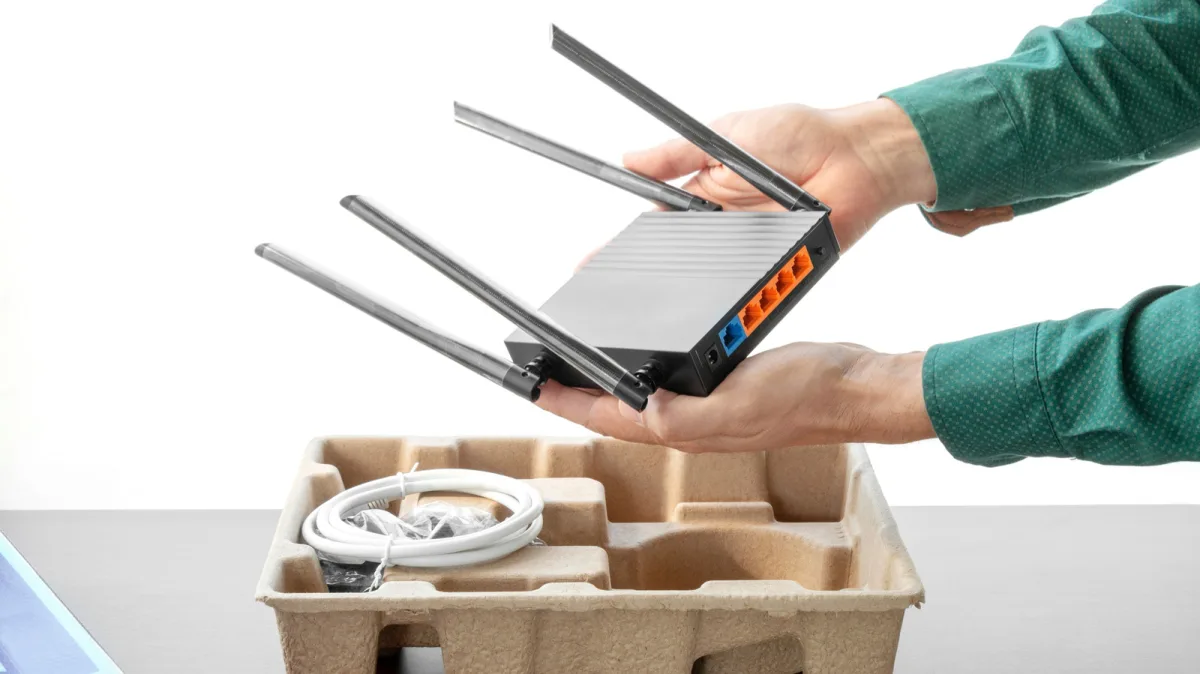
This ensures network-wide ad blocking, which eases the strain on device computing resources, saves data on capped plans, and stops obtrusive pop-ups on every device connected to your home network. - Repurpose an older router by enabling repeater mode wirelessly or connecting it to your primary router via an Ethernet cable.
This enables you to extend your Wi-Fi range into dead zones, turning the old hardware into a wireless repeater or a high-speed access point for better overall connectivity.
The Network-Level Security Shift
Moving ad-blocking and content filtering from individual browsers to the router's DNS settings represents a fundamental shift in home cybersecurity. Instead of installing extensions on every smartphone, tablet, and laptop, a network-wide DNS sinkhole neutralizes threats and trackers before they even reach the physical device.
This approach is particularly crucial for smart home environments. IoT devices like smart TVs and connected light bulbs often lack built-in ad blockers or robust security interfaces. By leveraging the router as the primary defense perimeter, users can protect vulnerable hardware from tracking and data exfiltration without requiring complex, device-level configurations.
This article was written by AI from reporting by slashgear.com.