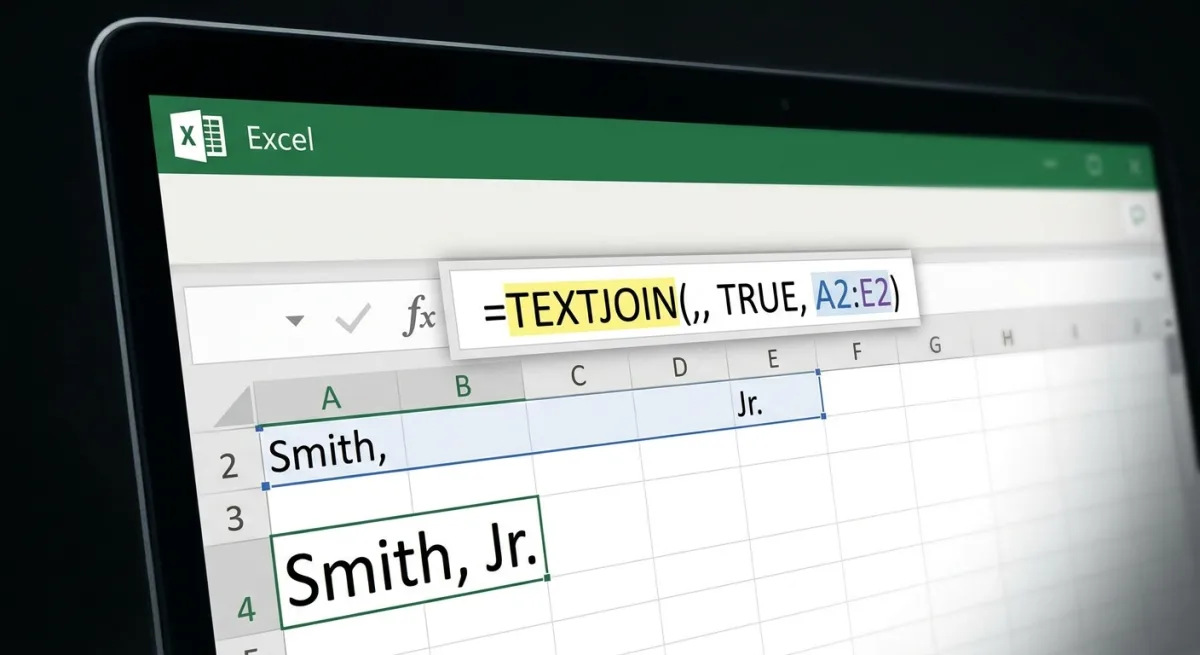
Anyone who works extensively in Excel knows the frustration of merging scattered data - like first and last names or fragmented addresses - into a single clean cell. For years, the standard approach relied on tedious ampersand chains or the CONCATENATE function, which often broke when encountering blank cells. The TEXTJOIN function eliminates this manual cleanup, turning a multi-step chore into a single, scalable formula.
By allowing users to set a universal delimiter and process entire ranges at once, this function removes the need to click individual cells. More importantly, it natively handles the messy edge cases that previously required manual scrubbing, saving hours of repetitive data formatting.
The Problem with Ampersands and CONCATENATE
Before modern array functions, combining text required writing rigid formulas. For a small merge, users typically relied on ampersand chains, manually entering every cell reference and separator.
=A2 & " " & B2 & " " & C2The CONCATENATE function performed the exact same task with slightly different syntax, but neither method scaled well. Joining 10 columns meant typing the delimiter 10 times, and a single missed quote mark would break the entire formula. Blank cells caused the most significant issues. If a middle name or an apartment number was missing, the ampersand chain still inserted its separator, leaving awkward gaps like "Smith,, Jones" that required manual correction.
Furthermore, inserting a new column in the middle of the dataset would slide the hardcoded cell references out of alignment. The formula would return a mangled string without triggering an error flag, making it incredibly difficult to track down mistakes in large spreadsheets.
How to Use the TEXTJOIN Function
The TEXTJOIN function solves these scaling issues by taking three required arguments: the delimiter, a rule for empty cells, and the text range. Instead of clicking cell after cell, you hand the function an entire block of data.
=TEXTJOIN(", ", TRUE, A2:E2)The first argument defines the delimiter - such as a space, a comma, or a line break - that will sit between each value. The second argument, ignore_empty, is the most critical feature. When set to TRUE, the function automatically skips empty cells, ensuring no stray separators ever appear in the final output. If you need the blanks to remain to match a fixed template, you can set it to FALSE.
The function works through each row from left to right, then moves down to the next row. It is fully supported in Excel 2019, 2021, 2024, and Microsoft 365 across both Windows and macOS. However, users should note one specific formatting catch: while numbers convert to text automatically, dates will appear as raw serial numbers. To preserve date formatting, you must wrap any date references in the TEXT function.
Advanced Pairings: FILTER, UNIQUE, and Regex
While powerful on its own, TEXTJOIN becomes a formidable tool when paired with Excel's dynamic arrays. By wrapping the FILTER function inside it, you can extract and combine only the rows that match specific criteria into a single cell. Similarly, using UNIQUE clears out duplicate entries from a range before the final join occurs.
For highly cluttered source data, modern text manipulation tools serve as the perfect preparation step. Functions like REGEXEXTRACT can pull specific order numbers out of messy strings, while REGEXREPLACE strips unwanted characters. Additionally, TRIMRANGE cuts out empty rows and columns that often pad imported data.
Users must keep two technical limits in mind. First, a single cell caps at 32,767 characters; exceeding this limit triggers a #VALUE! error. Second, a cell containing only a space is read as filled, not empty, so it is best practice to clear those using the TRIM function before running the join.
The Formula That Changes Data Pipelines
The introduction of TEXTJOIN represents a fundamental shift in how Excel handles text manipulation. By decoupling the delimiter from the cell references and natively handling empty states, Microsoft transformed what used to be a static, error-prone task into a dynamic data pipeline. It is no longer just a neat shortcut; it is a structural fix to everyday workflows.
When paired with modern array functions and regex tools, it bridges the gap between raw data dumps and presentation-ready reports. For professionals who spend hours prepping data, swapping outdated ampersand habits for this single function reclaims valuable time, proving that the most impactful software updates are often the ones that quietly eliminate our most tedious chores.