Unexplained Android battery drain and devices refusing to enter sleep mode are common frustrations that default system settings often fail to resolve. By identifying hidden wakelocks, users can finally stop rogue apps from keeping their screens and processors active overnight. Standard battery menus typically highlight screen time and basic app usage, but they lack the granular data required to diagnose deep-system power leaks. This forces users to rely on specialized third-party utilities to uncover the root cause of their power management issues.
One highly effective tool for this diagnostic process is the Battery Guru app, which has been a reliable utility since late 2019. The app provides a detailed breakdown of battery capacity, current, temperature, and discharge rates. It performs consistently across various hardware configurations, showing identical behavioral patterns on devices like the Google Pixel 8 and the Samsung Galaxy S25+. Monitoring device temperature is particularly crucial for users with thick protective cases or those using unverified chargers, as it helps prevent long-term hardware degradation.
Understanding Android Wakelocks
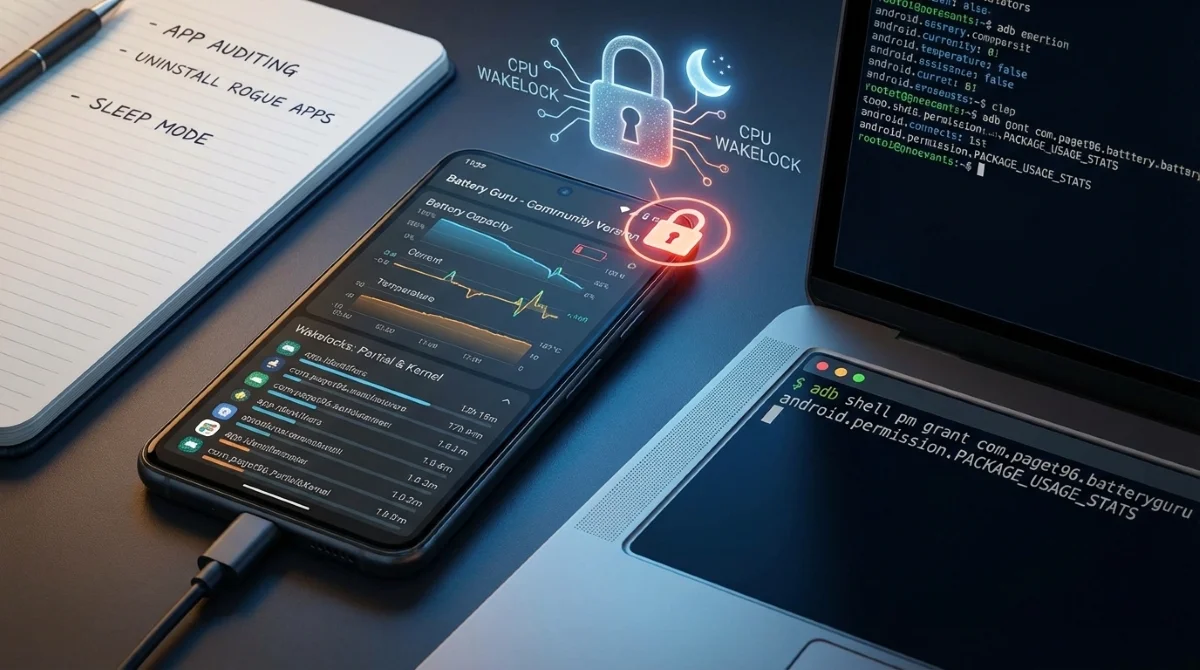
To effectively manage power consumption, it is essential to understand why wake locks exist within the operating system. A wakelock is a core Android power management mechanism designed to keep the CPU active, and sometimes the screen on, while specific tasks are running. For instance, when streaming a long video, a full wakelock prevents the device from entering deep sleep and interrupting the playback. Partial wakelocks allow the CPU to continue processing background tasks, such as refreshing app data, even when the screen is turned off.
While well-optimized applications utilize these permissions correctly, poorly coded apps can abuse them, leading to severe battery drain. If an app fails to release a wakelock, the device remains in an active state indefinitely. Identifying these specific offenders requires elevated system privileges that are not exposed through the standard Android settings menu.
How to Detect Wakelocks Using Battery Guru
To access advanced wakelock detection, users must bypass the standard Google Play Store release and utilize a specific build of the app. This process requires basic familiarity with command-line tools to grant the necessary system permissions.
- Download the Battery Guru Community version directly from the official Telegram channel of the developer.
- Connect your device to a computer and grant the required package usage statistics permission by executing the following ADB command:
adb shell pm grant com.paget96.batteryguru android.permission.PACKAGE_USAGE_STATS- Open the app and navigate to the Wakelocks card located under the Tools section.
- Review the separated lists for partial and kernel wakelocks to identify which specific apps or hardware-driven events are keeping the CPU awake.
- Force-close or completely uninstall the rogue applications that are consuming excessive power.
The Importance of App Auditing
Regularly auditing installed applications is a critical practice for maintaining both battery health and digital privacy. Users frequently accumulate apps that sit unused in folders, quietly consuming background resources or changing ownership without transparent data policies. A stark reminder of this risk occurred with browser add-ons like the Save Image as Type extension, which eventually turned malicious after users failed to audit their active extensions.
Applying this same scrutiny to Android apps ensures that only trusted, actively used software retains access to system resources. Disposing of unnecessary applications not only reclaims storage space but also minimizes the risk of subtle battery drain caused by unoptimized background processes.
My Take: The Gap in Native Android Diagnostics
The necessity of using the Battery Guru Community version and executing manual ADB commands highlights a persistent gap in native Android diagnostics. While Google has made significant strides in user-facing battery menus, the operating system still shields critical power management data from the average user. Hiding wakelock statistics behind developer-level permissions is a double-edged sword; it prevents novice users from accidentally breaking system functions, but it leaves power users blind when troubleshooting rogue apps on premium devices like the Samsung Galaxy S25+.
Furthermore, the reliance on a Telegram-distributed Community version underscores the limitations imposed by modern app store policies. Developers are increasingly forced to host their most powerful diagnostic tools outside official channels due to restrictive API access rules. Until Android integrates native, user-friendly wakelock tracking, auditing tools like Battery Guru will remain essential for anyone serious about maximizing their device's longevity and performance.
This article was written by AI from reporting by androidpolice.com.