For years, users have battled a bloated operating system stuffed with forced AI integrations and intrusive ads, but the new Windows 11 2026 updates are finally reversing the damage. After widespread backlash against the cluttered interface and performance drops, Microsoft has pivoted its strategy to focus on core reliability and user control. Instead of adding more unrequested features, the latest patches allow you to strip away the bloat, speed up your menus, and reclaim your workspace.
To help you optimize your system, here are the seven critical adjustments you can now make to restore your PC's performance.
- Pause Windows updates indefinitely in 35-day increments by navigating to Settings > Windows Update > Pause updates.
This ensures your workflow is never interrupted by forced reboots during critical projects, giving you total control over when patches are installed. - Move and resize your taskbar to the top, left, or right of your screen via Settings > Personalization > Taskbar > Taskbar behaviors.
This enables a customized workspace with automatically adapting menus and icon alignments, officially restoring a highly requested Windows 10 feature without needing registry hacks. - Disable web results in Windows Search for a faster, cleaner local experience by going to Settings > Privacy & Security > Search.
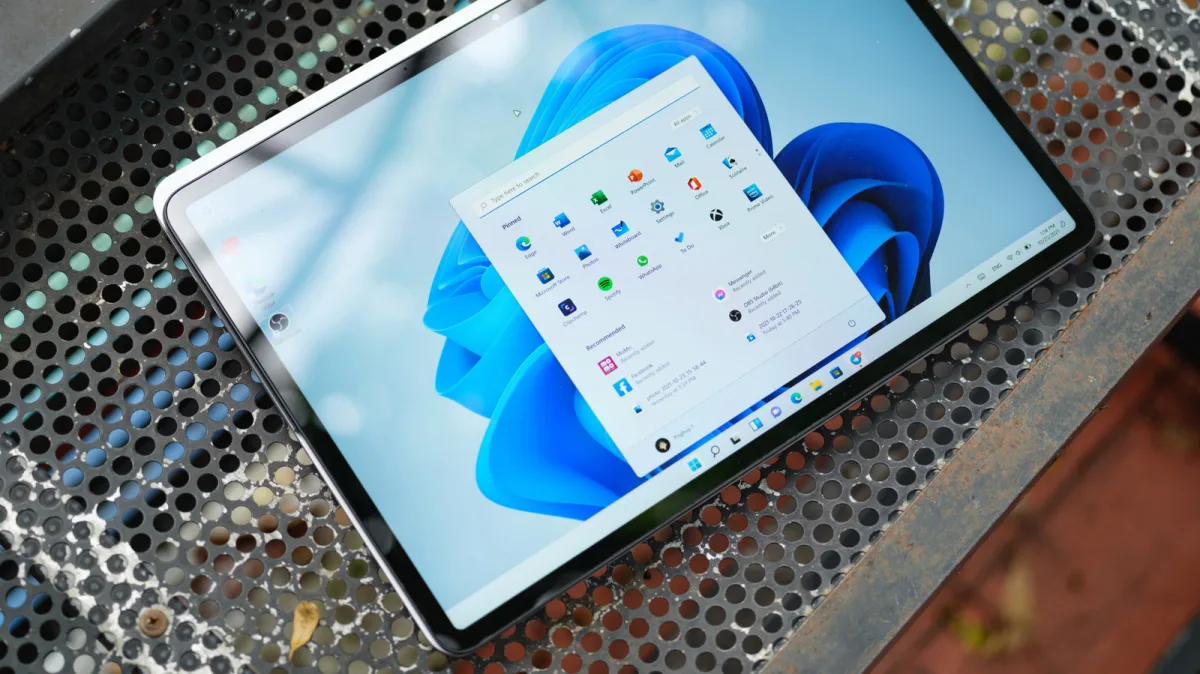
This ensures your search prioritizes local apps and files instantly, completely removing Bing ads and promoted web content from your results. - Customize your Start menu to remove bloatware and recommended apps via Settings > Personalization > Start.
This enables a minimalist interface where only your pinned apps are visible, eliminating unwanted suggestions and recent file clutter. - Remove intrusive Copilot buttons from the taskbar and native apps like Notepad and Photos via Settings > Personalization > Taskbar > Copilot.
This restores a traditional, distraction-free interface for users who prefer standard tools over forced AI integration. - Skip forced updates and Microsoft account prompts during the initial Windows setup process.
This ensures a significantly faster, ad-free installation experience when setting up a new PC or reinstalling the operating system. - Enable Point-in-time restore to create comprehensive system backups via Settings > System > Recovery > Point-in-time restore.
This enables you to roll back your entire OS, apps, and files in minutes from the Windows Recovery Environment if a driver or update causes a critical failure.
The Cost of Reclaiming the Desktop
The 2026 pivot represents a rare moment of a major tech giant walking back its aggressive monetization strategy. For the past two years, Microsoft treated the desktop as a billboard, forcing Copilot and Bing web results into every corner of the UI to drive engagement metrics. By finally allowing users to natively kill web results in Windows Search, the company is actively sacrificing ad revenue to appease a frustrated user base.
This retreat signals that the enterprise and power-user markets were nearing a breaking point. The "microslop" meme wasn't just online complaining; it reflected a genuine threat to Windows' dominance as a productivity tool. By giving users the native ability to strip out AI and ads, Microsoft is acknowledging that an operating system's primary job is to get out of the user's way, not to serve as a constant upsell engine.
This article was written by AI from reporting by slashgear.com.